Free online image unpadder. Just drag and drop your image here, and it will automatically strip away the padded sides. You can specify how much padding to remove from each side and select the output image format. Created by engineers from team Browserling.
Free online image unpadder. Just drag and drop your image here, and it will automatically strip away the padded sides. You can specify how much padding to remove from each side and select the output image format. Created by engineers from team Browserling.

This tool unpads images by removing the surrounding padding that frames the visual content. Unpadding works by removing a specified amount from the perimeter, making it ideal for fixing screenshots with excess whitespace, cleaning up scanned paper edges, or removing decorative borders. The options let you define the padding thickness for the left, right, top, and bottom independently, so uneven borders or mismatched paddings can be corrected with precision. You can configure these removal areas directly in the interactive preview, which clearly highlights the regions to be deleted and the parts that will remain. If the first attempt still leaves padding, simply activate the repeat option and rerun the unpad operation on the already-trimmed image. After the unpadding is complete, you can download the refined image in PNG, JPEG, or WebP format. If you actually need to go in the opposite direction and add some padding to your image, try our Pad Image tool. Image-abulous!
This tool unpads images by removing the surrounding padding that frames the visual content. Unpadding works by removing a specified amount from the perimeter, making it ideal for fixing screenshots with excess whitespace, cleaning up scanned paper edges, or removing decorative borders. The options let you define the padding thickness for the left, right, top, and bottom independently, so uneven borders or mismatched paddings can be corrected with precision. You can configure these removal areas directly in the interactive preview, which clearly highlights the regions to be deleted and the parts that will remain. If the first attempt still leaves padding, simply activate the repeat option and rerun the unpad operation on the already-trimmed image. After the unpadding is complete, you can download the refined image in PNG, JPEG, or WebP format. If you actually need to go in the opposite direction and add some padding to your image, try our Pad Image tool. Image-abulous!
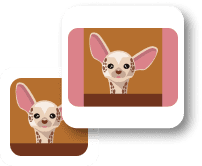
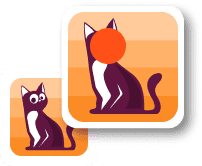
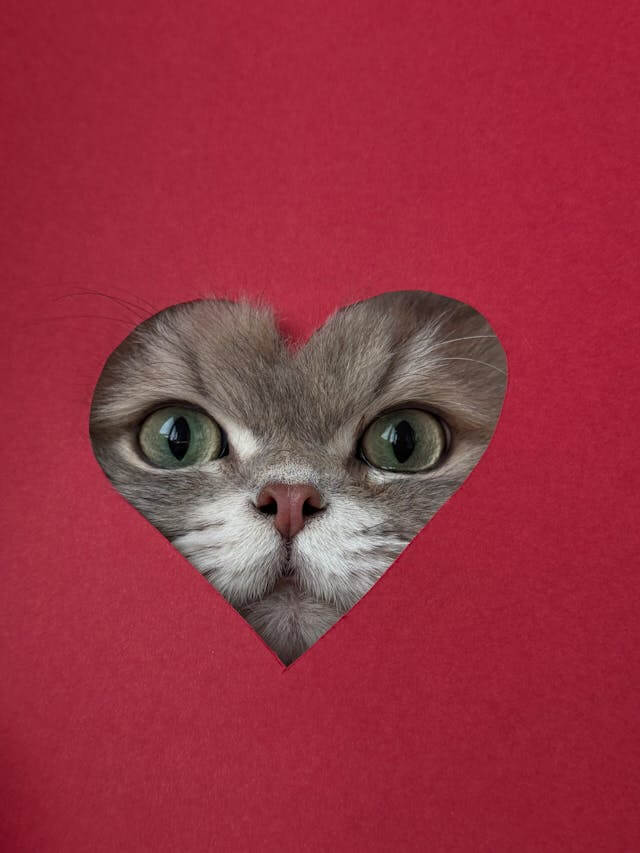
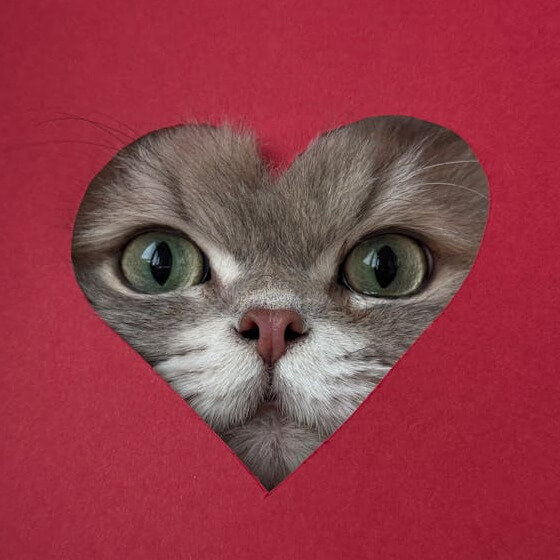
In this example, we remove excess padding around the image to make it a perfect square. We trim 33 pixels from the left, 77 from the right, 175 from the top, and 118 from the bottom. After removing these margins, the image becomes a balanced 560×560 square that focuses entirely on the cat inside the heart-shaped cutout. (Source: Pexels.)
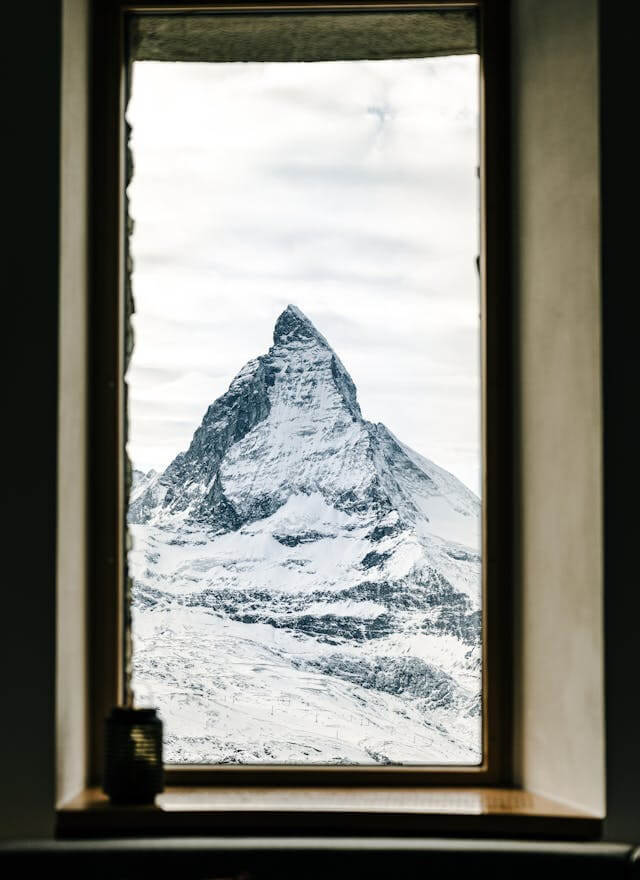
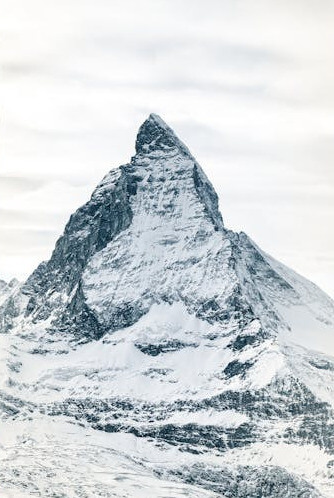
This example removes the surrounding padding from a photo taken through a window. It adjusts the cropping area to exclude the window frame and keep only the view outside. The result is a simpler image focused entirely on the mountains and sky. (Source: Pexels.)
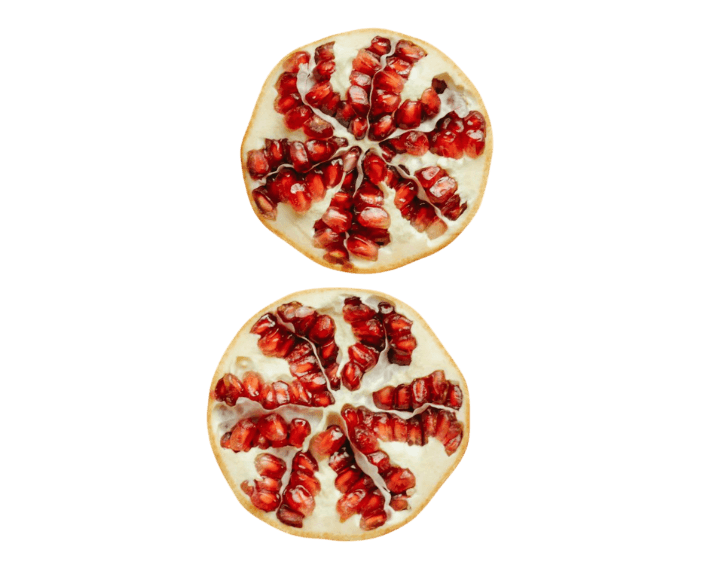
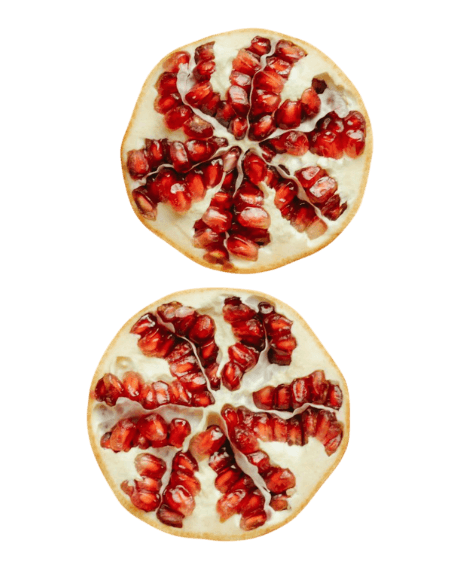
In this example, we remove empty transparent space from the sides of the image. We crop 120 pixels from both the left and right edges, keeping the top and bottom edges unchanged. This reduces the overall width and centers attention on the ripe pomegranates in the middle of the image. (Source: Pexels.)
Edit images in your browser.
Place images on a grid so that they make a Fibonacci spiral.
Convert a PNG image to an ICO icon.
Convert an ICO icon to a PNG image.
Convert a PNG image to a TIFF image.
Convert a TIFF image to a PNG image.
Convert a JPEG image to an ICO icon.
Convert an ICO icon to a JPEG image.
Convert a JPEG image to a TIFF image.
Convert a TIFF image to a JPEG image.
Convert a GIF image to an ICO icon.
Convert an ICO icon to a GIF image.
Convert a GIF image to a TIFF image.
Convert a TIFF image to a GIF image.
Convert a GIF image to an APNG icon.
Convert an APNG image to a PNG image.
Convert a bitmap image to an ICO icon.
Convert an ICO icon to a bitmap image.
Convert a bitmap image to a TIFF image.
Convert a TIFF image to a bitmap image.
Convert a Webp image to an ICO icon.
Convert an ICO icon to a Webp image.
Convert a Webp image to a TIFF image.
Convert a TIFF image to a Webp image.
Create an animated GIF image from static frames.
Create an image from an B, G, R array.
Create an image from an R, G, B, A array.
Create an image from an B, G, R, A array.
Increase the quality of an image.
Decrease the quality of an image.
Remove the pixelation effect from an image.
Remove the blur effect from an image.
Apply OCR on an image and extract all text from it.
Erase text or label from an image.
Erase any object from an image.
Convert an image to a thumbnail
Convert a PNG, GIF, JPG or BMP to glitch art.
Let Zalgo destroy an image.
Change an image color space to HSL, HSV, CMYK, or RGB.
Create a mosaic wall from multiple images.
Create an ASCII art image from a regular image.
Create an ANSI art image from a regular image.
Create a Unicode art image from a regular image.
Create a Braille art image from a regular image.
Add a short one-line label to an image.
Remove a watermark from an image.
Create an image made out of dots of varying size and spacing.
Convert an image to a bunch of blocks.
Create a GIF from the original image with interlacing effect.
Subscribe to our updates. We'll let you know when we release new tools and features, and when we organize online workshops.
Enter your email here
We're Browserling — a friendly and fun cross-browser testing company powered by alien technology. At Browserling we love to make people's lives easier, so we created this collection of image editing tools. Our tools have the simplest user interface that doesn't require advanced computer skills and they are used by millions of people every month. Our image tools are actually powered by our web developer tools that we created over the last couple of years. Check them out!