Free online image bit depth converter. Just drag and drop your image here, and it will automatically convert it to the selected bit depth. In the options, you can choose a 32-bit, 24-bit, 16-bit, 8-bit, 4-bit, 2-bit, or 1-bit mode. You can also create color or grayscale images in lower-bit modes, apply dithering, and export the result as a PNG, JPEG, WebP, or BMP file. Created by engineers from team Browserling.
Free online image bit depth converter. Just drag and drop your image here, and it will automatically convert it to the selected bit depth. In the options, you can choose a 32-bit, 24-bit, 16-bit, 8-bit, 4-bit, 2-bit, or 1-bit mode. You can also create color or grayscale images in lower-bit modes, apply dithering, and export the result as a PNG, JPEG, WebP, or BMP file. Created by engineers from team Browserling.
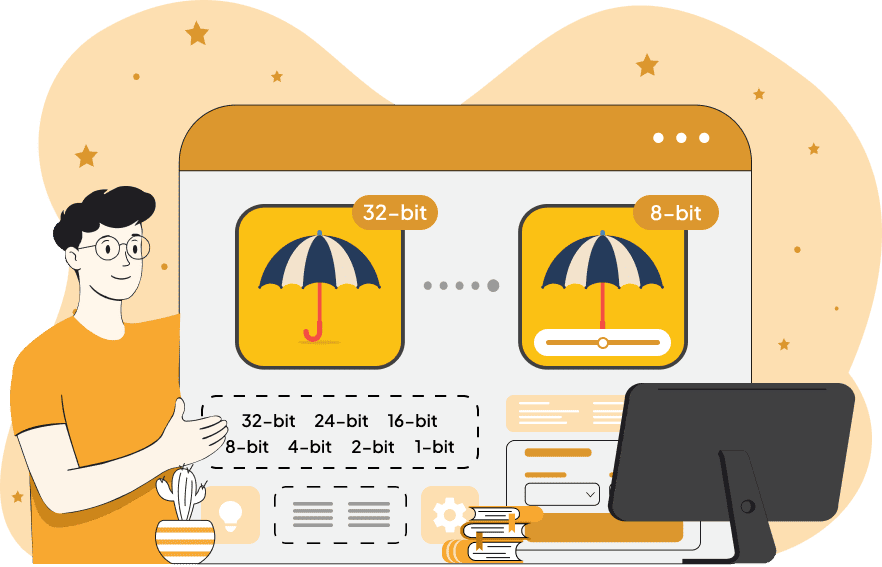
This tool changes the color precision of an image to match a selected bit depth. A higher bit depth allows more distinct color values, while a lower bit depth groups similar colors together and gives the image a simpler appearance. In the 32-bit and 24-bit modes, the red, green, and blue channels keep their full 8-bit precision, so the original color range is preserved. The 32-bit mode also allows an alpha component for transparency, while 24-bit color uses only the three RGB channels. The 16-bit modes reduce the precision of these channels more noticeably. In the 5-6-5 layout, red and blue use 5 bits each and green uses 6 bits. The 5-5-5 layout gives red, green, and blue the same 5-bit precision. At lower bit depths, the tool switches from reducing individual channel precision to limiting the number of colors in the image. An 8-bit image can contain up to 256 colors, a 4-bit image up to 16, a 2-bit image up to 4, and a 1-bit image only 2. These modes can also create grayscale images by replacing the color palette with shades of gray. You can choose how the original colors are converted to grayscale using an average or perceptual brightness method. For 4-bit, 2-bit, and 1-bit modes, you can also apply dithering. Instead of replacing an area with a single nearest color, dithering distributes different available colors across nearby pixels, creating patterns that visually create intermediate tones. You can select Floyd-Steinberg, Atkinson, Jarvis, Burkes, Sierra, and several other dithering patterns in the options. After the color conversion, the processed image can be saved as PNG, JPEG, WebP, or BMP. Image-abulous!
This tool changes the color precision of an image to match a selected bit depth. A higher bit depth allows more distinct color values, while a lower bit depth groups similar colors together and gives the image a simpler appearance. In the 32-bit and 24-bit modes, the red, green, and blue channels keep their full 8-bit precision, so the original color range is preserved. The 32-bit mode also allows an alpha component for transparency, while 24-bit color uses only the three RGB channels. The 16-bit modes reduce the precision of these channels more noticeably. In the 5-6-5 layout, red and blue use 5 bits each and green uses 6 bits. The 5-5-5 layout gives red, green, and blue the same 5-bit precision. At lower bit depths, the tool switches from reducing individual channel precision to limiting the number of colors in the image. An 8-bit image can contain up to 256 colors, a 4-bit image up to 16, a 2-bit image up to 4, and a 1-bit image only 2. These modes can also create grayscale images by replacing the color palette with shades of gray. You can choose how the original colors are converted to grayscale using an average or perceptual brightness method. For 4-bit, 2-bit, and 1-bit modes, you can also apply dithering. Instead of replacing an area with a single nearest color, dithering distributes different available colors across nearby pixels, creating patterns that visually create intermediate tones. You can select Floyd-Steinberg, Atkinson, Jarvis, Burkes, Sierra, and several other dithering patterns in the options. After the color conversion, the processed image can be saved as PNG, JPEG, WebP, or BMP. Image-abulous!
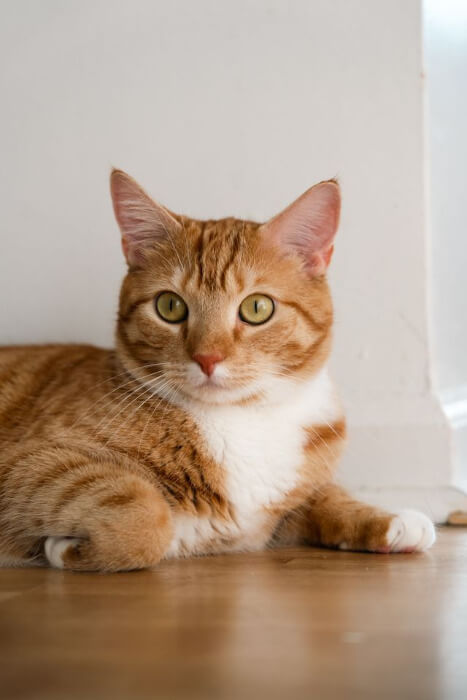
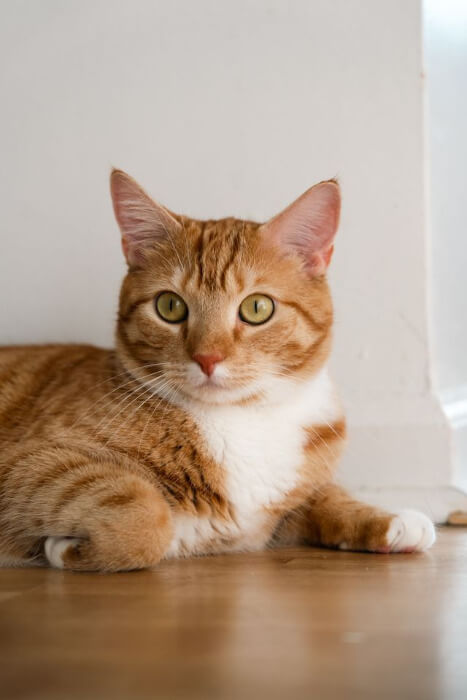
In this example, we convert a 24-bit RGB photograph of a tabby cat into a 32-bit RGBA image. The red, green, and blue channels retain their full 8-bit precision, while the alpha channel indicates full opacity across the image. As no color precision is lost, the cat's orange fur, green eyes, and softly shaded background look the same in the output. (Source: Pexels.)
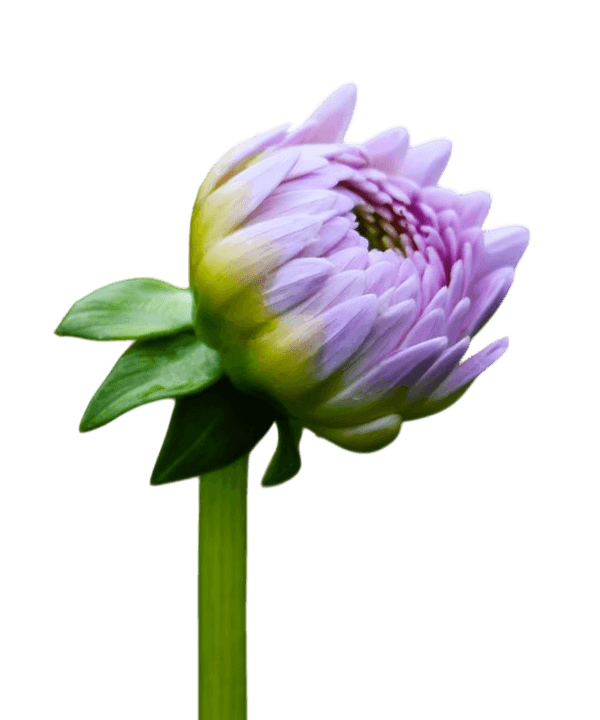
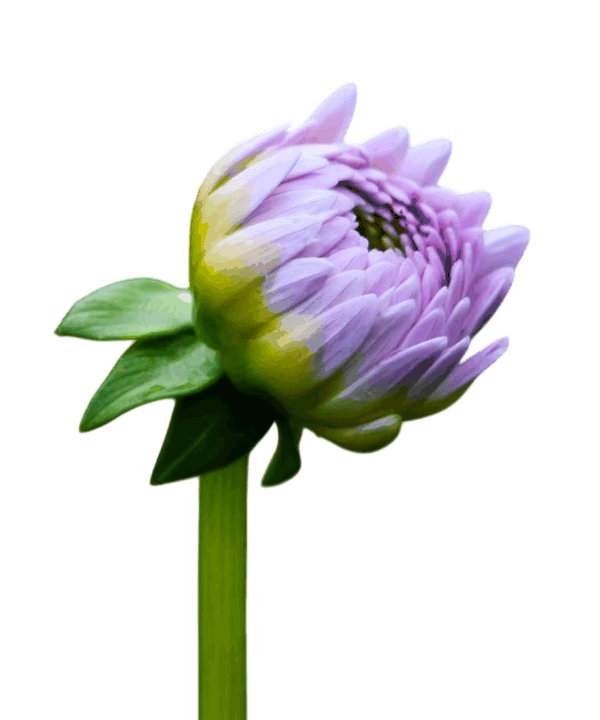
In this example, we convert a transparent dahlia bud to an 8-bit color image, limiting its palette to 256 colors. With fewer shades available, the smooth lavender and green gradients break into small pixel-shaped color regions. The transparent space around the flower is preserved, so we export the converted image as a PNG. (Source: Pexels.)
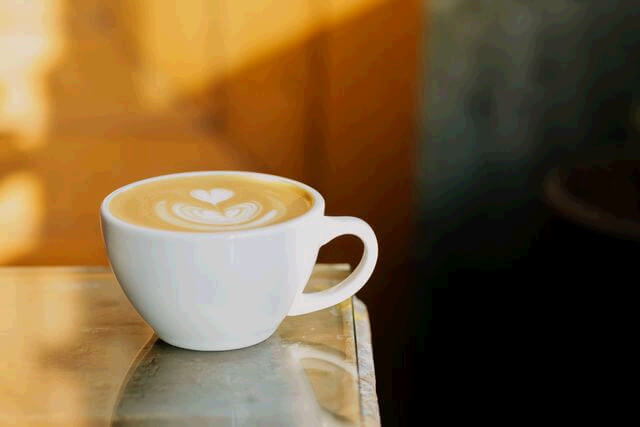
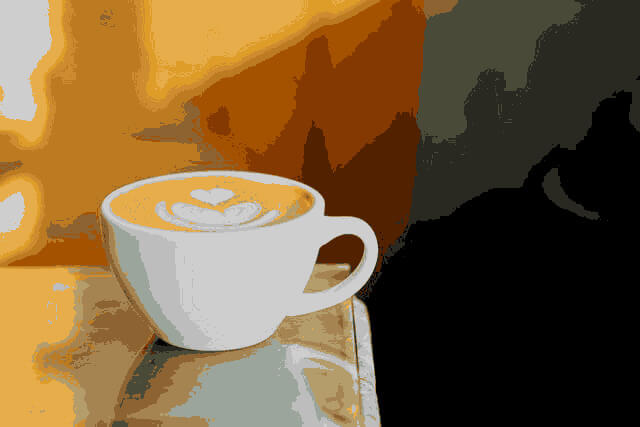
In this example, the input image already uses 16-bit RGB 5-5-5 color, which slightly simplifies the smooth shading on the rounded white cup and the blurred cafe background. We reduce it further to a 4-bit palette containing just 16 colors. This strong color limit replaces continuous gradients with large, sharply separated patches across the cup, table reflection, and background, creating strong posterization. (Source: Pexels.)
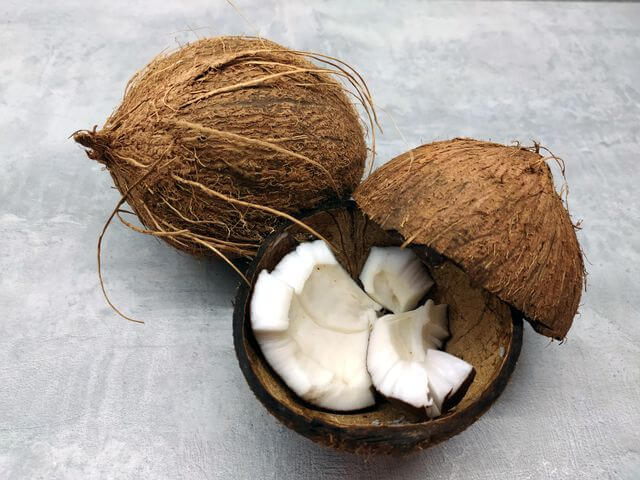
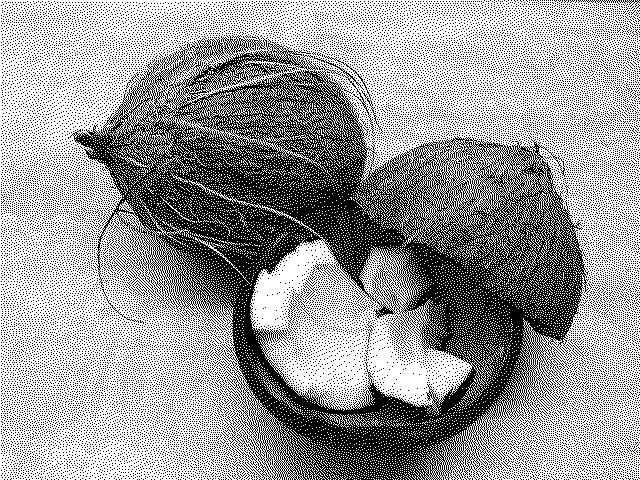
In this example, we convert a coconut photo to a 1-bit grayscale image, so every pixel can store only one of two values, 0 or 1, represented by black and white. We calculate brightness using the perceptual sRGB formula and apply Atkinson dithering, which arranges the two colors into a fine dot pattern to simulate missing gray shades. Even with just two colors, the shell textures, bright coconut flesh, and object outlines remain clear enough to make the coconuts immediately recognizable. (Source: Pexels.)
Edit images in your browser.
Place images on a grid so that they make a Fibonacci spiral.
Convert a PNG image to an ICO icon.
Convert an ICO icon to a PNG image.
Convert a PNG image to a TIFF image.
Convert a TIFF image to a PNG image.
Convert a JPEG image to an ICO icon.
Convert an ICO icon to a JPEG image.
Convert a JPEG image to a TIFF image.
Convert a TIFF image to a JPEG image.
Convert a GIF image to an ICO icon.
Convert an ICO icon to a GIF image.
Convert a GIF image to a TIFF image.
Convert a TIFF image to a GIF image.
Convert a GIF image to an APNG icon.
Convert an APNG image to a PNG image.
Convert a bitmap image to an ICO icon.
Convert an ICO icon to a bitmap image.
Convert a bitmap image to a TIFF image.
Convert a TIFF image to a bitmap image.
Convert a Webp image to an ICO icon.
Convert an ICO icon to a Webp image.
Convert a Webp image to a TIFF image.
Convert a TIFF image to a Webp image.
Create an animated GIF image from static frames.
Create an image from an B, G, R array.
Create an image from an R, G, B, A array.
Create an image from an B, G, R, A array.
Increase the quality of an image.
Decrease the quality of an image.
Remove the pixelation effect from an image.
Remove the blur effect from an image.
Apply OCR on an image and extract all text from it.
Erase text or label from an image.
Erase any object from an image.
Convert an image to a thumbnail
Convert a PNG, GIF, JPG or BMP to glitch art.
Let Zalgo destroy an image.
Change an image color space to HSL, HSV, CMYK, or RGB.
Create a mosaic wall from multiple images.
Create an ASCII art image from a regular image.
Create an ANSI art image from a regular image.
Create a Unicode art image from a regular image.
Create a Braille art image from a regular image.
Add a short one-line label to an image.
Remove a watermark from an image.
Create an image made out of dots of varying size and spacing.
Convert an image to a bunch of blocks.
Create a GIF from the original image with interlacing effect.
Subscribe to our updates. We'll let you know when we release new tools and features, and when we organize online workshops.
Enter your email here
We're Browserling — a friendly and fun cross-browser testing company powered by alien technology. At Browserling we love to make people's lives easier, so we created this collection of image editing tools. Our tools have the simplest user interface that doesn't require advanced computer skills and they are used by millions of people every month. Our image tools are actually powered by our web developer tools that we created over the last couple of years. Check them out!