Free online image byte printer. Just drag and drop your image here, and it will automatically display every pixel as decimal or hexadecimal channel bytes. You can choose the color channel order, include alpha bytes, and customize hexadecimal formatting. You can also organize the output as flat or nested arrays with custom brackets and delimiters. Created by engineers from team Browserling.
Free online image byte printer. Just drag and drop your image here, and it will automatically display every pixel as decimal or hexadecimal channel bytes. You can choose the color channel order, include alpha bytes, and customize hexadecimal formatting. You can also organize the output as flat or nested arrays with custom brackets and delimiters. Created by engineers from team Browserling.

This tool prints the color bytes of every pixel in an image. It works with common image formats, including JPG, PNG, WebP, GIF, and BMP. Color bytes can be printed in decimal notation, using values from 0 to 255, or in hexadecimal notation, using values from 00 to ff. For example, a crimson pixel with RGB values (220, 20, 60) can be represented as "220, 20, 60" or "dc, 14, 3c". Hexadecimal values can also be prefixed with 0x and printed with uppercase letters. The program also lets you change the channel arrangement. Besides standard RGB order, it supports RBG, GRB, GBR, BRG, and BGR. If the source image has transparency, you can output its alpha values together with the color channels. Alpha is written after the three selected color bytes and ranges from 0 for a completely transparent pixel to 255 for a completely opaque pixel. The byte output can be organized as an unwrapped sequence, one flat array, separate arrays for individual pixels, arrays corresponding to image rows, or nested row structures containing pixel arrays. The array brackets can be changed to square, round, curly, or angle brackets. You can choose separate delimiters for bytes within a pixel and for neighboring pixels. You can also insert a line break at the end of every source-image row so that the textual output follows the image's original horizontal dimensions. This preserves the row structure of the image and makes it easier to see which bytes belong to each horizontal line. If you'd like to turn pixel bytes back into an image, use the Create an Image from Bytes tool. Image-abulous!
This tool prints the color bytes of every pixel in an image. It works with common image formats, including JPG, PNG, WebP, GIF, and BMP. Color bytes can be printed in decimal notation, using values from 0 to 255, or in hexadecimal notation, using values from 00 to ff. For example, a crimson pixel with RGB values (220, 20, 60) can be represented as "220, 20, 60" or "dc, 14, 3c". Hexadecimal values can also be prefixed with 0x and printed with uppercase letters. The program also lets you change the channel arrangement. Besides standard RGB order, it supports RBG, GRB, GBR, BRG, and BGR. If the source image has transparency, you can output its alpha values together with the color channels. Alpha is written after the three selected color bytes and ranges from 0 for a completely transparent pixel to 255 for a completely opaque pixel. The byte output can be organized as an unwrapped sequence, one flat array, separate arrays for individual pixels, arrays corresponding to image rows, or nested row structures containing pixel arrays. The array brackets can be changed to square, round, curly, or angle brackets. You can choose separate delimiters for bytes within a pixel and for neighboring pixels. You can also insert a line break at the end of every source-image row so that the textual output follows the image's original horizontal dimensions. This preserves the row structure of the image and makes it easier to see which bytes belong to each horizontal line. If you'd like to turn pixel bytes back into an image, use the Create an Image from Bytes tool. Image-abulous!
In this example, we print the pixels of a JPG photo of a happy dog leaning out of a car window as decimal RGB bytes. Each pixel is written as a three-value RGB array, and all pixel arrays are placed inside one outer array. We use the familiar array format with square brackets and comma separators, making the result easy to read and reuse in code. (Source: Pexels.)

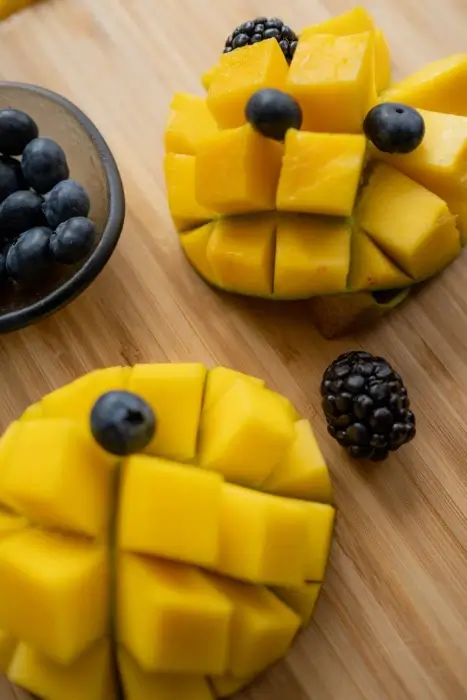
In this example, we convert a WebP image of sliced mangoes, blueberries, and blackberries into BGR (blue-green-red) hexadecimal byte data. Each byte uses a 0x prefix, slashes separate the blue, green, and red values, and spaces separate neighboring pixels. Instead of standard square brackets and commas, we use angle brackets and custom delimiters to create an unusual pixel-array format. (Source: Pexels.)
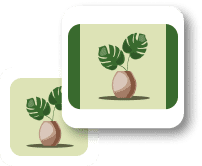
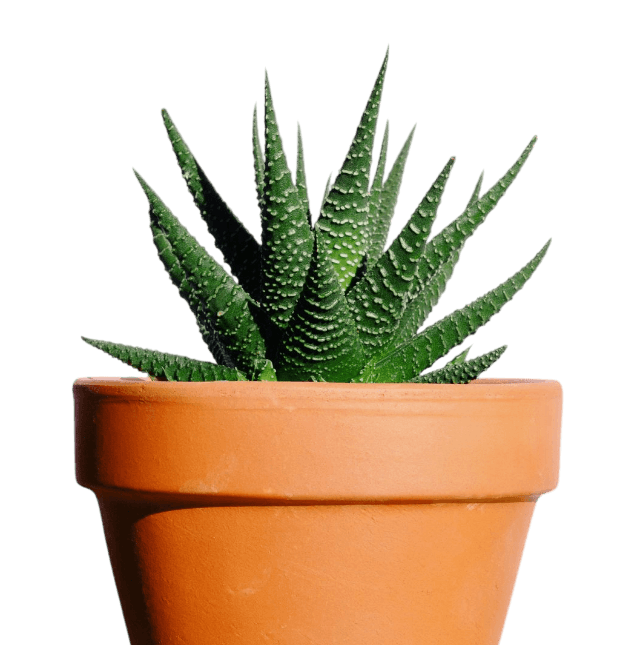
In this example, we display the bytes of a transparent PNG containing a succulent plant in a pot. We use decimal RGB order and include an alpha byte so that the empty background and the visible plant and pot retain their opacity values. We use periods to separate the four bytes of each pixel, spaces to separate neighboring pixels, and line breaks to divide the output into rows of 620 pixels to match the image width. (Source: Pexels.)
Edit images in your browser.
Place images on a grid so that they make a Fibonacci spiral.
Convert a PNG image to an ICO icon.
Convert an ICO icon to a PNG image.
Convert a PNG image to a TIFF image.
Convert a TIFF image to a PNG image.
Convert a JPEG image to an ICO icon.
Convert an ICO icon to a JPEG image.
Convert a JPEG image to a TIFF image.
Convert a TIFF image to a JPEG image.
Convert a GIF image to an ICO icon.
Convert an ICO icon to a GIF image.
Convert a GIF image to a TIFF image.
Convert a TIFF image to a GIF image.
Convert a GIF image to an APNG icon.
Convert an APNG image to a PNG image.
Convert a bitmap image to an ICO icon.
Convert an ICO icon to a bitmap image.
Convert a bitmap image to a TIFF image.
Convert a TIFF image to a bitmap image.
Convert a Webp image to an ICO icon.
Convert an ICO icon to a Webp image.
Convert a Webp image to a TIFF image.
Convert a TIFF image to a Webp image.
Create an animated GIF image from static frames.
Create an image from an B, G, R array.
Create an image from an R, G, B, A array.
Create an image from an B, G, R, A array.
Increase the quality of an image.
Decrease the quality of an image.
Remove the pixelation effect from an image.
Remove the blur effect from an image.
Apply OCR on an image and extract all text from it.
Erase text or label from an image.
Erase any object from an image.
Convert an image to a thumbnail
Convert a PNG, GIF, JPG or BMP to glitch art.
Let Zalgo destroy an image.
Change an image color space to HSL, HSV, CMYK, or RGB.
Create a mosaic wall from multiple images.
Create an ASCII art image from a regular image.
Create an ANSI art image from a regular image.
Create a Unicode art image from a regular image.
Create a Braille art image from a regular image.
Add a short one-line label to an image.
Remove a watermark from an image.
Create an image made out of dots of varying size and spacing.
Convert an image to a bunch of blocks.
Create a GIF from the original image with interlacing effect.
Subscribe to our updates. We'll let you know when we release new tools and features, and when we organize online workshops.
Enter your email here
We're Browserling — a friendly and fun cross-browser testing company powered by alien technology. At Browserling we love to make people's lives easier, so we created this collection of image editing tools. Our tools have the simplest user interface that doesn't require advanced computer skills and they are used by millions of people every month. Our image tools are actually powered by our web developer tools that we created over the last couple of years. Check them out!