Free online sliding image creator. Just upload an image into the input area, and the program will automatically turn it into a moving slide animation. You can choose the sliding direction, set the movement speed, add pauses, enable smooth starts and finishes, and export the result as an animated image. Created by engineers from team Browserling.
Free online sliding image creator. Just upload an image into the input area, and the program will automatically turn it into a moving slide animation. You can choose the sliding direction, set the movement speed, add pauses, enable smooth starts and finishes, and export the result as an animated image. Created by engineers from team Browserling.

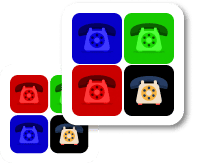
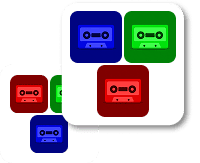
This tool converts a static image into an animated slideshow. Instead of leaving the uploaded image fixed in place, it places the image on a moving canvas and generates a GIF in which the image travels horizontally or vertically. This is useful for creating product panels, animated promo visuals, story-style transitions, and other elements where the image needs to move across the frame or smoothly leave the screen. In the options, you can control how fast the image moves. The numeric speed value defines the step distance between animation frames. A smaller value creates a slower slide, while a larger value makes the image cover more distance per frame and complete the slide faster. The direction option determines the movement path: the image can slide from left to right, right to left, top to bottom, or bottom to top. The animation style controls how the image moves across the canvas. Endless Slide cyclically shifts the image so it continuously re-enters from the opposite side. Slide In Overlay moves a duplicate of the image over the original, creating a layered entry effect. Slide Out Overlay moves the top layer away to reveal the underlying copy of the image. Discrete Slide In and Discrete Slide Out split the animation into distinct steps, where each slide enters, can optionally pause, and then exits before the next cycle. You can add a pause after each complete slide, which keeps the final frame visible for a short time before the motion continues. The easing option smooths the animation by slowing it down at the beginning and near the end, making the movement feel more natural. You can also insert a divider line at the slide boundary to mark where one panel ends, and the next begins, with customizable color and thickness. The transparency color defines which color is treated as fully transparent in the exported GIF. Because GIF supports only a single transparent color, all pixels that match it become invisible in the output GIF. The options also display file details such as frame count, frame delays, and dimensions. If the animation generates too many frames, the resulting GIF may be large and slow to download. In such cases, consider resizing the source image before generating the animation, using the Resize Image tool. Image-abulous!
This tool converts a static image into an animated slideshow. Instead of leaving the uploaded image fixed in place, it places the image on a moving canvas and generates a GIF in which the image travels horizontally or vertically. This is useful for creating product panels, animated promo visuals, story-style transitions, and other elements where the image needs to move across the frame or smoothly leave the screen. In the options, you can control how fast the image moves. The numeric speed value defines the step distance between animation frames. A smaller value creates a slower slide, while a larger value makes the image cover more distance per frame and complete the slide faster. The direction option determines the movement path: the image can slide from left to right, right to left, top to bottom, or bottom to top. The animation style controls how the image moves across the canvas. Endless Slide cyclically shifts the image so it continuously re-enters from the opposite side. Slide In Overlay moves a duplicate of the image over the original, creating a layered entry effect. Slide Out Overlay moves the top layer away to reveal the underlying copy of the image. Discrete Slide In and Discrete Slide Out split the animation into distinct steps, where each slide enters, can optionally pause, and then exits before the next cycle. You can add a pause after each complete slide, which keeps the final frame visible for a short time before the motion continues. The easing option smooths the animation by slowing it down at the beginning and near the end, making the movement feel more natural. You can also insert a divider line at the slide boundary to mark where one panel ends, and the next begins, with customizable color and thickness. The transparency color defines which color is treated as fully transparent in the exported GIF. Because GIF supports only a single transparent color, all pixels that match it become invisible in the output GIF. The options also display file details such as frame count, frame delays, and dimensions. If the animation generates too many frames, the resulting GIF may be large and slow to download. In such cases, consider resizing the source image before generating the animation, using the Resize Image tool. Image-abulous!
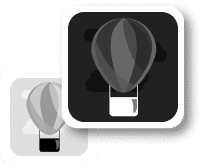
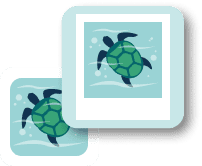
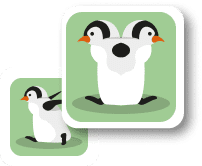
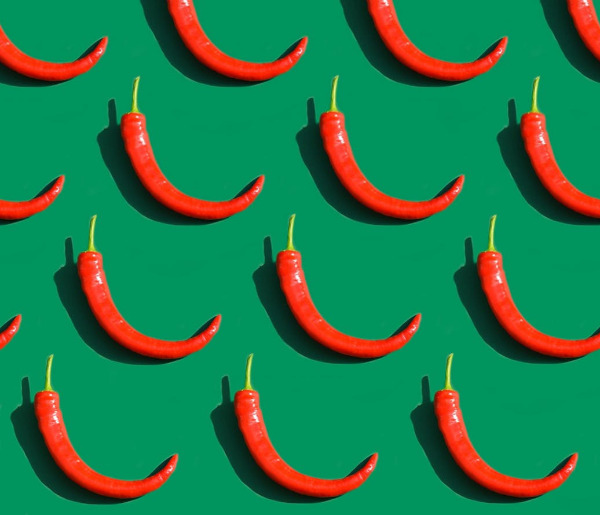
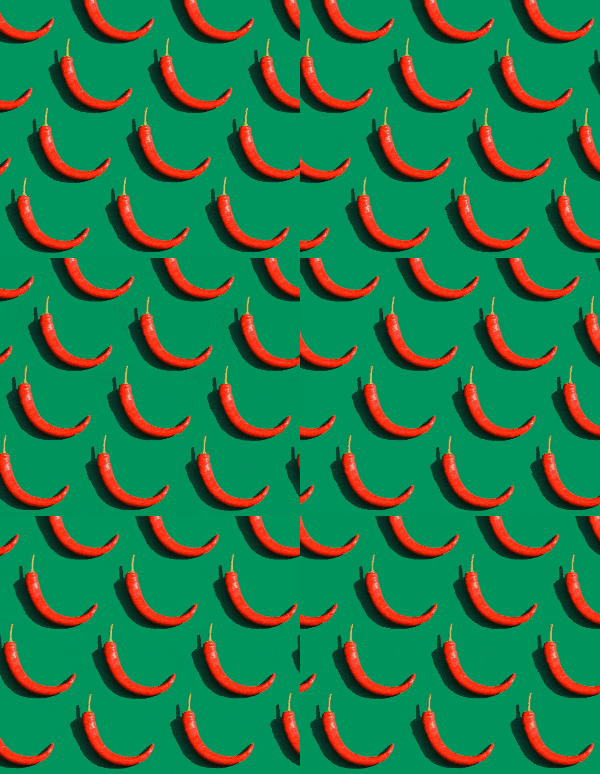
In this example, we create a seamless sliding animation from a symmetric image. Because the left and right edges match visually, the image can move from right to left in continuous slide mode without showing a visible join between repetitions. We set the speed to 5 pixels per frame and don't add a separator or pause, so the result looks like an endless moving pattern. (Source: Pexels.)
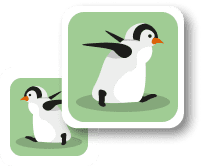
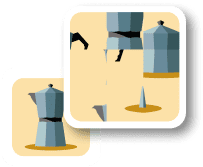
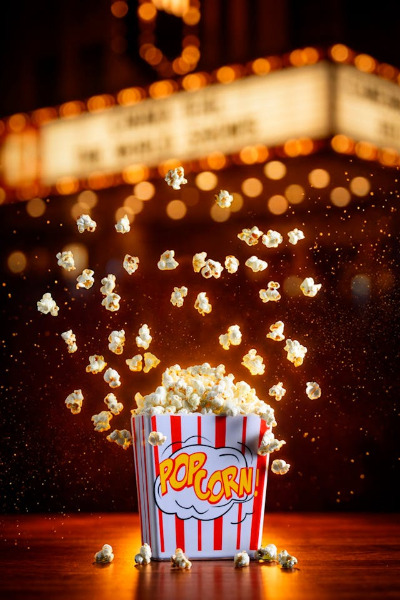
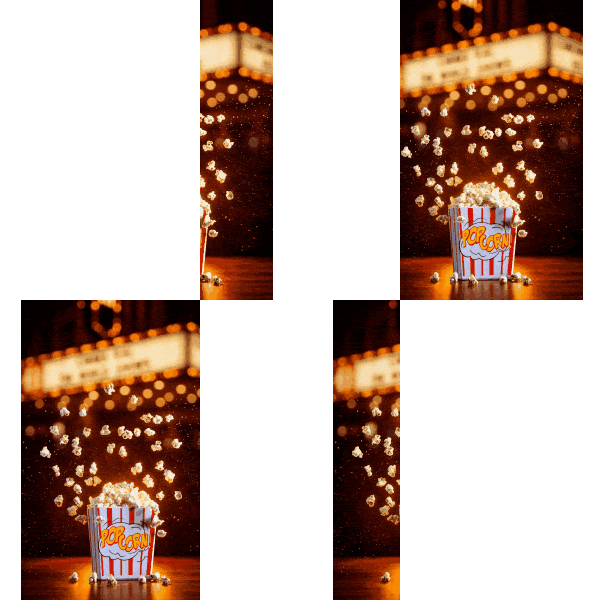
In this example, we create a sliding announcement for a movie theater screen. The film promo image moves in discrete mode: it enters from the left and travels across the frame as a separate panel, then pauses for 2 seconds before exiting to the right. We set the speed to 9 and enable easing to soften the motion at the start and end. (Source: Pexels.)
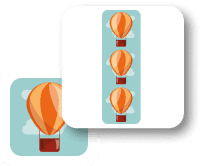
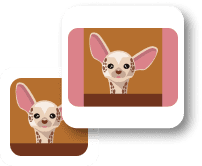
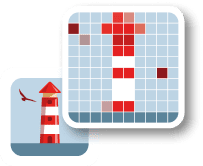
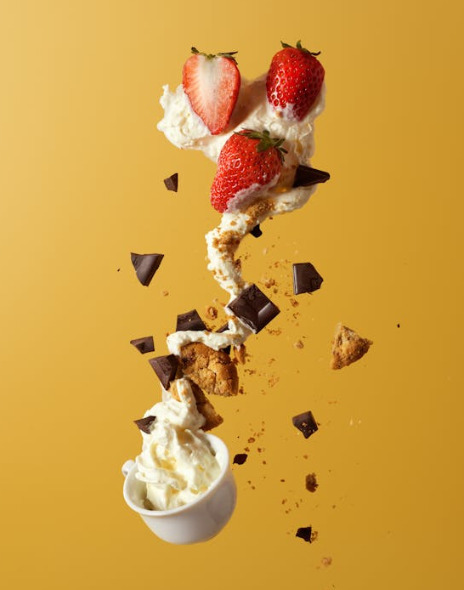
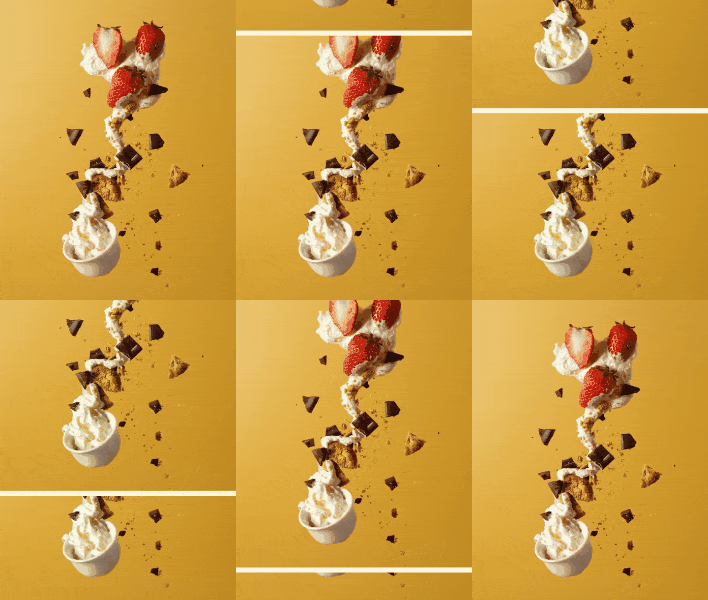
In this example, we turn a dessert photo into an appetizing animated ad for a restaurant display. The image slides from top to bottom in overlay mode, creating a smooth motion that draws attention to the dessert and makes the screen feel more inviting than a static menu picture. We add a soft cornsilk separator and a 1-second pause after each slide, so viewers have time to notice the dessert before the animation repeats. (Source: Pexels.)
You can pass input to this tool via ?input query argument and it will automatically compute output. Here's how to type it in your browser's address bar. Click to try!
Edit images in your browser.
Place images on a grid so that they make a Fibonacci spiral.
Convert a PNG image to an ICO icon.
Convert an ICO icon to a PNG image.
Convert a PNG image to a TIFF image.
Convert a TIFF image to a PNG image.
Convert a JPEG image to an ICO icon.
Convert an ICO icon to a JPEG image.
Convert a JPEG image to a TIFF image.
Convert a TIFF image to a JPEG image.
Convert a GIF image to an ICO icon.
Convert an ICO icon to a GIF image.
Convert a GIF image to a TIFF image.
Convert a TIFF image to a GIF image.
Convert a GIF image to an APNG icon.
Convert an APNG image to a PNG image.
Convert a bitmap image to an ICO icon.
Convert an ICO icon to a bitmap image.
Convert a bitmap image to a TIFF image.
Convert a TIFF image to a bitmap image.
Convert a Webp image to an ICO icon.
Convert an ICO icon to a Webp image.
Convert a Webp image to a TIFF image.
Convert a TIFF image to a Webp image.
Create an animated GIF image from static frames.
Create an image from an B, G, R array.
Create an image from an R, G, B, A array.
Create an image from an B, G, R, A array.
Increase the quality of an image.
Decrease the quality of an image.
Remove the pixelation effect from an image.
Remove the blur effect from an image.
Apply OCR on an image and extract all text from it.
Erase text or label from an image.
Erase any object from an image.
Convert an image to a thumbnail
Convert a PNG, GIF, JPG or BMP to glitch art.
Let Zalgo destroy an image.
Change an image color space to HSL, HSV, CMYK, or RGB.
Create a mosaic wall from multiple images.
Create an ASCII art image from a regular image.
Create an ANSI art image from a regular image.
Create a Unicode art image from a regular image.
Create a Braille art image from a regular image.
Add a short one-line label to an image.
Remove a watermark from an image.
Create an image made out of dots of varying size and spacing.
Convert an image to a bunch of blocks.
Create a GIF from the original image with interlacing effect.
Subscribe to our updates. We'll let you know when we release new tools and features, and when we organize online workshops.
Enter your email here
We're Browserling — a friendly and fun cross-browser testing company powered by alien technology. At Browserling we love to make people's lives easier, so we created this collection of image editing tools. Our tools have the simplest user interface that doesn't require advanced computer skills and they are used by millions of people every month. Our image tools are actually powered by our web developer tools that we created over the last couple of years. Check them out!