Free online BGR to RGB image converter. Just drag and drop your image here, and it will automatically move blue from the first position to the third and red from the third position to the first. In the options, you can define the channel arrangement of the source image, select the arrangement for the output, and export the result as a PNG, JPEG, WebP, or BMP file. Created by engineers from team Browserling.
Free online BGR to RGB image converter. Just drag and drop your image here, and it will automatically move blue from the first position to the third and red from the third position to the first. In the options, you can define the channel arrangement of the source image, select the arrangement for the output, and export the result as a PNG, JPEG, WebP, or BMP file. Created by engineers from team Browserling.
This tool converts an image whose color components are arranged in BGR order into an image with RGB channel order. In BGR, the first pixel component represents blue, the second represents green, and the third represents red, while standard RGB uses the reverse arrangement: red, green, and blue. An image in BGR channel order can look unnatural. For example, red flowers may appear blue, orange fruit may become cyan, blue skies may turn red, and light-blue water may become brown. The tool exchanges the first and third components of every pixel, returning the red and blue channels to their usual positions. In the options, you can specify the actual channel order of the source image if it uses another layout, such as GRB or BRG. You can also choose a different supported arrangement for the output instead of standard RGB. The alpha component can be rearranged as well. If it remains in the final position, the original transparency is preserved. If alpha is moved into a color position, its values begin to affect the image colors, while the displaced color component starts controlling pixel transparency. Image-abulous!
This tool converts an image whose color components are arranged in BGR order into an image with RGB channel order. In BGR, the first pixel component represents blue, the second represents green, and the third represents red, while standard RGB uses the reverse arrangement: red, green, and blue. An image in BGR channel order can look unnatural. For example, red flowers may appear blue, orange fruit may become cyan, blue skies may turn red, and light-blue water may become brown. The tool exchanges the first and third components of every pixel, returning the red and blue channels to their usual positions. In the options, you can specify the actual channel order of the source image if it uses another layout, such as GRB or BRG. You can also choose a different supported arrangement for the output instead of standard RGB. The alpha component can be rearranged as well. If it remains in the final position, the original transparency is preserved. If alpha is moved into a color position, its values begin to affect the image colors, while the displaced color component starts controlling pixel transparency. Image-abulous!
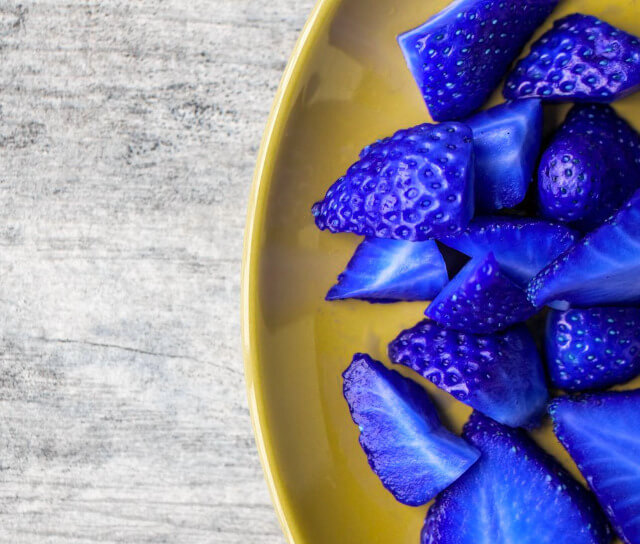
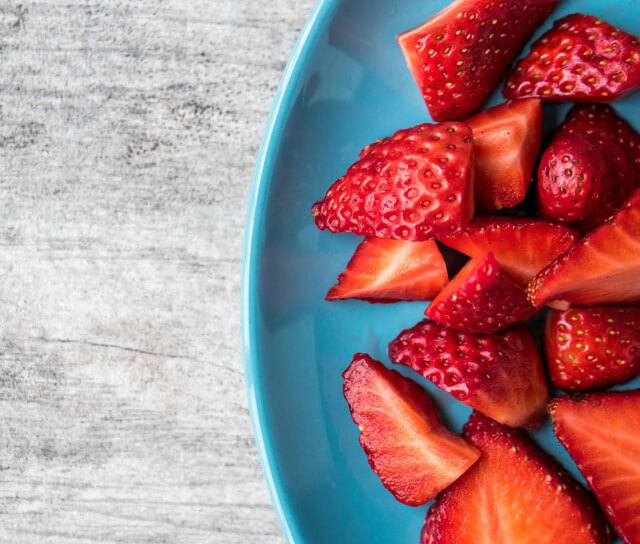
In this example, we upload an image of sliced strawberries whose color channels are arranged in BGR order. The strawberries have an unnatural blue color, while the bowl has a yellow tint. By converting the image to the standard red-green-blue (RGB) order, we restore the strawberries to their original red color and return the bowl to its light-blue shade. The only part that remains unchanged is the table surface, which stays gray. This is because gray pixels have equal red, green, and blue channel values, so rearranging them does not change their color. (Source: Pexels.)
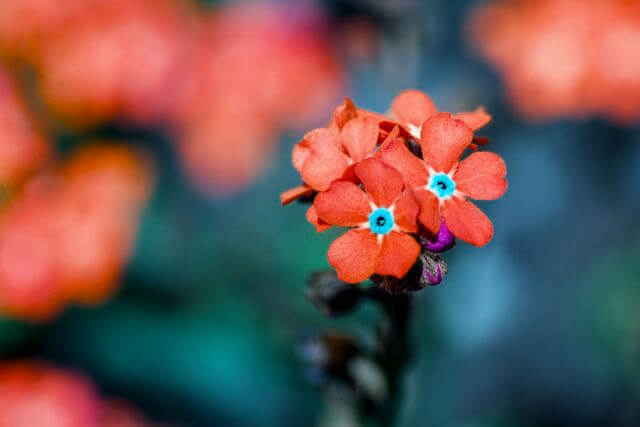
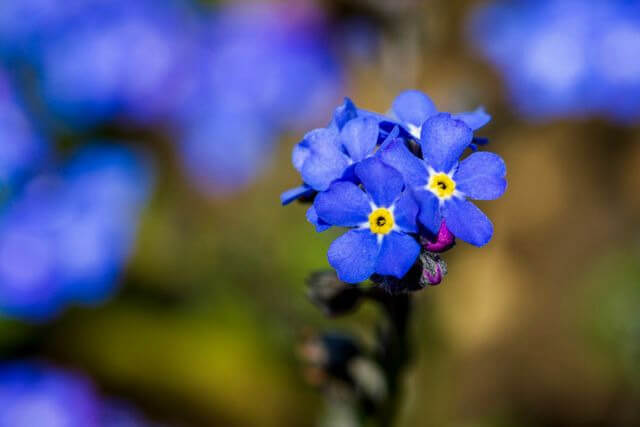
In this example, we restore the RGB colors of a flower image whose components are arranged in BGRA order. The BGR interpretation makes the naturally blue petals look coral red and changes their yellow centers to cyan. When the first and third components exchange places, the petals become blue again and the centers return to yellow. (Source: Pexels.)
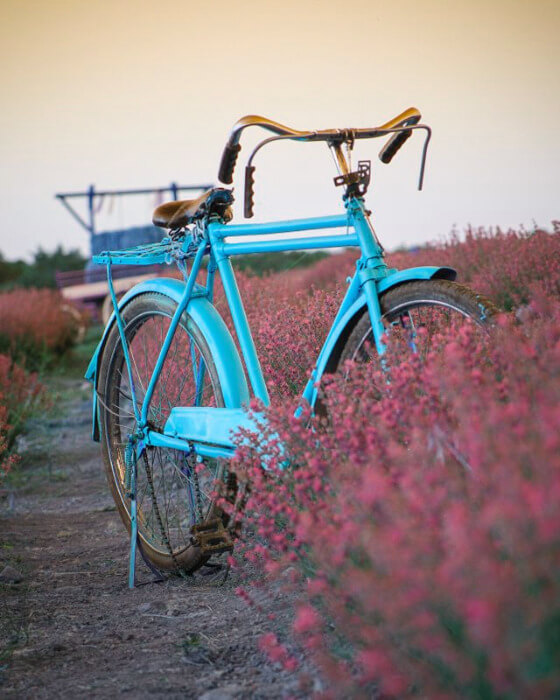
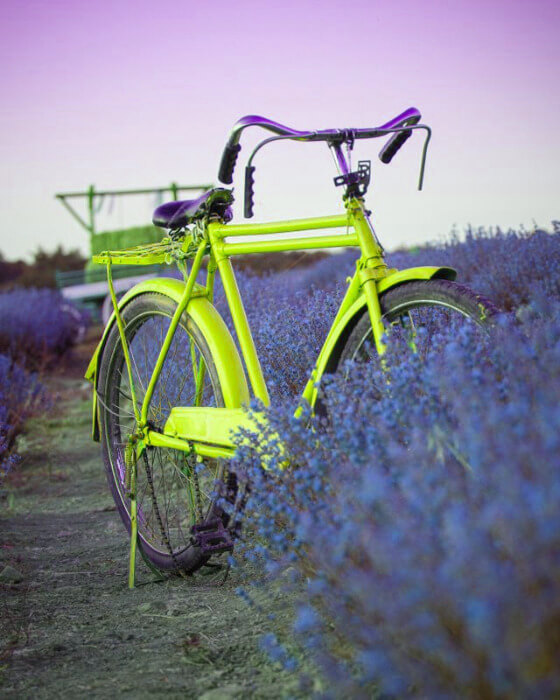
In this example, we read a bicycle image in BGR order and write its components in GRB order. Instead of restoring standard RGB, this conversion cyclically rearranges the three color components from blue-green-red to green-red-blue. As a result, the cyan bicycle becomes vivid lime green, the pink flower field turns blue and violet, and the pale beige sky acquires a lavender tint. (Source: Pexels.)
Edit images in your browser.
Place images on a grid so that they make a Fibonacci spiral.
Convert a PNG image to an ICO icon.
Convert an ICO icon to a PNG image.
Convert a PNG image to a TIFF image.
Convert a TIFF image to a PNG image.
Convert a JPEG image to an ICO icon.
Convert an ICO icon to a JPEG image.
Convert a JPEG image to a TIFF image.
Convert a TIFF image to a JPEG image.
Convert a GIF image to an ICO icon.
Convert an ICO icon to a GIF image.
Convert a GIF image to a TIFF image.
Convert a TIFF image to a GIF image.
Convert a GIF image to an APNG icon.
Convert an APNG image to a PNG image.
Convert a bitmap image to an ICO icon.
Convert an ICO icon to a bitmap image.
Convert a bitmap image to a TIFF image.
Convert a TIFF image to a bitmap image.
Convert a Webp image to an ICO icon.
Convert an ICO icon to a Webp image.
Convert a Webp image to a TIFF image.
Convert a TIFF image to a Webp image.
Create an animated GIF image from static frames.
Create an image from an B, G, R array.
Create an image from an R, G, B, A array.
Create an image from an B, G, R, A array.
Increase the quality of an image.
Decrease the quality of an image.
Remove the pixelation effect from an image.
Remove the blur effect from an image.
Apply OCR on an image and extract all text from it.
Erase text or label from an image.
Erase any object from an image.
Convert an image to a thumbnail
Convert a PNG, GIF, JPG or BMP to glitch art.
Let Zalgo destroy an image.
Change an image color space to HSL, HSV, CMYK, or RGB.
Create a mosaic wall from multiple images.
Create an ASCII art image from a regular image.
Create an ANSI art image from a regular image.
Create a Unicode art image from a regular image.
Create a Braille art image from a regular image.
Add a short one-line label to an image.
Remove a watermark from an image.
Create an image made out of dots of varying size and spacing.
Convert an image to a bunch of blocks.
Create a GIF from the original image with interlacing effect.
Subscribe to our updates. We'll let you know when we release new tools and features, and when we organize online workshops.
Enter your email here
We're Browserling — a friendly and fun cross-browser testing company powered by alien technology. At Browserling we love to make people's lives easier, so we created this collection of image editing tools. Our tools have the simplest user interface that doesn't require advanced computer skills and they are used by millions of people every month. Our image tools are actually powered by our web developer tools that we created over the last couple of years. Check them out!