Free online RGB to BGR image converter. Just drag and drop your image here, and it will automatically exchange the red and blue channels in every pixel. In the options, you can specify the source channel arrangement, choose the channel order for the converted image, and select PNG, JPEG, WebP, or BMP as the output format. Created by engineers from team Browserling.
Free online RGB to BGR image converter. Just drag and drop your image here, and it will automatically exchange the red and blue channels in every pixel. In the options, you can specify the source channel arrangement, choose the channel order for the converted image, and select PNG, JPEG, WebP, or BMP as the output format. Created by engineers from team Browserling.
This tool changes the arrangement of color channels in an image from the standard RGB order to BGR order. Each image pixel is represented by three color components: the first specifies the amount of red, the second specifies the amount of green, and the third specifies the amount of blue. The tool exchanges the red and blue values, producing the blue-green-red, or BGR, component order. For example, a pure red pixel with the RGB values (255, 0, 0) becomes a pure blue pixel with the values (0, 0, 255). Similarly, the SkyBlue color (135, 206, 235) becomes Wheat (235, 206, 135). Notice that pixels whose red and blue components are equal do not change color. For example, Green (0, 128, 0) remains green, Purple (128, 0, 128) remains purple, and all grayscale colors remain unchanged. If the image contains an alpha channel, the default RGBA-to-BGRA conversion keeps alpha in the fourth position, preserving transparent and partially transparent areas. In the options, you can specify a different arrangement for the source channels and choose any supported arrangement for the result. You can also save the converted image as a PNG, JPEG, WebP, or BMP file. Image-abulous!
This tool changes the arrangement of color channels in an image from the standard RGB order to BGR order. Each image pixel is represented by three color components: the first specifies the amount of red, the second specifies the amount of green, and the third specifies the amount of blue. The tool exchanges the red and blue values, producing the blue-green-red, or BGR, component order. For example, a pure red pixel with the RGB values (255, 0, 0) becomes a pure blue pixel with the values (0, 0, 255). Similarly, the SkyBlue color (135, 206, 235) becomes Wheat (235, 206, 135). Notice that pixels whose red and blue components are equal do not change color. For example, Green (0, 128, 0) remains green, Purple (128, 0, 128) remains purple, and all grayscale colors remain unchanged. If the image contains an alpha channel, the default RGBA-to-BGRA conversion keeps alpha in the fourth position, preserving transparent and partially transparent areas. In the options, you can specify a different arrangement for the source channels and choose any supported arrangement for the result. You can also save the converted image as a PNG, JPEG, WebP, or BMP file. Image-abulous!
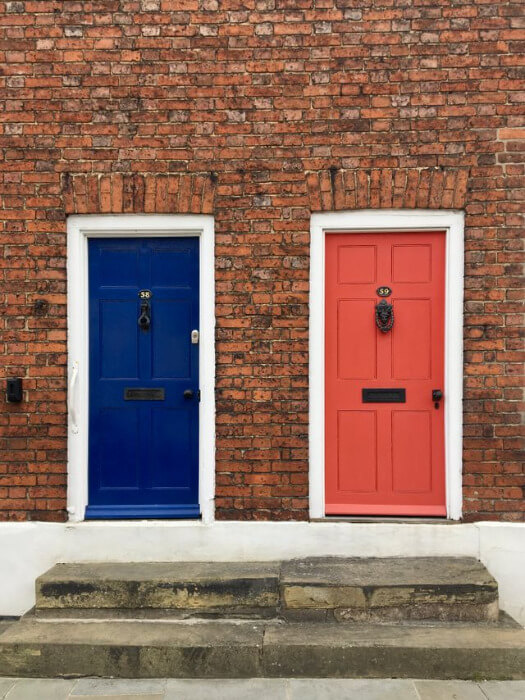
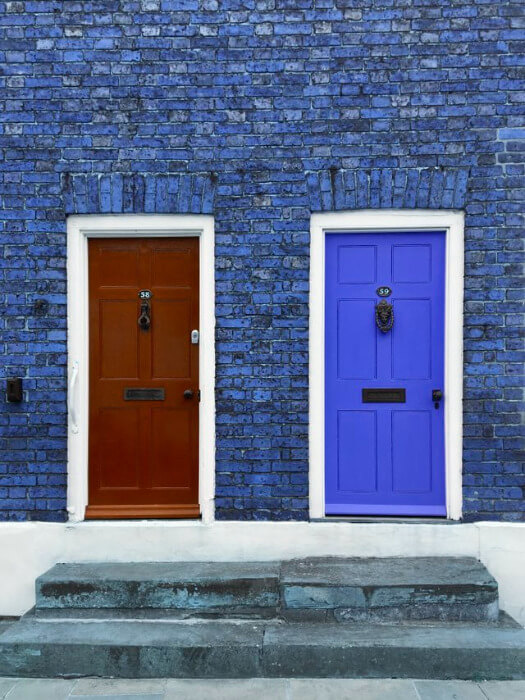
In this example, we change the channel arrangement of a photograph of two doors from RGB to BGR. Exchanging the red and blue components turns the dark-blue door on the left brownish red and changes the coral-red door on the right to vivid blue. Meanwhile, the white door frames remain white because their red and blue components have equal values. (Source: Pexels.)
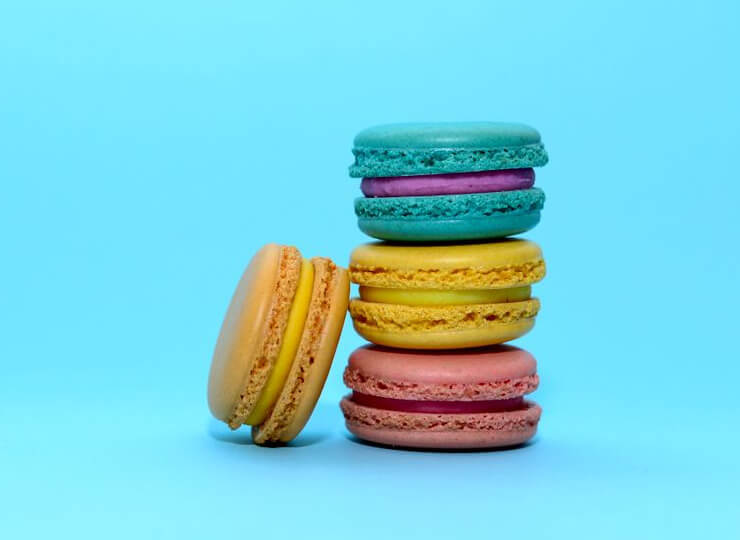
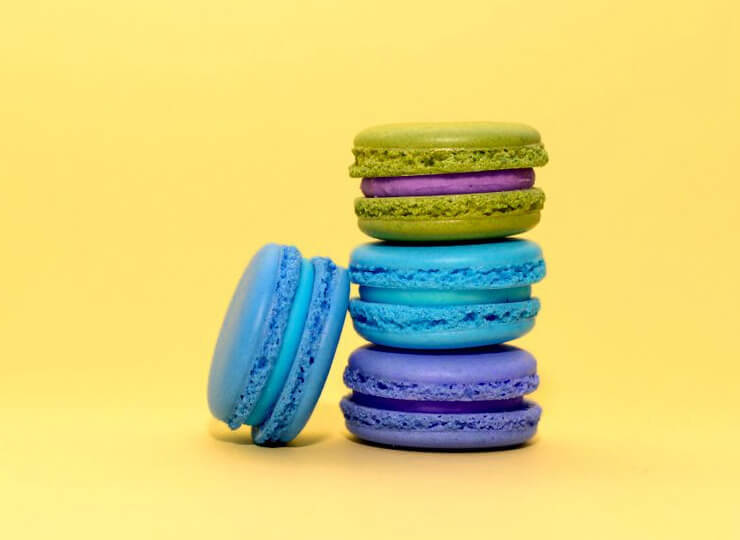
In this example, we convert a stack of colorful macarons from RGB channel order to BGR channel order. The cyan background becomes pale yellow because its strong blue component moves into the red position. Similarly, the golden macaron changes to bright cyan, the turquoise macaron at the top acquires olive-green tones, and the coral macaron turns purple. (Source: Pexels.)
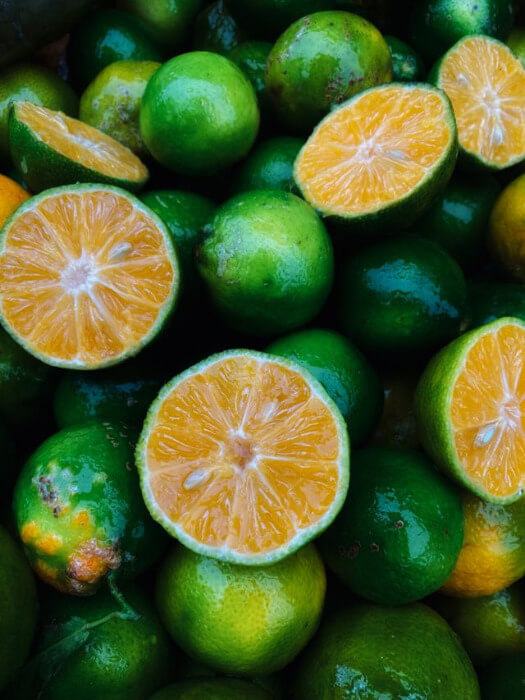
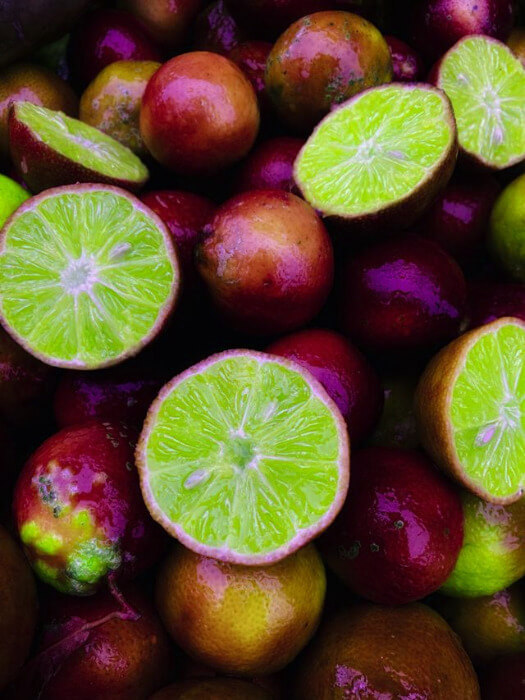
In this example, we select GRBA as the result channel arrangement for an image of sliced limes. This arrangement swaps the R (red) and G (green) channels while leaving B (blue) and A (alpha) unchanged. As a result, the dark-green peels become burgundy, while the orange-yellow flesh of the sliced fruit turns bright lime green. (Source: Pexels.)
Edit images in your browser.
Place images on a grid so that they make a Fibonacci spiral.
Convert a PNG image to an ICO icon.
Convert an ICO icon to a PNG image.
Convert a PNG image to a TIFF image.
Convert a TIFF image to a PNG image.
Convert a JPEG image to an ICO icon.
Convert an ICO icon to a JPEG image.
Convert a JPEG image to a TIFF image.
Convert a TIFF image to a JPEG image.
Convert a GIF image to an ICO icon.
Convert an ICO icon to a GIF image.
Convert a GIF image to a TIFF image.
Convert a TIFF image to a GIF image.
Convert a GIF image to an APNG icon.
Convert an APNG image to a PNG image.
Convert a bitmap image to an ICO icon.
Convert an ICO icon to a bitmap image.
Convert a bitmap image to a TIFF image.
Convert a TIFF image to a bitmap image.
Convert a Webp image to an ICO icon.
Convert an ICO icon to a Webp image.
Convert a Webp image to a TIFF image.
Convert a TIFF image to a Webp image.
Create an animated GIF image from static frames.
Create an image from an B, G, R array.
Create an image from an R, G, B, A array.
Create an image from an B, G, R, A array.
Increase the quality of an image.
Decrease the quality of an image.
Remove the pixelation effect from an image.
Remove the blur effect from an image.
Apply OCR on an image and extract all text from it.
Erase text or label from an image.
Erase any object from an image.
Convert an image to a thumbnail
Convert a PNG, GIF, JPG or BMP to glitch art.
Let Zalgo destroy an image.
Change an image color space to HSL, HSV, CMYK, or RGB.
Create a mosaic wall from multiple images.
Create an ASCII art image from a regular image.
Create an ANSI art image from a regular image.
Create a Unicode art image from a regular image.
Create a Braille art image from a regular image.
Add a short one-line label to an image.
Remove a watermark from an image.
Create an image made out of dots of varying size and spacing.
Convert an image to a bunch of blocks.
Create a GIF from the original image with interlacing effect.
Subscribe to our updates. We'll let you know when we release new tools and features, and when we organize online workshops.
Enter your email here
We're Browserling — a friendly and fun cross-browser testing company powered by alien technology. At Browserling we love to make people's lives easier, so we created this collection of image editing tools. Our tools have the simplest user interface that doesn't require advanced computer skills and they are used by millions of people every month. Our image tools are actually powered by our web developer tools that we created over the last couple of years. Check them out!