Free online image-to-retro-colors converter. Just drag and drop your image here, and it will automatically get recolored using a palette from a classic game console or computer. In the options, you can choose from 22 retro color palettes for classic systems (such as Game Boy, NES, CGA, EGA, Commodore 64, Atari 2600, Apple II, and more), select a color-matching method, apply one of nine dithering methods, and choose the output image format. Created by engineers from team Browserling.
Free online image-to-retro-colors converter. Just drag and drop your image here, and it will automatically get recolored using a palette from a classic game console or computer. In the options, you can choose from 22 retro color palettes for classic systems (such as Game Boy, NES, CGA, EGA, Commodore 64, Atari 2600, Apple II, and more), select a color-matching method, apply one of nine dithering methods, and choose the output image format. Created by engineers from team Browserling.
This tool converts any image to the limited color palette of a classic game system or computer. The palette menu includes 22 retro color sets. You can recreate the four green shades of the original Game Boy; choose between the 54-color Nestopia and FCEUX interpretations of the NES palette; use the standard 16-color CGA palette or one of six 4-color CGA variants, including Palette 0, Palette 1, and the Extra palette at low or high intensity; apply the 15-color ZX Spectrum palette; select either the standard 16-color EGA set or the complete 64-color EGA palette; choose between the 16-color and 256-color Windows VGA palettes; or use the 16-color PICO-8 and Commodore 64 palettes. Atari 2600 presets include the 128-color NTSC palette, 104-color PAL palette, and compact 8-color SECAM palette. For Apple II graphics, you can choose the 6-color Hi-Res palette or the 16-color Lo-Res palette. By default, the converter selects only the palette colors that best match the original image, so some colors in the palette may remain unused. When "Use All Palette Colors" is enabled, the image is recolored in a way that tries to include the maximum number of colors available in the selected palette. The color matching method determines how source colors are mapped to the selected palette. "Euclidean Color Matching" compares colors by their direct RGB distance, while "Perceptual Color Matching" uses delta-E to choose colors based more closely on how differences are perceived by the human eye. You can also apply dithering effects to mix available palette colors across neighboring pixels, simulate intermediate shades, smooth color transitions, and preserve more detail in gradients, shadows, and textured areas. Choose from nine dithering methods: Floyd Steinberg, False Floyd Steinberg, Stucki, Atkinson, Jarvis, Burkes, Sierra, Two-row Sierra, and Sierra Lite. You can save the converted image as PNG, JPEG, WebP, or BMP. Image-abulous!
This tool converts any image to the limited color palette of a classic game system or computer. The palette menu includes 22 retro color sets. You can recreate the four green shades of the original Game Boy; choose between the 54-color Nestopia and FCEUX interpretations of the NES palette; use the standard 16-color CGA palette or one of six 4-color CGA variants, including Palette 0, Palette 1, and the Extra palette at low or high intensity; apply the 15-color ZX Spectrum palette; select either the standard 16-color EGA set or the complete 64-color EGA palette; choose between the 16-color and 256-color Windows VGA palettes; or use the 16-color PICO-8 and Commodore 64 palettes. Atari 2600 presets include the 128-color NTSC palette, 104-color PAL palette, and compact 8-color SECAM palette. For Apple II graphics, you can choose the 6-color Hi-Res palette or the 16-color Lo-Res palette. By default, the converter selects only the palette colors that best match the original image, so some colors in the palette may remain unused. When "Use All Palette Colors" is enabled, the image is recolored in a way that tries to include the maximum number of colors available in the selected palette. The color matching method determines how source colors are mapped to the selected palette. "Euclidean Color Matching" compares colors by their direct RGB distance, while "Perceptual Color Matching" uses delta-E to choose colors based more closely on how differences are perceived by the human eye. You can also apply dithering effects to mix available palette colors across neighboring pixels, simulate intermediate shades, smooth color transitions, and preserve more detail in gradients, shadows, and textured areas. Choose from nine dithering methods: Floyd Steinberg, False Floyd Steinberg, Stucki, Atkinson, Jarvis, Burkes, Sierra, Two-row Sierra, and Sierra Lite. You can save the converted image as PNG, JPEG, WebP, or BMP. Image-abulous!
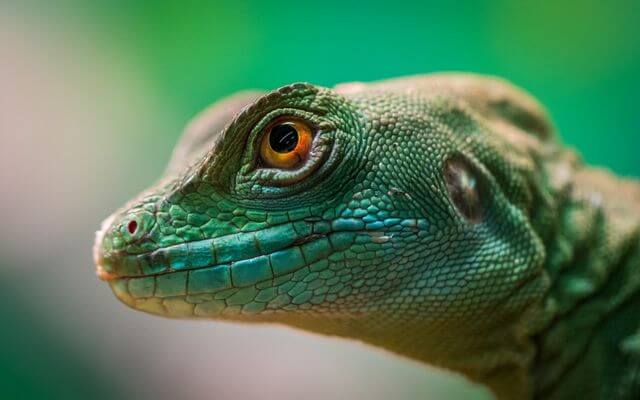
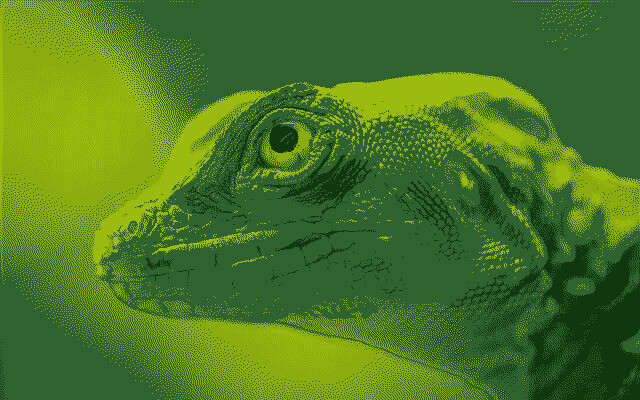
In this example, we convert a close-up lizard photo to the iconic four-shade green palette of the original Nintendo Game Boy. This limited monochrome palette defines the look of many classic handheld games, using only four green tones to represent everything from bright highlights to deep shadows. We use Floyd-Steinberg dithering to simulate intermediate tones and preserve the lizard's scales and eye. (Source: Pexels.)
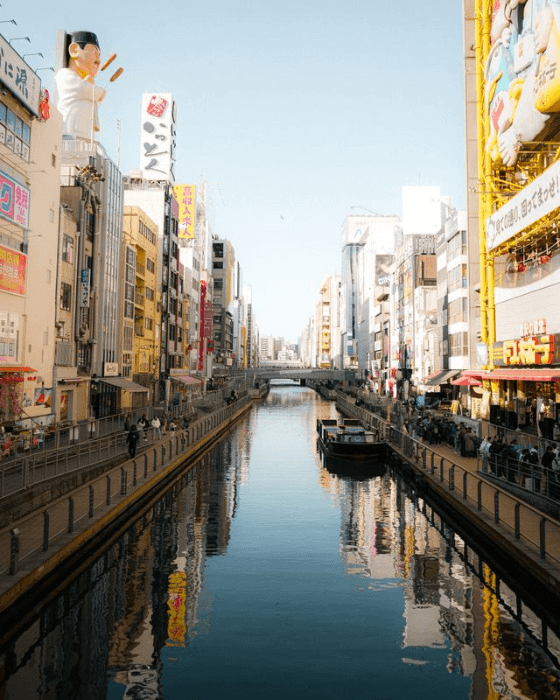
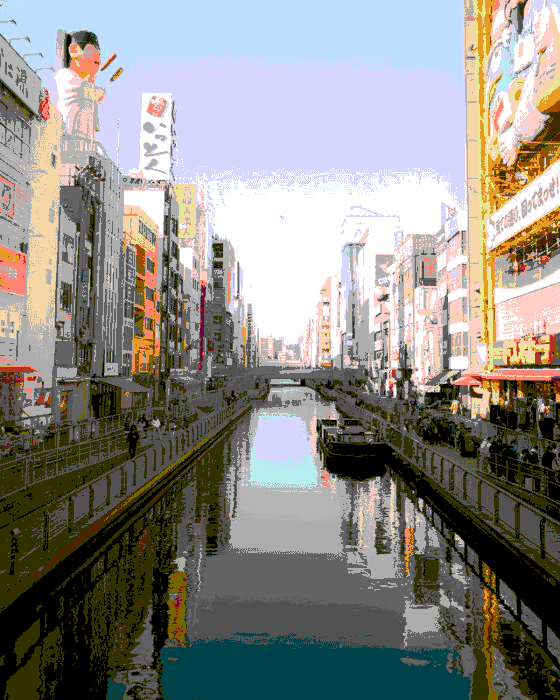
This example converts an Osaka canal PNG to the 54-color NES palette interpreted by Nestopia. Unlike modern RGB systems, the NES uses a limited console palette with strong, distinctive blues, purples, reds, greens, and neutral tones that define the look of many classic 8-bit games. With dithering disabled, each part of the cityscape is mapped directly to one of these palette colors, giving the water, sky, signs, and building shadows the crisp appearance of an NES background. (Source: Pexels.)
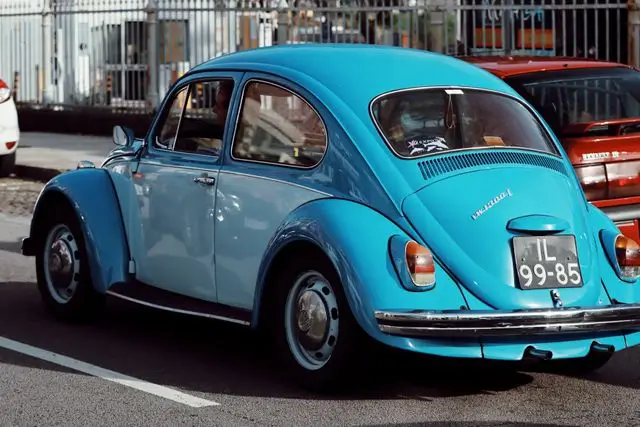
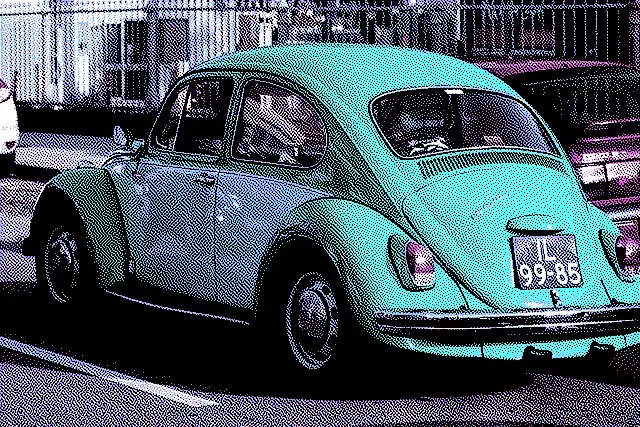
In this example, we redraw a turquoise Volkswagen Beetle with high-intensity CGA Palette 1, one of the most recognizable early PC color combinations. It contains only black, light cyan, light magenta, and white, a striking four-color set associated with classic CGA graphics. We use the Atkinson dithering to mix these colors into pixel patterns that suggest reflections, grays, and extra blue-violet shades across the car. The result is saved as a WebP image. (Source: Pexels.)
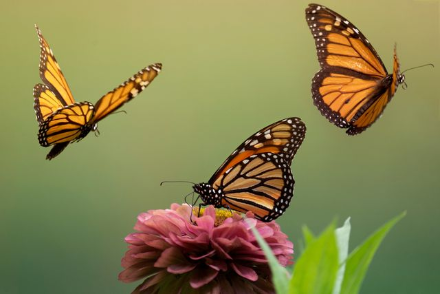
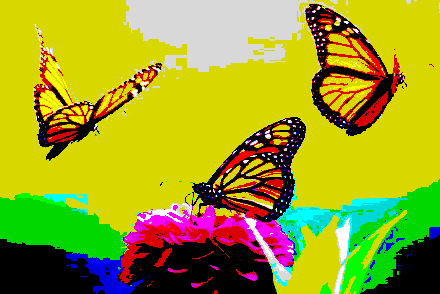
This example recolors three monarch butterflies and a flower with the ZX Spectrum's compact 15-color palette. The system is known for its highly saturated primary and secondary colors, including vivid red, yellow, blue, green, cyan, and magenta, which give its graphics a bold appearance. We use as much of the palette as possible and keep dithering off, so the wings, petals, and background break into clean blocks of strong Spectrum colors. (Source: Pexels.)
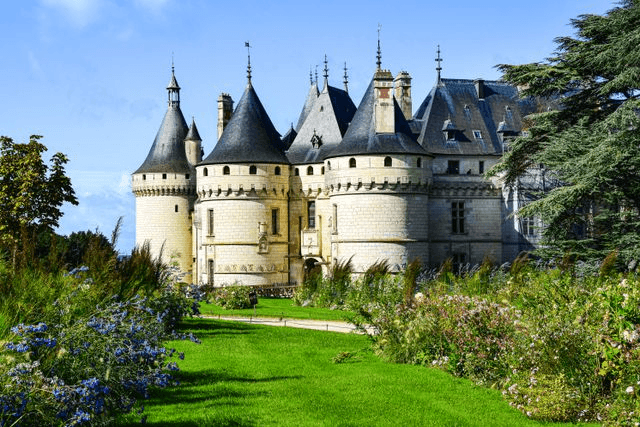
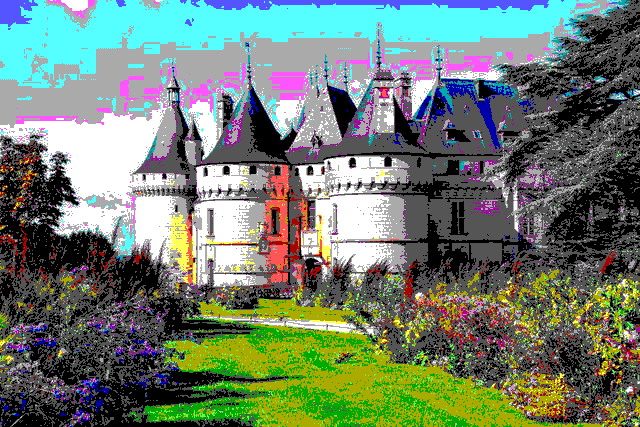
In this example, we convert a BMP of Chaumont Castle to the standard 16-color EGA palette used by many early PC games and DOS applications. Its mix of dark and bright versions of red, green, blue, cyan, magenta, yellow, gray, black, and white gives the scene a classic late-1980s computer-graphics character. Without dithering, these fixed colors form clear areas across the sky, stone walls, roofs, and garden, making the castle resemble a background from an old adventure game. (Source: Pexels.)
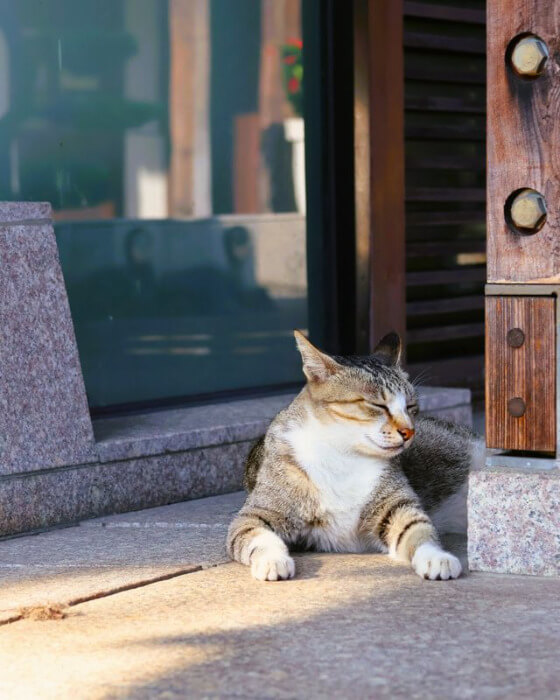
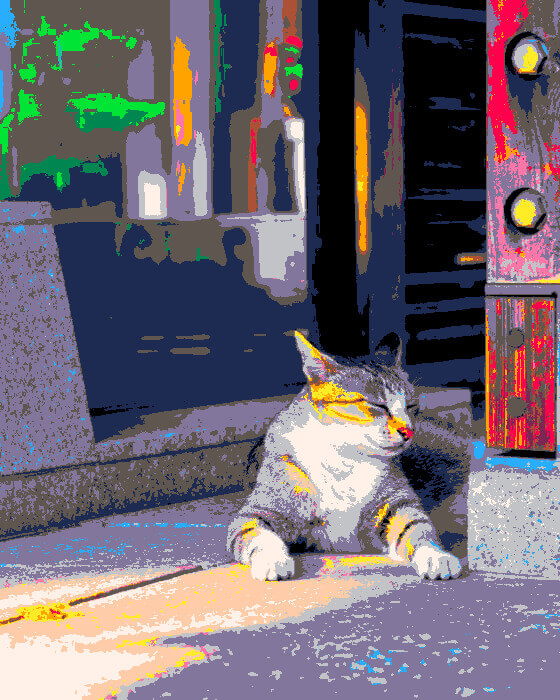
This example recolors a resting cat image with PICO-8's distinctive 16-color palette. Its navy, purple, pink, orange, yellow, green, gray, and cream tones give PICO-8 games their recognizable retro style. The limited palette simplifies the stonework, fur, and sunlight into clean color areas, making the JPEG look like a scene from a PICO-8 game. (Source: Pexels.)
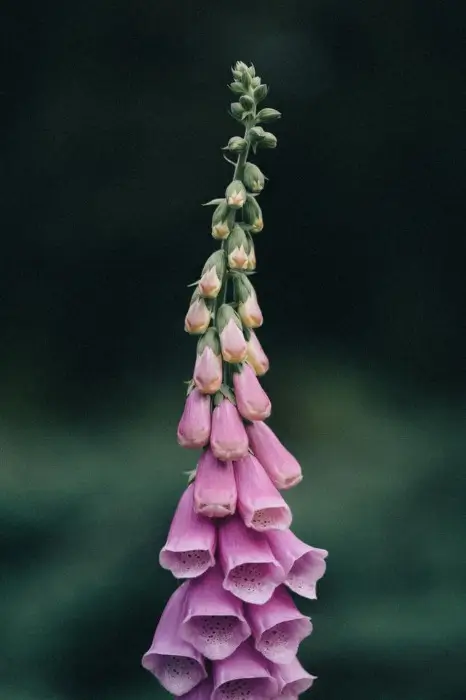
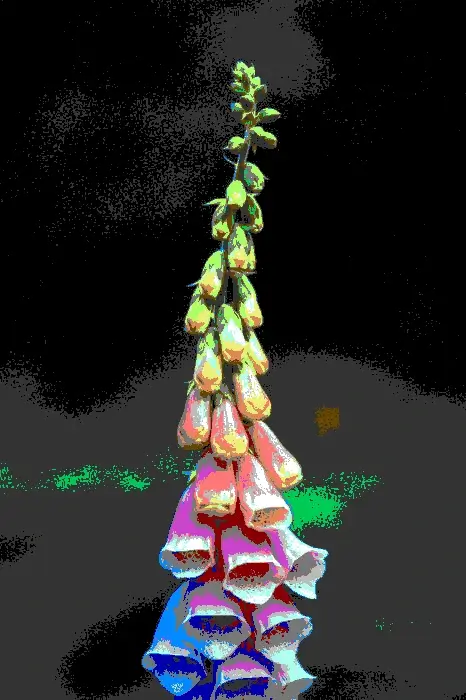
In this example, we recolor a pink foxglove WebP image with the Commodore 64's classic 16-color palette. Because we use the full palette, the flower breaks into clean color regions, with many different hues flowing across the petals in a rainbow-like way. The result resembles colorful artwork from a classic C64 game. (Source: Pexels.)
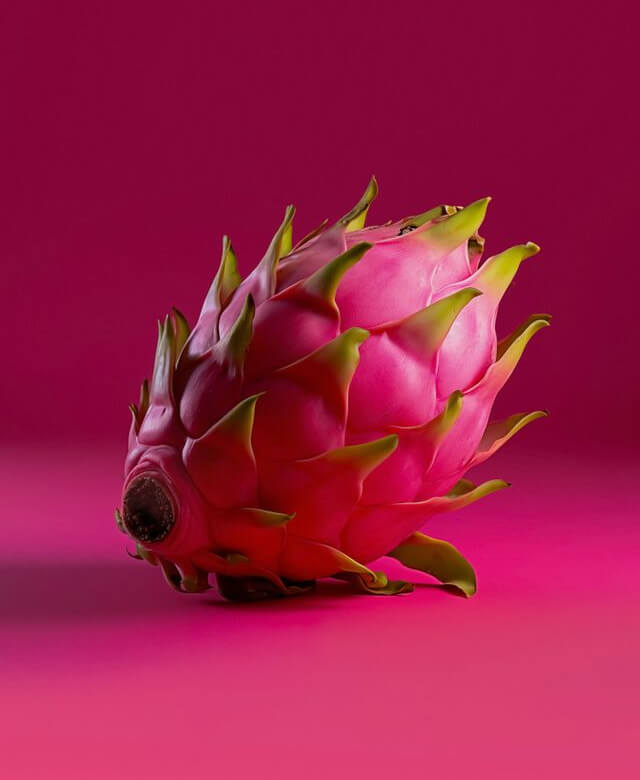
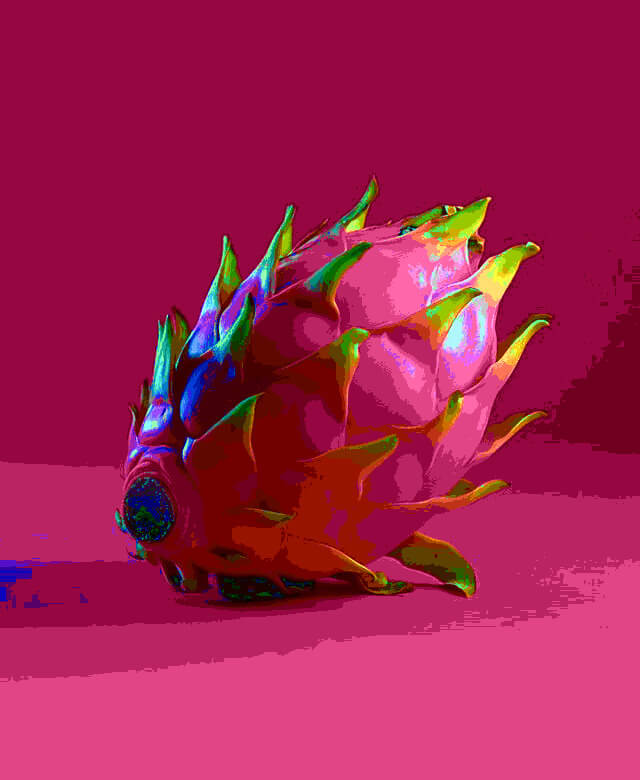
This example maps a vivid dragon fruit to the 128-color Atari 2600 NTSC palette. The broader range of hues gives the image a speckled, patchy structure, with colorful accents appearing in the highlights and along the fruit's leafy bracts. Reds and pinks dominate the skin, while greens, oranges, and blues add contrast and give the result a lively early-console look. (Source: Pexels.)
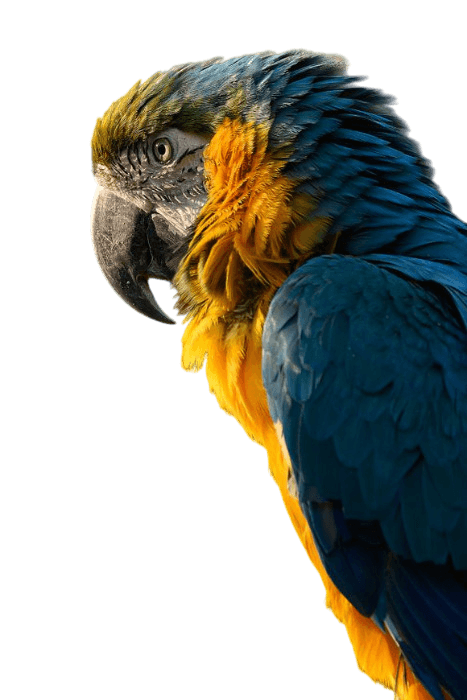
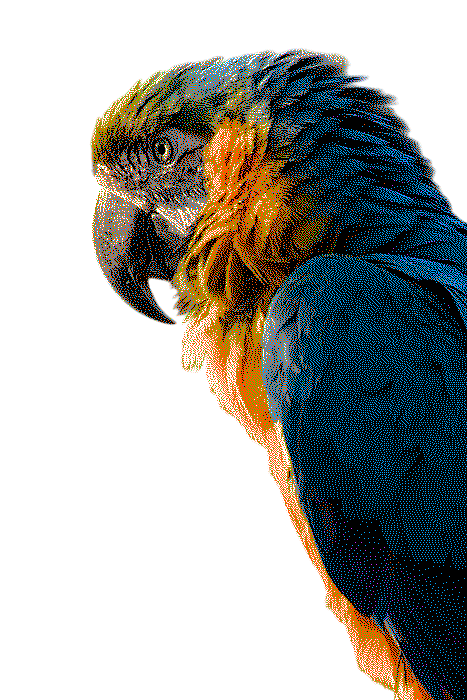
n this example, we recreate a macaw with the six-color Apple II Hi-Res palette: black, white, green, purple, blue, and orange. This iconic palette gives the bird the distinctive look of Apple II graphics, while Burkes dithering mixes nearby pixels to suggest extra shades, including yellow-like tones that are not actually in the palette. The PNG output also preserves the transparent background around the bird. (Source: Pexels.)
Edit images in your browser.
Place images on a grid so that they make a Fibonacci spiral.
Convert a PNG image to an ICO icon.
Convert an ICO icon to a PNG image.
Convert a PNG image to a TIFF image.
Convert a TIFF image to a PNG image.
Convert a JPEG image to an ICO icon.
Convert an ICO icon to a JPEG image.
Convert a JPEG image to a TIFF image.
Convert a TIFF image to a JPEG image.
Convert a GIF image to an ICO icon.
Convert an ICO icon to a GIF image.
Convert a GIF image to a TIFF image.
Convert a TIFF image to a GIF image.
Convert a GIF image to an APNG icon.
Convert an APNG image to a PNG image.
Convert a bitmap image to an ICO icon.
Convert an ICO icon to a bitmap image.
Convert a bitmap image to a TIFF image.
Convert a TIFF image to a bitmap image.
Convert a Webp image to an ICO icon.
Convert an ICO icon to a Webp image.
Convert a Webp image to a TIFF image.
Convert a TIFF image to a Webp image.
Create an animated GIF image from static frames.
Create an image from an B, G, R array.
Create an image from an R, G, B, A array.
Create an image from an B, G, R, A array.
Increase the quality of an image.
Decrease the quality of an image.
Remove the pixelation effect from an image.
Remove the blur effect from an image.
Apply OCR on an image and extract all text from it.
Erase text or label from an image.
Erase any object from an image.
Convert an image to a thumbnail
Convert a PNG, GIF, JPG or BMP to glitch art.
Let Zalgo destroy an image.
Change an image color space to HSL, HSV, CMYK, or RGB.
Create a mosaic wall from multiple images.
Create an ASCII art image from a regular image.
Create an ANSI art image from a regular image.
Create a Unicode art image from a regular image.
Create a Braille art image from a regular image.
Add a short one-line label to an image.
Remove a watermark from an image.
Create an image made out of dots of varying size and spacing.
Convert an image to a bunch of blocks.
Create a GIF from the original image with interlacing effect.
Subscribe to our updates. We'll let you know when we release new tools and features, and when we organize online workshops.
Enter your email here
We're Browserling — a friendly and fun cross-browser testing company powered by alien technology. At Browserling we love to make people's lives easier, so we created this collection of image editing tools. Our tools have the simplest user interface that doesn't require advanced computer skills and they are used by millions of people every month. Our image tools are actually powered by our web developer tools that we created over the last couple of years. Check them out!