Free online marquee text image creator. Just enter the words you want to appear in the picture, and the program will automatically generate an animated marquee-style image. You can customize the lettering, separators, motion style, speed, colors, and canvas size, then download the final moving image. Created by engineers from team Browserling.
Free online marquee text image creator. Just enter the words you want to appear in the picture, and the program will automatically generate an animated marquee-style image. You can customize the lettering, separators, motion style, speed, colors, and canvas size, then download the final moving image. Created by engineers from team Browserling.
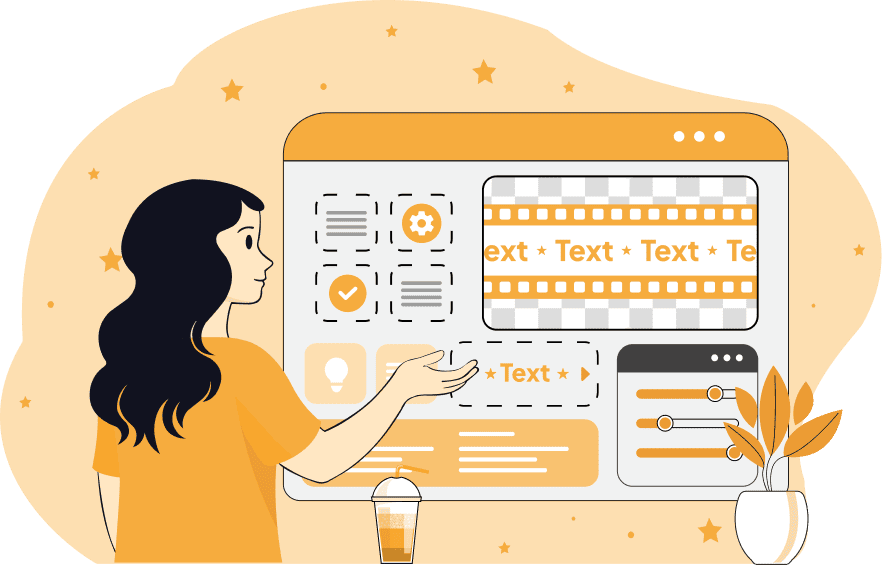
This tool generates images in the marquee style, where the message continuously circulates inside the image. Such animated images are useful when a simple static graphic feels too quiet, and you need a visual that immediately attracts attention, for example, for store promos, event screens, information panels, or sale ribbons. To create such an image, you need to enter a word, a phrase, or several messages that should appear in the output. You can customize the letter color, text size, line height, and letter spacing, and you can also choose a font from the built-in list or load your own font from a URL. The weight setting lets you switch between regular, bold, italic, and bold italic styles. If multiple phrases appear in the image, you can visually separate them with a divider symbol. The divider can be selected from the prepared symbol list or entered manually as a single or multiple custom characters in custom mode. You can adjust the divider color independently of the letters and fine-tune its position with the vertical shift option. The next part is the image's motion logic. You can make the content move continuously like a classic ticker, progress sequentially, or switch between phrases using slide, fade, wipe, zoom, or pixelation transitions. The direction option changes the travel path across the image area, so the content can move horizontally, like a ticker strip, or vertically, like a notice board. In addition, you can apply extra effects such as blinking, bouncing, pulsing, fading, waviness, jitter, glitches, or gradient shifting. With the speed option, you can control how quickly the text appears and disappears in the image, thereby adjusting reading comfort. For example, a speed of 6, 8, or 10 creates very rapidly changing text, while a speed of 2, 1, or 0.5 produces a slow, long animation. Keep in mind that slower animations contain more frames with moving text, which increases the final file size. In the size options, you can define the image area itself by setting a fixed canvas width and height, and you can also choose the background color. If you leave the size fields empty, the program automatically calculates a suitable canvas around the content. Image-abulous!
This tool generates images in the marquee style, where the message continuously circulates inside the image. Such animated images are useful when a simple static graphic feels too quiet, and you need a visual that immediately attracts attention, for example, for store promos, event screens, information panels, or sale ribbons. To create such an image, you need to enter a word, a phrase, or several messages that should appear in the output. You can customize the letter color, text size, line height, and letter spacing, and you can also choose a font from the built-in list or load your own font from a URL. The weight setting lets you switch between regular, bold, italic, and bold italic styles. If multiple phrases appear in the image, you can visually separate them with a divider symbol. The divider can be selected from the prepared symbol list or entered manually as a single or multiple custom characters in custom mode. You can adjust the divider color independently of the letters and fine-tune its position with the vertical shift option. The next part is the image's motion logic. You can make the content move continuously like a classic ticker, progress sequentially, or switch between phrases using slide, fade, wipe, zoom, or pixelation transitions. The direction option changes the travel path across the image area, so the content can move horizontally, like a ticker strip, or vertically, like a notice board. In addition, you can apply extra effects such as blinking, bouncing, pulsing, fading, waviness, jitter, glitches, or gradient shifting. With the speed option, you can control how quickly the text appears and disappears in the image, thereby adjusting reading comfort. For example, a speed of 6, 8, or 10 creates very rapidly changing text, while a speed of 2, 1, or 0.5 produces a slow, long animation. Keep in mind that slower animations contain more frames with moving text, which increases the final file size. In the size options, you can define the image area itself by setting a fixed canvas width and height, and you can also choose the background color. If you leave the size fields empty, the program automatically calculates a suitable canvas around the content. Image-abulous!
In this example, we generate a vivid animation for a fashion boutique to welcome new customers. It uses a pixelation motion style to switch between phrases on a bright red canvas. We apply a bold white Georgia typeface and include a gold star divider to make the messages pop in the shop window.

In this example, we build an animated image for a planetarium lobby screen. The picture cycles through three short phrases, separating them with a comet symbol, making the panel feel like a moving night-sky information band. We use Times New Roman in pale cyan on a deep navy background and add a gentle gradient shift animation that flows across the comet and the text phrases.

In this example, we create a high-energy alert for a concert hall entrance. It displays a single message that repeats to emphasize the concert start time. We apply a glitch effect and decorate the phrase with yellow stars to draw immediate attention. We use bolded text with increased spacing and load the unique font Ceviche One via a Google Fonts URL.

You can pass options to this tool using their codes as query arguments and it will automatically compute output. To get the code of an option, just hover over its icon. Here's how to type it in your browser's address bar. Click to try!
Edit images in your browser.
Place images on a grid so that they make a Fibonacci spiral.
Convert a PNG image to an ICO icon.
Convert an ICO icon to a PNG image.
Convert a PNG image to a TIFF image.
Convert a TIFF image to a PNG image.
Convert a JPEG image to an ICO icon.
Convert an ICO icon to a JPEG image.
Convert a JPEG image to a TIFF image.
Convert a TIFF image to a JPEG image.
Convert a GIF image to an ICO icon.
Convert an ICO icon to a GIF image.
Convert a GIF image to a TIFF image.
Convert a TIFF image to a GIF image.
Convert a GIF image to an APNG icon.
Convert an APNG image to a PNG image.
Convert a bitmap image to an ICO icon.
Convert an ICO icon to a bitmap image.
Convert a bitmap image to a TIFF image.
Convert a TIFF image to a bitmap image.
Convert a Webp image to an ICO icon.
Convert an ICO icon to a Webp image.
Convert a Webp image to a TIFF image.
Convert a TIFF image to a Webp image.
Create an animated GIF image from static frames.
Create an image from an B, G, R array.
Create an image from an R, G, B, A array.
Create an image from an B, G, R, A array.
Increase the quality of an image.
Decrease the quality of an image.
Remove the pixelation effect from an image.
Remove the blur effect from an image.
Apply OCR on an image and extract all text from it.
Erase text or label from an image.
Erase any object from an image.
Convert an image to a thumbnail
Convert a PNG, GIF, JPG or BMP to glitch art.
Let Zalgo destroy an image.
Change an image color space to HSL, HSV, CMYK, or RGB.
Create a mosaic wall from multiple images.
Create an ASCII art image from a regular image.
Create an ANSI art image from a regular image.
Create a Unicode art image from a regular image.
Create a Braille art image from a regular image.
Add a short one-line label to an image.
Remove a watermark from an image.
Create an image made out of dots of varying size and spacing.
Convert an image to a bunch of blocks.
Create a GIF from the original image with interlacing effect.
Subscribe to our updates. We'll let you know when we release new tools and features, and when we organize online workshops.
Enter your email here
We're Browserling — a friendly and fun cross-browser testing company powered by alien technology. At Browserling we love to make people's lives easier, so we created this collection of image editing tools. Our tools have the simplest user interface that doesn't require advanced computer skills and they are used by millions of people every month. Our image tools are actually powered by our web developer tools that we created over the last couple of years. Check them out!