This is a free and fast online utility that separates the colors of a BMP into individual layers. You can use the configuration options (below) to separate colors automatically or select specific colors with custom tolerance values. Extra options allow you to place the layers side by side or combine them, crop or center their contents, and adjust the background and divider lines. Created by graphics designers from team Browserling.
This is a free and fast online utility that separates the colors of a BMP into individual layers. You can use the configuration options (below) to separate colors automatically or select specific colors with custom tolerance values. Extra options allow you to place the layers side by side or combine them, crop or center their contents, and adjust the background and divider lines. Created by graphics designers from team Browserling.
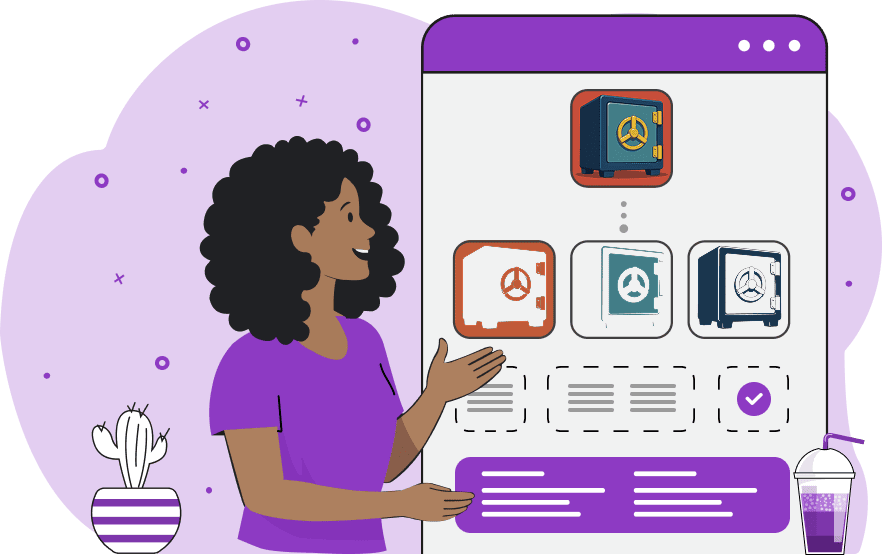
This free online browser-based tool separates the colors of a bitmap image into individual layers. It is useful for examining bitmap palettes, isolating parts of pixel art and sprites, creating color masks, and preparing individual color regions for further editing. You can separate colors automatically by reducing the BMP to a limited palette and creating one layer for every resulting color. Set the number of colors to control how many layers are produced. Alternatively, choose specific colors to extract by entering one color per line. Each color can be specified by a color name, hexadecimal value, or RGB value, as well as an optional tolerance after a slash, such as "navy/5%" or "gold/12%". The tolerance lets you include nearby shades instead of matching only one exact color. After the colors are separated, you can place the layers side by side in a row or combine them back onto a single canvas. Each layer can also be cropped to remove transparent space or kept at its original size with the visible pixels centered. Empty areas are transparent by default, but you can fill them with any background color. For easier visual separation, you can draw divider lines between the output layers and customize their width and color. Bmp-abulous!
This free online browser-based tool separates the colors of a bitmap image into individual layers. It is useful for examining bitmap palettes, isolating parts of pixel art and sprites, creating color masks, and preparing individual color regions for further editing. You can separate colors automatically by reducing the BMP to a limited palette and creating one layer for every resulting color. Set the number of colors to control how many layers are produced. Alternatively, choose specific colors to extract by entering one color per line. Each color can be specified by a color name, hexadecimal value, or RGB value, as well as an optional tolerance after a slash, such as "navy/5%" or "gold/12%". The tolerance lets you include nearby shades instead of matching only one exact color. After the colors are separated, you can place the layers side by side in a row or combine them back onto a single canvas. Each layer can also be cropped to remove transparent space or kept at its original size with the visible pixels centered. Empty areas are transparent by default, but you can fill them with any background color. For easier visual separation, you can draw divider lines between the output layers and customize their width and color. Bmp-abulous!
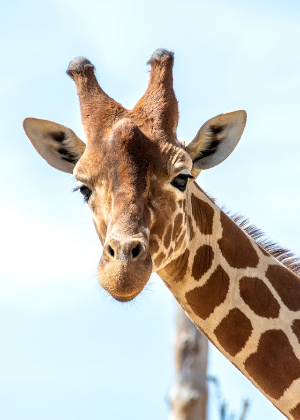
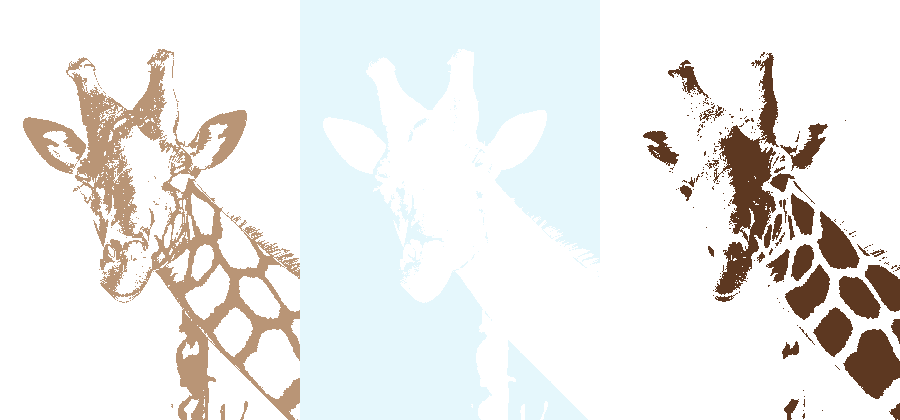
In this example, we separate a BMP image of a giraffe's head into three color layers. The first layer contains the light areas of its coat, the second isolates the blue sky, and the third contains the giraffe's dark markings. By splitting these tones apart, we can clearly see the light-and-dark pattern that forms the giraffe's distinctive coloring. (Source: Pexels.)
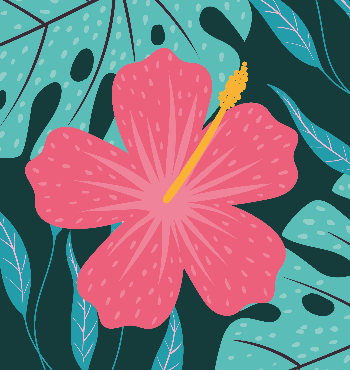
In this example, we extract four custom colors from a BMP pattern filled with flowers and leaves. We select coral pink, soft pink, golden yellow, and teal, then combine the extracted colors on one canvas. As a result, the main flower and several small surrounding leaves are isolated from the original pattern and placed together on an azure background. (Source: Vecteezy.com.)

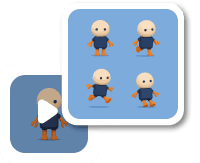
In this example, we separate a Little Goomba sprite from the Mario game series into its four pixel colors. Since the sprite uses four colors, we set the number of layers to 4 and create one image for each color. White makes up the background, burnt orange forms its cap, black defines its eyebrows, eyes, and feet, and light beige forms the mushroom's stem. We also center each color pattern and add black divider lines between the four layers. (Source: Nintendo.)


Create and edit bitmaps in your browser.
Make a bitmap smaller in size.
Convert a compressed bitmap to a raw RGB pixel bitmap.
Create a swirl of any radius in a bitmap.
Join two or more bitmaps together.
Place two or more bitmaps on top of each other.
Split a bitmap into multiple independent bitmaps.
Extract one or more selected areas from a bitmap.
Make copies of bitmaps and paste them together.
Skew a bitmap by an arbitrary angle.
Shift a bitmap to the left or right.
Convert a BMP to a Webp.
Convert a Webp to a BMP.
Convert a BMP to a PNG.
Convert a PNG to a BMP
Convert a BMP to a JPG.
Convert a JPG to a BMP.
Convert a BMP to a BPG.
Convert a BPG to a BMP.
Save GIF frames as BMP images.
Convert a bitmap to a single-frame GIF.
Create a Data URL scheme of a bitmap.
Convert a Data URL scheme back to a bitmap image.
Bit Blit two or more BMPs.
Put a new color table in a BMP.
Extract the color table of a BMP.
Extract raw RGB pixels from a BMP and print them out as text.
Create a bitmap image from raw RGB pixels.
Randomly rearrange colors in the BMP color table.
Reduce a BMP's memory footprint.
Destroy parts of a bitmap and make it glitchy.
Subscribe to our updates. We'll let you know when we release new tools and features, and when we organize online workshops.
Enter your email here
We're Browserling — a friendly and fun cross-browser testing company powered by alien technology. At Browserling, we love to make people's lives easier, so we created this collection of online bitmap tools. Our BMP tools have the simplest possible user interface and work directly in your browser without downloads or installations. You can use them to edit bitmap images, change BMP bit depth and colors, resize bitmaps, create transparent BMPs, work with bitmap pixels and byte arrays, and much more. Behind the scenes, our bitmap tools are powered by our web developer tools that we've created over the years. Check them out!