This is a free and fast online utility that converts every pixel in a bitmap image into its red, green, and blue decimal values. You can use the configuration options (below) to change the component sequence, choose array nesting and bracket marks, and define custom delimiters. Extra options allow you to preserve the original BMP row breaks in the output. Created by graphics designers from team Browserling.
This is a free and fast online utility that converts every pixel in a bitmap image into its red, green, and blue decimal values. You can use the configuration options (below) to change the component sequence, choose array nesting and bracket marks, and define custom delimiters. Extra options allow you to preserve the original BMP row breaks in the output. Created by graphics designers from team Browserling.
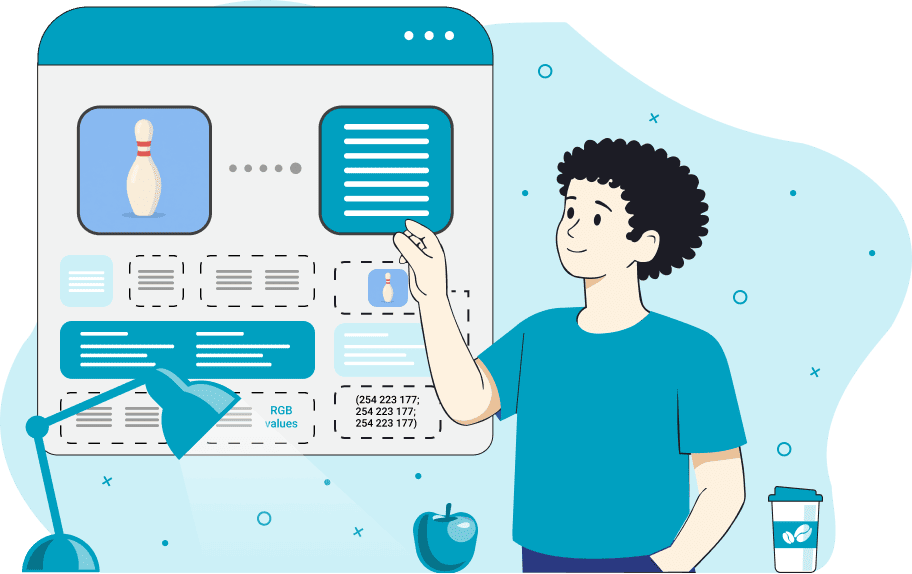
This free online browser-based program extracts the RGB values of every pixel in a BMP image and prints them as decimal numbers from 0 to 255. Each pixel is represented by three color components, such as "0, 128, 255" for blue, "255, 165, 0" for orange, and "128, 0, 128" for purple. The program reads pixels from the upper-left corner to the lower-right corner and prints their values in the same order. By default, the components follow the standard RGB order, but you can switch to the BGR sequence commonly used in BMP pixel storage or choose RBG, GRB, GBR, or BRG. You can also choose the structure of the output values. They can be written as a flat list, placed in a single array, separated into individual pixel arrays, organized into bitmap row arrays, or nested into rows containing pixel arrays. Arrays can use square, round, curly, or angle brackets. You can also set custom delimiters between the three components of each pixel and between consecutive pixels. To keep the output aligned with the bitmap's original layout, you can insert a new line after the last pixel of each source row, preserving the image width and row boundaries. To turn decimal pixel values back into a BMP image, use the Convert RGB Values to Bitmap tool. Bmp-abulous!
This free online browser-based program extracts the RGB values of every pixel in a BMP image and prints them as decimal numbers from 0 to 255. Each pixel is represented by three color components, such as "0, 128, 255" for blue, "255, 165, 0" for orange, and "128, 0, 128" for purple. The program reads pixels from the upper-left corner to the lower-right corner and prints their values in the same order. By default, the components follow the standard RGB order, but you can switch to the BGR sequence commonly used in BMP pixel storage or choose RBG, GRB, GBR, or BRG. You can also choose the structure of the output values. They can be written as a flat list, placed in a single array, separated into individual pixel arrays, organized into bitmap row arrays, or nested into rows containing pixel arrays. Arrays can use square, round, curly, or angle brackets. You can also set custom delimiters between the three components of each pixel and between consecutive pixels. To keep the output aligned with the bitmap's original layout, you can insert a new line after the last pixel of each source row, preserving the image width and row boundaries. To turn decimal pixel values back into a BMP image, use the Convert RGB Values to Bitmap tool. Bmp-abulous!
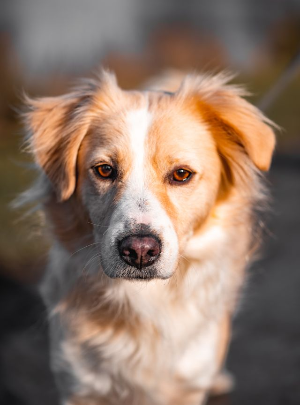
In this example, we convert a 300×405 bitmap portrait of a dog into a plain list of RGB values. We keep the channels in red-green-blue order, separate the three numbers in each pixel with commas, and place semicolons between neighboring pixels. We leave the data unwrapped and keep it on one continuous line. (Source: Pexels.)
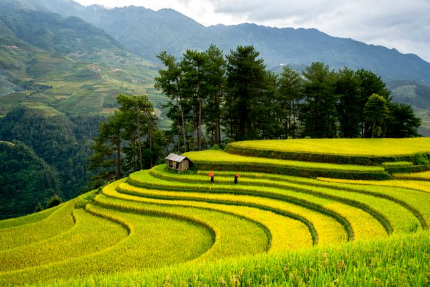
In this example, we convert a bitmap of terraced rice fields into BGR pixel arrays that follow the image row by row. We use the blue-green-red component order because it is commonly used in BMP pixel storage. Each pixel is wrapped in square brackets, with its three color components kept together as one unit. Commas separate both the channel values and neighboring pixel arrays, while line breaks preserve the original bitmap row structure in the output. (Source: Pexels.)
In this example, we format a Mai Shiranui BMP sprite as nested BRG arrays using a more customized output style. The pixel components are arranged as blue, red, and green, with hyphens joining the three values inside each pixel. Spaces separate neighboring pixels, and curly brackets define individual pixels, bitmap rows, and the complete array. (Source: SNK.)

Create and edit bitmaps in your browser.
Make a bitmap smaller in size.
Convert a compressed bitmap to a raw RGB pixel bitmap.
Create a swirl of any radius in a bitmap.
Join two or more bitmaps together.
Place two or more bitmaps on top of each other.
Split a bitmap into multiple independent bitmaps.
Extract one or more selected areas from a bitmap.
Make copies of bitmaps and paste them together.
Skew a bitmap by an arbitrary angle.
Shift a bitmap to the left or right.
Convert a BMP to a Webp.
Convert a Webp to a BMP.
Convert a BMP to a PNG.
Convert a PNG to a BMP
Convert a BMP to a JPG.
Convert a JPG to a BMP.
Convert a BMP to a BPG.
Convert a BPG to a BMP.
Save GIF frames as BMP images.
Convert a bitmap to a single-frame GIF.
Create a Data URL scheme of a bitmap.
Convert a Data URL scheme back to a bitmap image.
Bit Blit two or more BMPs.
Put a new color table in a BMP.
Extract the color table of a BMP.
Extract raw RGB pixels from a BMP and print them out as text.
Create a bitmap image from raw RGB pixels.
Randomly rearrange colors in the BMP color table.
Reduce a BMP's memory footprint.
Destroy parts of a bitmap and make it glitchy.
Subscribe to our updates. We'll let you know when we release new tools and features, and when we organize online workshops.
Enter your email here
We're Browserling — a friendly and fun cross-browser testing company powered by alien technology. At Browserling, we love to make people's lives easier, so we created this collection of online bitmap tools. Our BMP tools have the simplest possible user interface and work directly in your browser without downloads or installations. You can use them to edit bitmap images, change BMP bit depth and colors, resize bitmaps, create transparent BMPs, work with bitmap pixels and byte arrays, and much more. Behind the scenes, our bitmap tools are powered by our web developer tools that we've created over the years. Check them out!