This is a free and fast online utility that adds pixelation to BMP (bitmap) images. You can use the configuration options below to choose the block size and select the bitmap region to pixelate. Extra options allow you to switch between rectangular and oval regions, reverse the coverage to affect the surrounding pixels, and rotate the area before exporting the BMP. Created by graphics designers from team Browserling.
This is a free and fast online utility that adds pixelation to BMP (bitmap) images. You can use the configuration options below to choose the block size and select the bitmap region to pixelate. Extra options allow you to switch between rectangular and oval regions, reverse the coverage to affect the surrounding pixels, and rotate the area before exporting the BMP. Created by graphics designers from team Browserling.
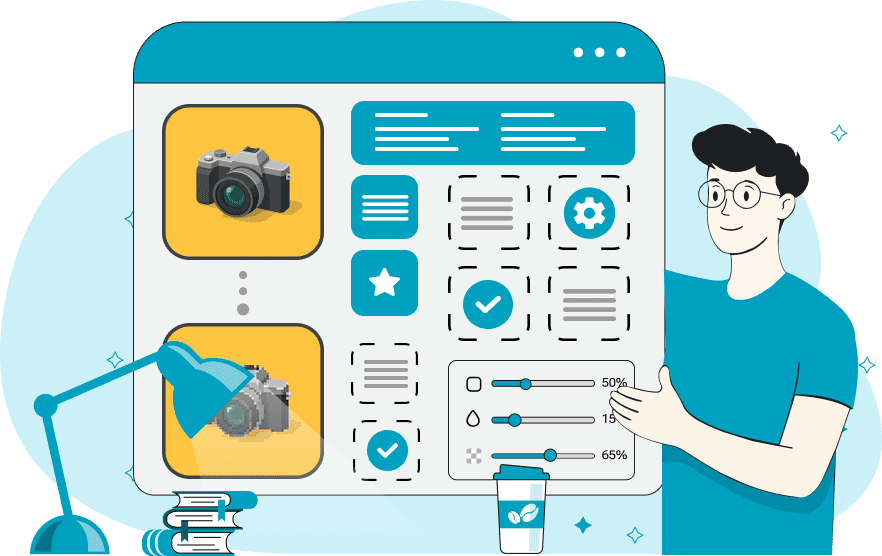
This online program pixelates BMP (bitmap) images. It replaces fine image detail in the chosen region with larger square blocks of sampled color, creating a mosaic-like version of that part of the bitmap. This makes text, faces, labels, coordinates, signs, and other private visual details harder to recognize, while also giving bitmap photos a retro low-resolution style when used creatively. The pixel size controls how coarse the mosaic becomes: a small value creates a mild block effect, and a large value combines wider parts of the image into bigger square blocks. By default, pixelation is applied inside a rectangular region, but the region can also be oval. The left and top options place the region, the width and height set its size, and empty position or size fields let the region fill the available bitmap space. For exact placement, use the left, top, width, height, and rotation options; for visual editing, drag, resize, or rotate the region directly in the input preview. The outside-region option reverses how the region is used: instead of pixelating the region itself, it keeps that part of the BMP unchanged and pixelates everything around it. Bmp-abulous!
This online program pixelates BMP (bitmap) images. It replaces fine image detail in the chosen region with larger square blocks of sampled color, creating a mosaic-like version of that part of the bitmap. This makes text, faces, labels, coordinates, signs, and other private visual details harder to recognize, while also giving bitmap photos a retro low-resolution style when used creatively. The pixel size controls how coarse the mosaic becomes: a small value creates a mild block effect, and a large value combines wider parts of the image into bigger square blocks. By default, pixelation is applied inside a rectangular region, but the region can also be oval. The left and top options place the region, the width and height set its size, and empty position or size fields let the region fill the available bitmap space. For exact placement, use the left, top, width, height, and rotation options; for visual editing, drag, resize, or rotate the region directly in the input preview. The outside-region option reverses how the region is used: instead of pixelating the region itself, it keeps that part of the BMP unchanged and pixelates everything around it. Bmp-abulous!
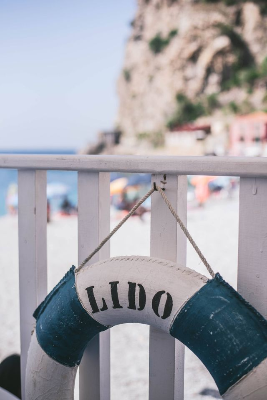
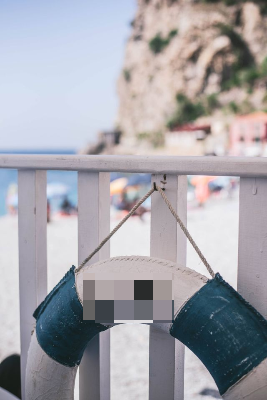
In this example, we pixelate the writing on a beach life ring to hide the name of the beach location while keeping the photo itself easy to recognize. We use a rectangular pixelation region at position (84, 274), set its size to 89 by 48 pixels, and apply 20-pixel blocks. This covers the LIDO lettering with a compact mosaic while leaving the railing, sea view, cliffs, and life ring shape unchanged. (Source: Pexels.)
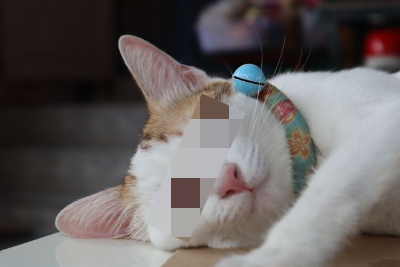
In this example, we pixelate the eye area in a cat photo to hide the cat's facial expression and make it hard to tell whether the eyes are open or closed. We use large pixelation blocks that are 30 pixels wide and tall. The effect is applied inside a rectangular region, and we rotate this region by 66 degrees so it follows the diagonal line across the cat's face. (Source: Pexels.)

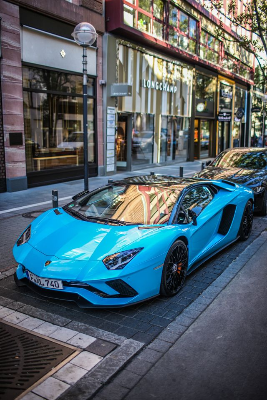
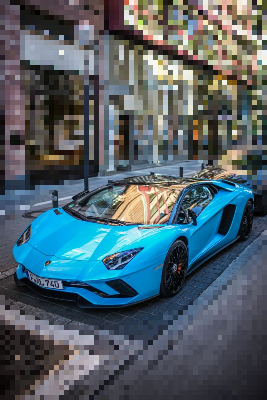
In this example, we use inverted pixelation to hide the shooting location in a street photo. The bright blue sports car is the stylish subject we want to show, but because the photo was taken near home, the storefronts, sidewalk, and street details around it should be harder to identify. We place an oval region around the car, rotate it by 15 degrees, and enable the outside-region mode. With a 5-pixel block size, the car stays sharp while the surrounding location turns into a pixelated mosaic. (Source: Pexels.)
Create and edit bitmaps in your browser.
Make a bitmap smaller in size.
Convert a compressed bitmap to a raw RGB pixel bitmap.
Create a swirl of any radius in a bitmap.
Join two or more bitmaps together.
Place two or more bitmaps on top of each other.
Split a bitmap into multiple independent bitmaps.
Extract one or more selected areas from a bitmap.
Make copies of bitmaps and paste them together.
Skew a bitmap by an arbitrary angle.
Shift a bitmap to the left or right.
Convert a BMP to a Webp.
Convert a Webp to a BMP.
Convert a BMP to a PNG.
Convert a PNG to a BMP
Convert a BMP to a JPG.
Convert a JPG to a BMP.
Convert a BMP to a BPG.
Convert a BPG to a BMP.
Save GIF frames as BMP images.
Convert a bitmap to a single-frame GIF.
Create a Data URL scheme of a bitmap.
Convert a Data URL scheme back to a bitmap image.
Bit Blit two or more BMPs.
Put a new color table in a BMP.
Extract the color table of a BMP.
Extract raw RGB pixels from a BMP and print them out as text.
Create a bitmap image from raw RGB pixels.
Randomly rearrange colors in the BMP color table.
Reduce a BMP's memory footprint.
Destroy parts of a bitmap and make it glitchy.
Subscribe to our updates. We'll let you know when we release new tools and features, and when we organize online workshops.
Enter your email here
We're Browserling — a friendly and fun cross-browser testing company powered by alien technology. At Browserling, we love to make people's lives easier, so we created this collection of online bitmap tools. Our BMP tools have the simplest possible user interface and work directly in your browser without downloads or installations. You can use them to edit bitmap images, change BMP bit depth and colors, resize bitmaps, create transparent BMPs, work with bitmap pixels and byte arrays, and much more. Behind the scenes, our bitmap tools are powered by our web developer tools that we've created over the years. Check them out!