This is a free and fast online utility that converts colorful bitmap images into grayscale BMP files. You can use the configuration options (below) to choose how the gray value is calculated and use custom red, green, and blue channel weights. Extra options allow you to reduce the grayscale bitmap to a smaller number of gray shades. Created by graphics designers from team Browserling.
This is a free and fast online utility that converts colorful bitmap images into grayscale BMP files. You can use the configuration options (below) to choose how the gray value is calculated and use custom red, green, and blue channel weights. Extra options allow you to reduce the grayscale bitmap to a smaller number of gray shades. Created by graphics designers from team Browserling.
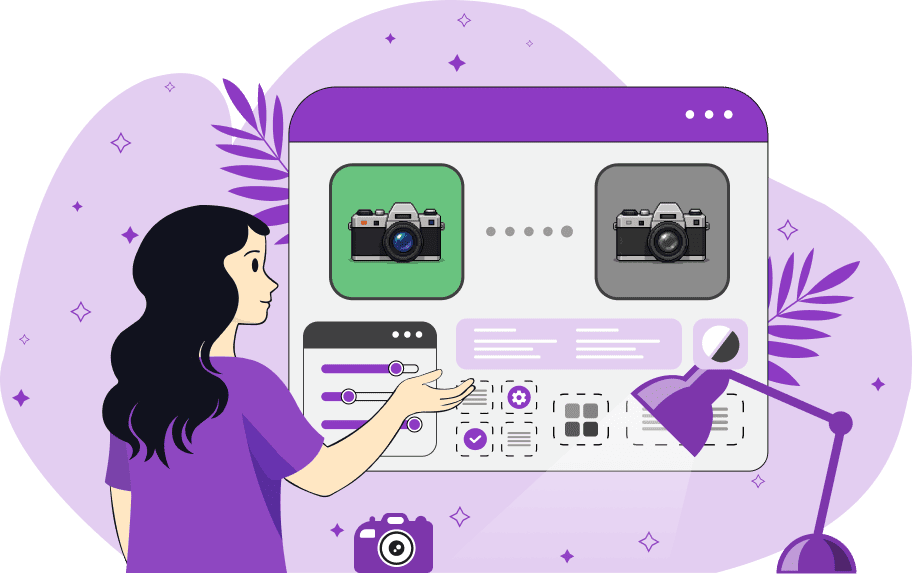
This free online browser-based program converts BMP (bitmap) images into grayscale BMPs. A color bitmap stores each pixel as a combination of red, green, and blue values, and this tool converts the red, green, and blue values into a single grayscale tone and writes that tone back into each channel. The result keeps the shapes, shadows, highlights, and texture of the original bitmap, but removes the color information and leaves only gray tones. In the options, you can pick how the brightness should be computed. The average method treats red, green, and blue equally. The HDTV method follows the BT.709 weights and gives more influence to green, which usually matches human brightness perception well. The PAL/NTSC method uses the older BT.601 weights and can produce a slightly different tonal balance. If none of these formulas fits your bitmap, enable custom weights and enter your own red, green, and blue multipliers. This is useful when one color channel contains the detail you care about more than the others. You can also limit the output palette to a fixed number of gray levels. With a high value, the BMP keeps smooth gradients; with a low value, it becomes more graphic and poster-like, using only a handful of distinct gray shades. Bmp-abulous!
This free online browser-based program converts BMP (bitmap) images into grayscale BMPs. A color bitmap stores each pixel as a combination of red, green, and blue values, and this tool converts the red, green, and blue values into a single grayscale tone and writes that tone back into each channel. The result keeps the shapes, shadows, highlights, and texture of the original bitmap, but removes the color information and leaves only gray tones. In the options, you can pick how the brightness should be computed. The average method treats red, green, and blue equally. The HDTV method follows the BT.709 weights and gives more influence to green, which usually matches human brightness perception well. The PAL/NTSC method uses the older BT.601 weights and can produce a slightly different tonal balance. If none of these formulas fits your bitmap, enable custom weights and enter your own red, green, and blue multipliers. This is useful when one color channel contains the detail you care about more than the others. You can also limit the output palette to a fixed number of gray levels. With a high value, the BMP keeps smooth gradients; with a low value, it becomes more graphic and poster-like, using only a handful of distinct gray shades. Bmp-abulous!
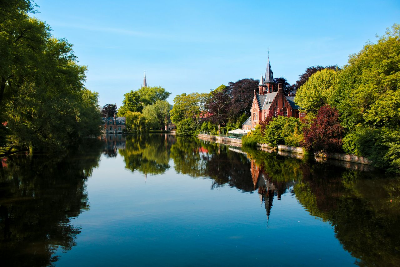
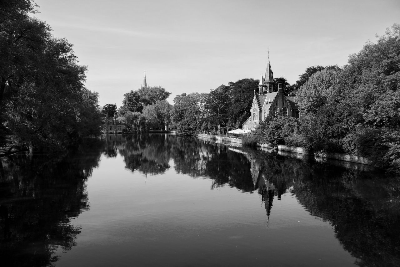
In this example, we convert a bitmap photo of a calm historic canal to grayscale using the average RGB formula. This method gives equal importance to the red, green, and blue channels, so the bright sky, leafy trees, brick building, and dark water reflection are all reduced to a smooth and neutral gray range. (Source: Pexels.)
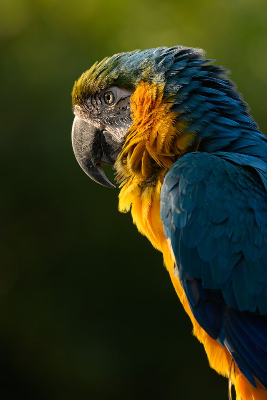
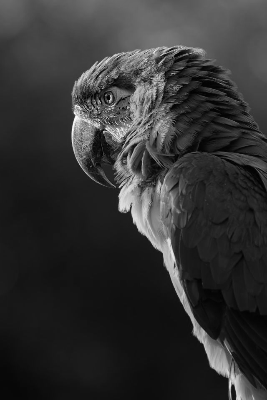
In this example, we turn a colorful macaw parrot portrait into a cinematic grayscale bitmap using the HDTV brightness formula. The BT.709 weights create a rich documentary-film look with deep shadows, clean highlights, and excellent detail separation. Even without the blue and yellow feather colors, the bird's eye, curved beak, and tiny feather layers remain sharp and expressive. (Source: Pexels.)
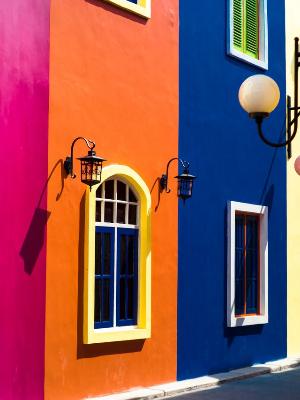
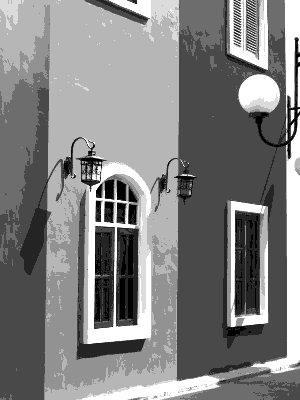
In this example, the bitmap contains painted building facades in strong magenta, orange, and blue colors. We use custom RGB channel weights to control how these colors turn into gray: increasing a channel multiplier makes image areas rich in that channel move toward lighter gray tones, while lower multipliers keep them darker. We also limit the output to eight gray colors, which breaks the wall paint and plaster texture into spotted, poster-like patches. (Source: Pexels.)
Create and edit bitmaps in your browser.
Make a bitmap smaller in size.
Convert a compressed bitmap to a raw RGB pixel bitmap.
Create a swirl of any radius in a bitmap.
Join two or more bitmaps together.
Place two or more bitmaps on top of each other.
Split a bitmap into multiple independent bitmaps.
Extract one or more selected areas from a bitmap.
Make copies of bitmaps and paste them together.
Skew a bitmap by an arbitrary angle.
Shift a bitmap to the left or right.
Convert a BMP to a Webp.
Convert a Webp to a BMP.
Convert a BMP to a PNG.
Convert a PNG to a BMP
Convert a BMP to a JPG.
Convert a JPG to a BMP.
Convert a BMP to a BPG.
Convert a BPG to a BMP.
Save GIF frames as BMP images.
Convert a bitmap to a single-frame GIF.
Create a Data URL scheme of a bitmap.
Convert a Data URL scheme back to a bitmap image.
Bit Blit two or more BMPs.
Put a new color table in a BMP.
Extract the color table of a BMP.
Extract raw RGB pixels from a BMP and print them out as text.
Create a bitmap image from raw RGB pixels.
Randomly rearrange colors in the BMP color table.
Reduce a BMP's memory footprint.
Destroy parts of a bitmap and make it glitchy.
Subscribe to our updates. We'll let you know when we release new tools and features, and when we organize online workshops.
Enter your email here
We're Browserling — a friendly and fun cross-browser testing company powered by alien technology. At Browserling, we love to make people's lives easier, so we created this collection of online bitmap tools. Our BMP tools have the simplest possible user interface and work directly in your browser without downloads or installations. You can use them to edit bitmap images, change BMP bit depth and colors, resize bitmaps, create transparent BMPs, work with bitmap pixels and byte arrays, and much more. Behind the scenes, our bitmap tools are powered by our web developer tools that we've created over the years. Check them out!