This is a free and fast online utility that creates sprite animations from bitmap sprite sheets or bitmap sprite strips. You can use the configuration options (below) to customize the frame size, specify the starting position of the first frame, and set whether the input sprite strip is horizontal or vertical. Extra options allow you to change the background color of the sprites, control the playback speed and zoom, choose which frames get animated, and set the movement direction of the animation. Created by graphics designers from team Browserling.
This is a free and fast online utility that creates sprite animations from bitmap sprite sheets or bitmap sprite strips. You can use the configuration options (below) to customize the frame size, specify the starting position of the first frame, and set whether the input sprite strip is horizontal or vertical. Extra options allow you to change the background color of the sprites, control the playback speed and zoom, choose which frames get animated, and set the movement direction of the animation. Created by graphics designers from team Browserling.

This free online browser-based program animates bitmap images (ending with extension .bmp) that contain sprites. A sprite is a single drawing that contains one frame of an animation in a series of drawings that contains the full animation. A sprite sheet is an image that contains many sprites laid out one after another in one file, and it may contain multiple animations. Sprite sheets are often used in computer games, as game character animations can be saved in a single file rather than several files. All frames that are part of the same animation must be the same size and placed next to each other vertically or horizontally. This sequence of sprites is called an animation strip. When you load a sprite sheet in this tool, it creates an animation by running through the frames in an animation strip. It quickly displays one sprite after another, creating a flipbook-like illusion of character movement. The animation frames can move from left to right, right to left, top to bottom, or bottom to top. Depending on the location and layout of the sprites in your sheet, you can change the direction of the animation in the options. You can also adjust the width and height of a frame and specify the starting position of the animation strip via x and y coordinates (the upper left corner has coordinates 0, 0). To set the input bitmap in motion, enable the "Play the Animation" option. Using the frame speed option, you can adjust the duration of one frame (in milliseconds). The zoom option lets you zoom in and zoom out the sprites. By default, the zoom level is 100%, but you can make the animation twice as small by setting it to 50% or twice as large by setting it to 200%. If the animation is paused, all sprite frames in a sprite strip are highlighted and numbered in the input screen. If you don't want to animate any of the frames, you can skip them by entering their numbers in the skip-sprite option. For example, if you enter "2" in this option, then the second sprite frame will be skipped. If you need to skip multiple sprites, then separate them with a comma (for example, "5, 7, 8, 9") or use a range (for example, "5-9"). You can also add or change the sprite background color in the animation. For example, if the sprite sheet has no background (the sprite sheet is transparent), then you can add a background color to it by entering the color "transparent" in the input-background color field and entering the new color in the output-background color field. To change an existing background in all sprites, enter the color of the current background and the new background color in the options. Optionally, you can set the percentage of color tone deviation from the given color. For example, if the background is white and a little bit gray, then you can enter 10% in this option, and it will match both white and 10% of gray colors. The colors can be entered using their names, hex codes, and RGB and RGBA codes. The output animation can also be downloaded as a GIF image. To get a GIF, select Save as in the output area and click Download. To create a BMP sprite sheet from an existing animation, use the Convert Animation to Bitmap Sprites tool. Bmp-abulous!
This free online browser-based program animates bitmap images (ending with extension .bmp) that contain sprites. A sprite is a single drawing that contains one frame of an animation in a series of drawings that contains the full animation. A sprite sheet is an image that contains many sprites laid out one after another in one file, and it may contain multiple animations. Sprite sheets are often used in computer games, as game character animations can be saved in a single file rather than several files. All frames that are part of the same animation must be the same size and placed next to each other vertically or horizontally. This sequence of sprites is called an animation strip. When you load a sprite sheet in this tool, it creates an animation by running through the frames in an animation strip. It quickly displays one sprite after another, creating a flipbook-like illusion of character movement. The animation frames can move from left to right, right to left, top to bottom, or bottom to top. Depending on the location and layout of the sprites in your sheet, you can change the direction of the animation in the options. You can also adjust the width and height of a frame and specify the starting position of the animation strip via x and y coordinates (the upper left corner has coordinates 0, 0). To set the input bitmap in motion, enable the "Play the Animation" option. Using the frame speed option, you can adjust the duration of one frame (in milliseconds). The zoom option lets you zoom in and zoom out the sprites. By default, the zoom level is 100%, but you can make the animation twice as small by setting it to 50% or twice as large by setting it to 200%. If the animation is paused, all sprite frames in a sprite strip are highlighted and numbered in the input screen. If you don't want to animate any of the frames, you can skip them by entering their numbers in the skip-sprite option. For example, if you enter "2" in this option, then the second sprite frame will be skipped. If you need to skip multiple sprites, then separate them with a comma (for example, "5, 7, 8, 9") or use a range (for example, "5-9"). You can also add or change the sprite background color in the animation. For example, if the sprite sheet has no background (the sprite sheet is transparent), then you can add a background color to it by entering the color "transparent" in the input-background color field and entering the new color in the output-background color field. To change an existing background in all sprites, enter the color of the current background and the new background color in the options. Optionally, you can set the percentage of color tone deviation from the given color. For example, if the background is white and a little bit gray, then you can enter 10% in this option, and it will match both white and 10% of gray colors. The colors can be entered using their names, hex codes, and RGB and RGBA codes. The output animation can also be downloaded as a GIF image. To get a GIF, select Save as in the output area and click Download. To create a BMP sprite sheet from an existing animation, use the Convert Animation to Bitmap Sprites tool. Bmp-abulous!
This is a bitmap animation of Genie from the second mission of our favorite game, Metal Slug X. The bitmap sheet contains a set of twelve animation sprites in which the Genie comes out of a magic lamp. We play the animation at 200 milliseconds (0.2 seconds) per frame, which is 5 frames per second. The frames in the animation strip go from left to right. The starting position of the first sprite is x = 0, y = 0 (upper left corner of the bmp). The dimensions of one frame are 62 by 103 pixels, and the size of the output animation is twice as large (zoom is set to 200%).


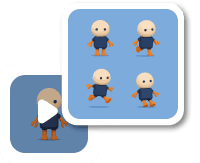
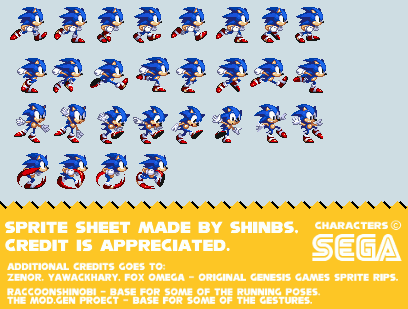
In this example, we animate a sprite sheet made by Shinbs. The Sonic sprite sheet contains four horizontal animation strips. We decided to animate the second strip where Sonic is running. As the size of one sprite is 40px by 50px, we move the starting frame to the position (10, 50). There is extra space at the end of the sprite strip, so we remove the two empty frames at the end by entering the frame numbers 9 and 10 in the sprites to skip field. We also change the background color of the animation by replacing the input background hex color #cedde3 (gray) with the new color #ffce38 (yellow). We play the animation at 10fps by giving a duration of 100ms to each frame and keep the zoom level at 2x.

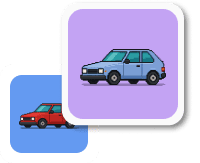
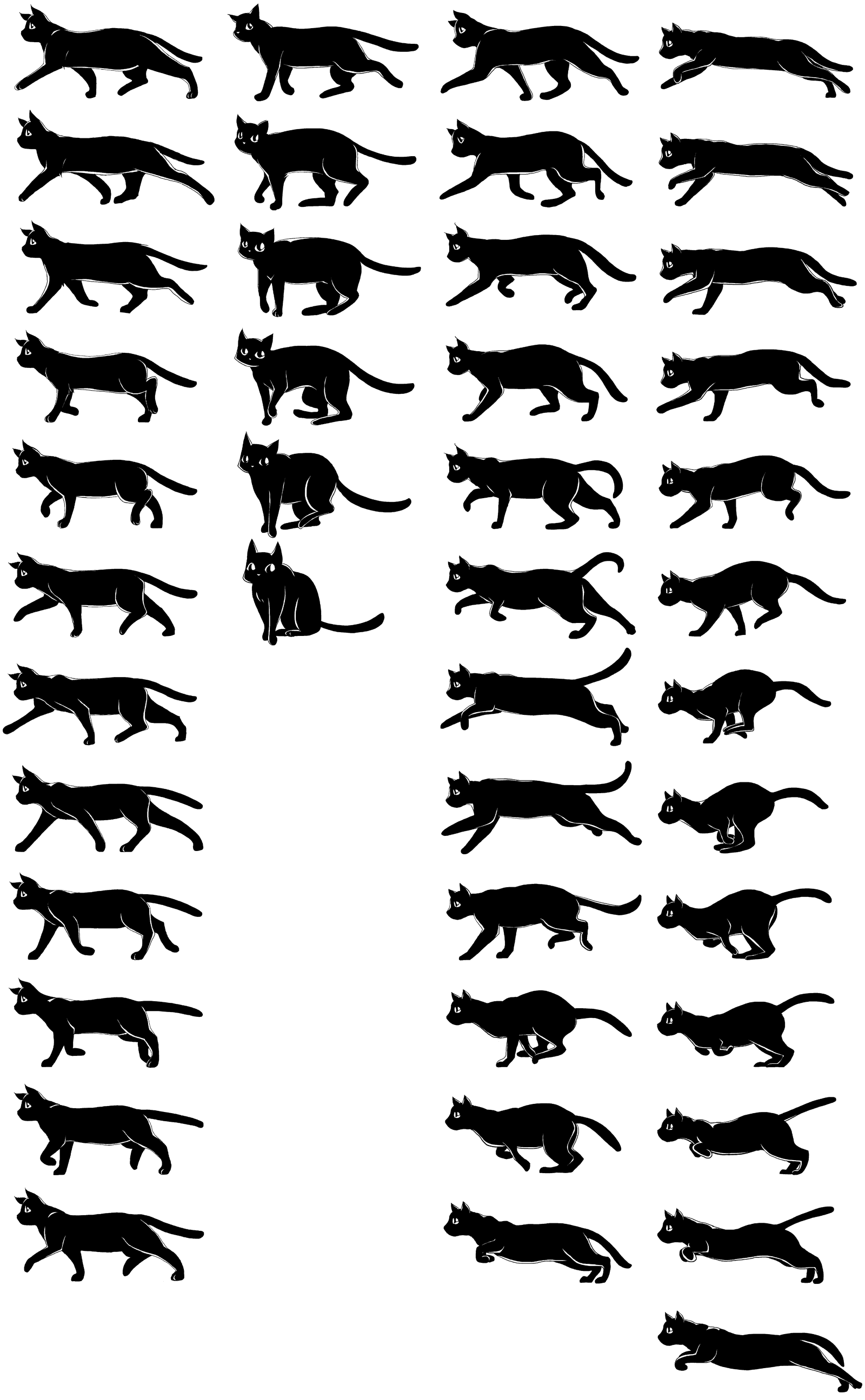
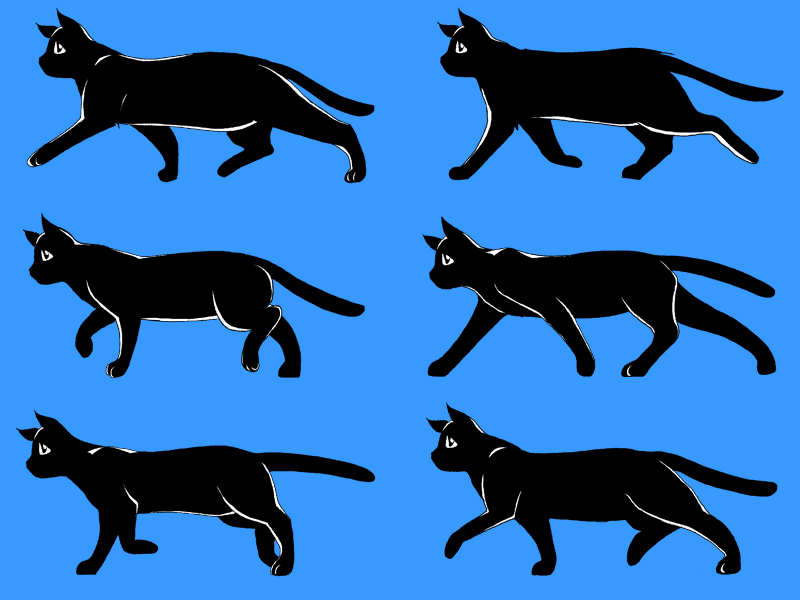
In this example, we create an animation from a vertical sprite strip. We set the frame size to 400×200 pixels, set the direction of frames to be from top to bottom, starting from the zero coordinate. We animate all frames except the last one (13th frame) and set the refresh rate to 100 milliseconds for each sprite. We also add a blue background to the walking cat animation by entering the color "transparent" in the input background option and the color "RGB(56, 153, 255)" in the output background color. The sprites are kept at their original size (zoom 100%).
Create and edit bitmaps in your browser.
Make a bitmap smaller in size.
Convert a compressed bitmap to a raw RGB pixel bitmap.
Create a swirl of any radius in a bitmap.
Join two or more bitmaps together.
Place two or more bitmaps on top of each other.
Split a bitmap into multiple independent bitmaps.
Extract one or more selected areas from a bitmap.
Make copies of bitmaps and paste them together.
Skew a bitmap by an arbitrary angle.
Shift a bitmap to the left or right.
Convert a BMP to a Webp.
Convert a Webp to a BMP.
Convert a BMP to a PNG.
Convert a PNG to a BMP
Convert a BMP to a JPG.
Convert a JPG to a BMP.
Convert a BMP to a BPG.
Convert a BPG to a BMP.
Save GIF frames as BMP images.
Convert a bitmap to a single-frame GIF.
Create a Data URL scheme of a bitmap.
Convert a Data URL scheme back to a bitmap image.
Bit Blit two or more BMPs.
Put a new color table in a BMP.
Extract the color table of a BMP.
Extract raw RGB pixels from a BMP and print them out as text.
Create a bitmap image from raw RGB pixels.
Randomly rearrange colors in the BMP color table.
Reduce a BMP's memory footprint.
Destroy parts of a bitmap and make it glitchy.
Subscribe to our updates. We'll let you know when we release new tools and features, and when we organize online workshops.
Enter your email here
We're Browserling — a friendly and fun cross-browser testing company powered by alien technology. At Browserling, we love to make people's lives easier, so we created this collection of online bitmap tools. Our BMP tools have the simplest possible user interface and work directly in your browser without downloads or installations. You can use them to edit bitmap images, change BMP bit depth and colors, resize bitmaps, create transparent BMPs, work with bitmap pixels and byte arrays, and much more. Behind the scenes, our bitmap tools are powered by our web developer tools that we've created over the years. Check them out!