This is a free and fast online utility that adds borders to BMP (bitmap) images. You can use the configuration options (below) to place the border inside, outside, or across the edge of the bitmap, set a separate width for each side, and choose the border color. Extra options allow you to round the frame corners and fill the exposed corner areas with a custom background color. Created by graphics designers from team Browserling.
This is a free and fast online utility that adds borders to BMP (bitmap) images. You can use the configuration options (below) to place the border inside, outside, or across the edge of the bitmap, set a separate width for each side, and choose the border color. Extra options allow you to round the frame corners and fill the exposed corner areas with a custom background color. Created by graphics designers from team Browserling.
This free online browser-based program draws a customizable border on a BMP image. The border can sit outside the bitmap, run through its edge, or cover pixels just inside it. An outside border leaves the original picture untouched and expands the canvas by the amount entered for each side. A centered border divides every side width between the existing bitmap and the added canvas. An inside border paints over edge pixels and keeps the BMP at its original dimensions. The left, right, top, and bottom widths are controlled independently, so the frame can be even, asymmetrical, or limited to just one or two edges. Enter zero for any side that should remain borderless. The border color accepts a color name, hex code, RGB value, or a selection from the attached palette. You can also round each of the four border corners separately by entering an individual radius for the top-left, top-right, bottom-left, and bottom-right corners. When the border corners are rounded, the exposed canvas corners are filled with white by default, but you can use the background option to choose a different color. To undo an existing frame instead, use our Remove a Border from a Bitmap tool. Bmp-abulous!
This free online browser-based program draws a customizable border on a BMP image. The border can sit outside the bitmap, run through its edge, or cover pixels just inside it. An outside border leaves the original picture untouched and expands the canvas by the amount entered for each side. A centered border divides every side width between the existing bitmap and the added canvas. An inside border paints over edge pixels and keeps the BMP at its original dimensions. The left, right, top, and bottom widths are controlled independently, so the frame can be even, asymmetrical, or limited to just one or two edges. Enter zero for any side that should remain borderless. The border color accepts a color name, hex code, RGB value, or a selection from the attached palette. You can also round each of the four border corners separately by entering an individual radius for the top-left, top-right, bottom-left, and bottom-right corners. When the border corners are rounded, the exposed canvas corners are filled with white by default, but you can use the background option to choose a different color. To undo an existing frame instead, use our Remove a Border from a Bitmap tool. Bmp-abulous!
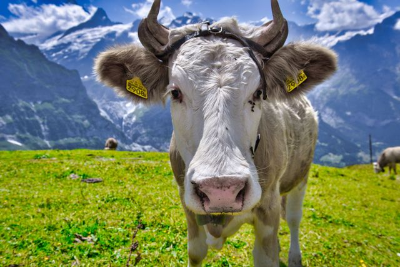
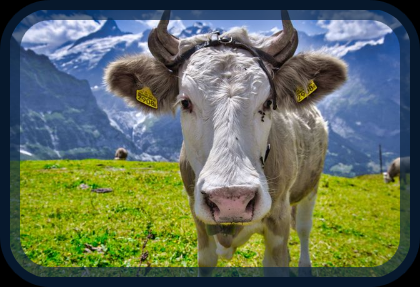
In this example, we add a thick, rounded border that resembles the frame of an old television. The alpine cow appears to be looking at us through the curved TV screen, turning an ordinary animal photo into a playful retro scene. The semi-transparent border is 20 pixels wide and uses center mode. (Source: Pexels.)
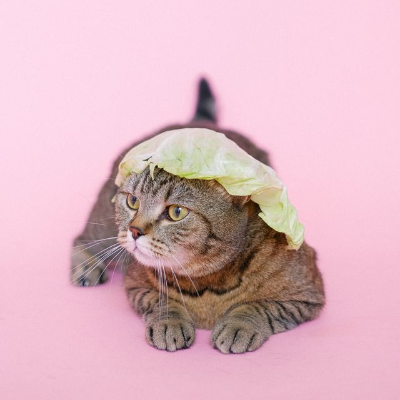
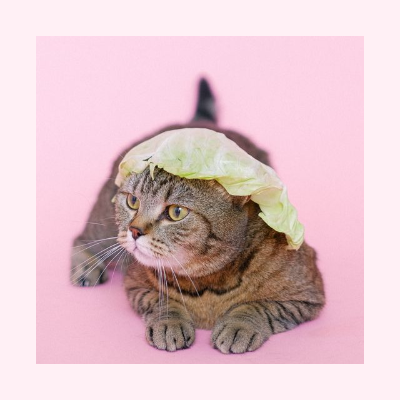
This example adds padding inside the bitmap and preserves its original dimensions. The pale frame makes a slightly funny photograph of a cat wearing a cabbage leaf look like a unique framed work of art. The square padding is 36 pixels wide. (Source: Pexels.)
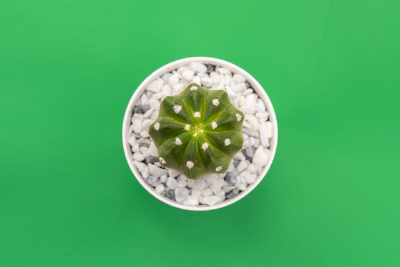
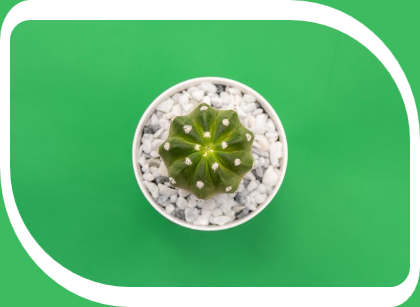
In this example, we add a decorative margin with an unusual shape, uneven side widths, and asymmetrical corner rounding. The corner fill matches the background of the cactus photo, making the margin blend into the scene and form a distinctive ornamental edge. Its widths vary between 10 and 20 pixels, with alternating corner radii. (Source: Pexels.)
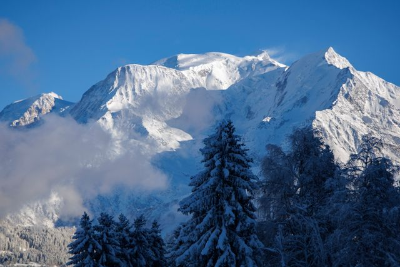
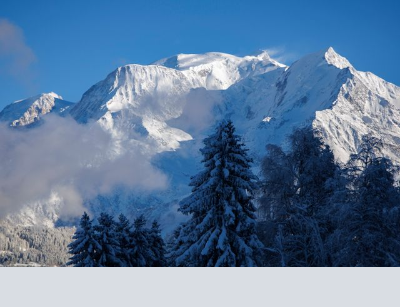
This example adds an empty area (40 pixels) below a mountain BMP photograph without changing its other edges. The new space can later be used to identify the photo location or write the name of the snow-covered mountain. (Source: Pexels.)
Create and edit bitmaps in your browser.
Make a bitmap smaller in size.
Convert a compressed bitmap to a raw RGB pixel bitmap.
Create a swirl of any radius in a bitmap.
Join two or more bitmaps together.
Place two or more bitmaps on top of each other.
Split a bitmap into multiple independent bitmaps.
Extract one or more selected areas from a bitmap.
Make copies of bitmaps and paste them together.
Skew a bitmap by an arbitrary angle.
Shift a bitmap to the left or right.
Convert a BMP to a Webp.
Convert a Webp to a BMP.
Convert a BMP to a PNG.
Convert a PNG to a BMP
Convert a BMP to a JPG.
Convert a JPG to a BMP.
Convert a BMP to a BPG.
Convert a BPG to a BMP.
Save GIF frames as BMP images.
Convert a bitmap to a single-frame GIF.
Create a Data URL scheme of a bitmap.
Convert a Data URL scheme back to a bitmap image.
Bit Blit two or more BMPs.
Put a new color table in a BMP.
Extract the color table of a BMP.
Extract raw RGB pixels from a BMP and print them out as text.
Create a bitmap image from raw RGB pixels.
Randomly rearrange colors in the BMP color table.
Reduce a BMP's memory footprint.
Destroy parts of a bitmap and make it glitchy.
Subscribe to our updates. We'll let you know when we release new tools and features, and when we organize online workshops.
Enter your email here
We're Browserling — a friendly and fun cross-browser testing company powered by alien technology. At Browserling, we love to make people's lives easier, so we created this collection of online bitmap tools. Our BMP tools have the simplest possible user interface and work directly in your browser without downloads or installations. You can use them to edit bitmap images, change BMP bit depth and colors, resize bitmaps, create transparent BMPs, work with bitmap pixels and byte arrays, and much more. Behind the scenes, our bitmap tools are powered by our web developer tools that we've created over the years. Check them out!