This is a free and fast online utility that rotates BMP (bitmap) images. You can use the configuration options (below) to set the rotation angle in degrees or radians, or turn the image interactively in the input preview. Extra options allow you to choose the background color for the empty canvas areas created around the rotated bitmap. Created by graphics designers from team Browserling.
This is a free and fast online utility that rotates BMP (bitmap) images. You can use the configuration options (below) to set the rotation angle in degrees or radians, or turn the image interactively in the input preview. Extra options allow you to choose the background color for the empty canvas areas created around the rotated bitmap. Created by graphics designers from team Browserling.

This free online browser-based program rotates BMP (bitmap) images clockwise or counterclockwise. You can use it to correct a sideways bitmap, straighten a slightly tilted scan, or deliberately place bitmap artwork on a diagonal. You can turn the image directly in the input preview by clicking and dragging around it, which is useful when the result only needs to look right by eye. When the orientation must be exact, choose degrees or radians and type the angle in the corresponding field. Positive values turn the bitmap counterclockwise, while a minus sign changes the movement to clockwise. For example, 90 degrees turns the picture on its left side, -90 degrees turns it on its right side, and 180 degrees makes it upside-down. If you prefer radians, 1.5708 is a quarter-turn, and 3.1416 is a half-turn. The output canvas automatically expands to contain the four rotated corners, so the bitmap is not clipped along its new edges. These extra corner areas are white by default, but you can paint them any color using the background option. Bmp-abulous!
This free online browser-based program rotates BMP (bitmap) images clockwise or counterclockwise. You can use it to correct a sideways bitmap, straighten a slightly tilted scan, or deliberately place bitmap artwork on a diagonal. You can turn the image directly in the input preview by clicking and dragging around it, which is useful when the result only needs to look right by eye. When the orientation must be exact, choose degrees or radians and type the angle in the corresponding field. Positive values turn the bitmap counterclockwise, while a minus sign changes the movement to clockwise. For example, 90 degrees turns the picture on its left side, -90 degrees turns it on its right side, and 180 degrees makes it upside-down. If you prefer radians, 1.5708 is a quarter-turn, and 3.1416 is a half-turn. The output canvas automatically expands to contain the four rotated corners, so the bitmap is not clipped along its new edges. These extra corner areas are white by default, but you can paint them any color using the background option. Bmp-abulous!
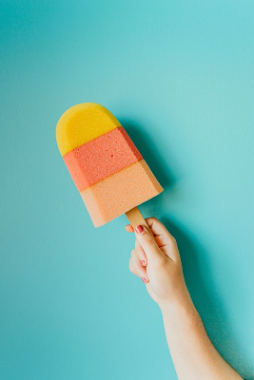
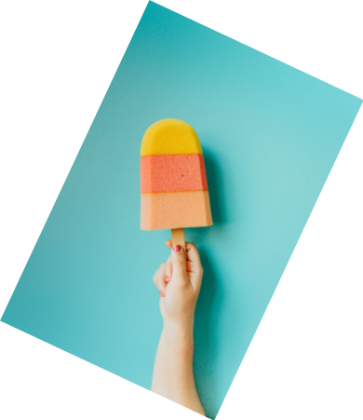
In this example, we correct the orientation of a BMP photo of a colorful ice cream held in a hand. We enter -25 degrees, and the negative angle rotates the image clockwise until the ice cream points straight up. The turn creates four empty corners around the tilted photo, which we fill with the default white background. (Source: Pexels.)
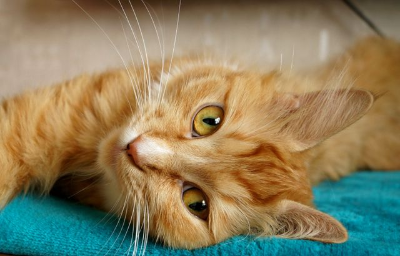
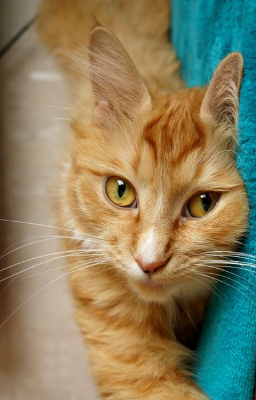
In this example, we rotate a BMP photo of an orange tabby cat by a right angle. We enter 90 degrees, which turns the image counterclockwise by one quarter-turn. The cat, previously lying horizontally across a turquoise blanket, is now oriented vertically down the frame. (Source: Pexels.)
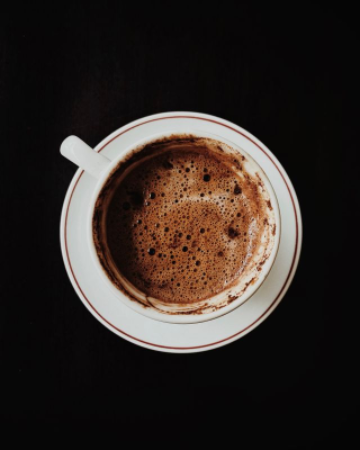
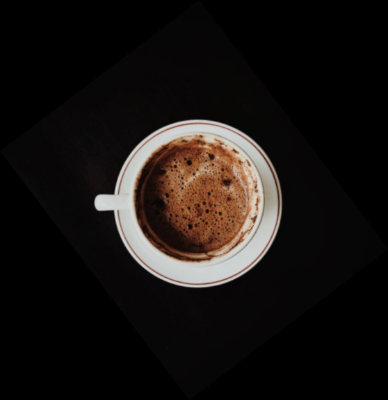
In this example, we rotate a BMP photo of an espresso cup directly in the input preview. We drag the image counterclockwise by eye until the cup handle points to the left. The tool measures this visual adjustment in radians and displays the resulting value of 0.65 radians in the options, which is approximately 37.2 degrees. As the original bitmap has a solid black background, we also fill the newly created corners with black. The matching colors blend together, making the boundary of the rotated image impossible to notice. (Source: Pexels.)
Create and edit bitmaps in your browser.
Make a bitmap smaller in size.
Convert a compressed bitmap to a raw RGB pixel bitmap.
Create a swirl of any radius in a bitmap.
Join two or more bitmaps together.
Place two or more bitmaps on top of each other.
Split a bitmap into multiple independent bitmaps.
Extract one or more selected areas from a bitmap.
Make copies of bitmaps and paste them together.
Skew a bitmap by an arbitrary angle.
Shift a bitmap to the left or right.
Convert a BMP to a Webp.
Convert a Webp to a BMP.
Convert a BMP to a PNG.
Convert a PNG to a BMP
Convert a BMP to a JPG.
Convert a JPG to a BMP.
Convert a BMP to a BPG.
Convert a BPG to a BMP.
Save GIF frames as BMP images.
Convert a bitmap to a single-frame GIF.
Create a Data URL scheme of a bitmap.
Convert a Data URL scheme back to a bitmap image.
Bit Blit two or more BMPs.
Put a new color table in a BMP.
Extract the color table of a BMP.
Extract raw RGB pixels from a BMP and print them out as text.
Create a bitmap image from raw RGB pixels.
Randomly rearrange colors in the BMP color table.
Reduce a BMP's memory footprint.
Destroy parts of a bitmap and make it glitchy.
Subscribe to our updates. We'll let you know when we release new tools and features, and when we organize online workshops.
Enter your email here
We're Browserling — a friendly and fun cross-browser testing company powered by alien technology. At Browserling, we love to make people's lives easier, so we created this collection of online bitmap tools. Our BMP tools have the simplest possible user interface and work directly in your browser without downloads or installations. You can use them to edit bitmap images, change BMP bit depth and colors, resize bitmaps, create transparent BMPs, work with bitmap pixels and byte arrays, and much more. Behind the scenes, our bitmap tools are powered by our web developer tools that we've created over the years. Check them out!