This is a free and fast online utility that turns the frames of a GIF animation into one BMP sprite sheet. You can use the configuration options (below) to preview the GIF animation, choose the frame order, omit unneeded moments, and arrange the remaining sprites into rows and columns. Extra options allow you to place padding around the sheet, resize every sprite, and select the bitmap canvas color. Created by graphics designers from team Browserling.
This is a free and fast online utility that turns the frames of a GIF animation into one BMP sprite sheet. You can use the configuration options (below) to preview the GIF animation, choose the frame order, omit unneeded moments, and arrange the remaining sprites into rows and columns. Extra options allow you to place padding around the sheet, resize every sprite, and select the bitmap canvas color. Created by graphics designers from team Browserling.

This free online browser-based program converts a GIF animation into a BMP image that holds its frames as neatly arranged bitmap sprites. Instead of saving each moment as a separate file, the program opens the animation, collects its frames, and draws them together on one static sprite sheet. This layout is convenient when you need a compact frame atlas for a game, want to compare motion poses at a glance, or plan to edit several animation stages in a bitmap editor. The input preview plays the source animation while the output shows the complete BMP sheet, so you can inspect both the motion and the frame arrangement at the same time. Use the preview frame time option to slow down a quick animation or speed up a long one. The value is measured in milliseconds; for example, 250 milliseconds corresponds to 4 fps. You can also activate the backward preview option to play the animation from the last frame to the first and arrange the exported sprites in reverse order. To control the shape of the sheet, enter its row count, its column count, or both. Setting one row produces a left-to-right bitmap strip, while setting one column produces a top-to-bottom strip. When both dimensions are present, they must provide enough cells for the selected sprites. To exclude unwanted frames from the final BMP, list their positions in the skip field. You can enter individual frames such as "2, 6, 9", ranges such as "4-8", or combinations such as "1, 3-5, 11". The padding setting adds an even border around the entire sprite sheet. Use the zoom setting to scale all extracted frames before they are combined into the BMP sprite sheet. A value of 100% preserves the animation's original frame dimensions, 50% makes each sprite half-sized, and 200% doubles its width and height. You can also choose a bitmap canvas color for the area behind transparent frames and for the padding around the sheet. For the reverse operation, use the Animate Bitmap Sprites tool to convert a BMP sprite sheet into an animation. Bmp-abulous!
This free online browser-based program converts a GIF animation into a BMP image that holds its frames as neatly arranged bitmap sprites. Instead of saving each moment as a separate file, the program opens the animation, collects its frames, and draws them together on one static sprite sheet. This layout is convenient when you need a compact frame atlas for a game, want to compare motion poses at a glance, or plan to edit several animation stages in a bitmap editor. The input preview plays the source animation while the output shows the complete BMP sheet, so you can inspect both the motion and the frame arrangement at the same time. Use the preview frame time option to slow down a quick animation or speed up a long one. The value is measured in milliseconds; for example, 250 milliseconds corresponds to 4 fps. You can also activate the backward preview option to play the animation from the last frame to the first and arrange the exported sprites in reverse order. To control the shape of the sheet, enter its row count, its column count, or both. Setting one row produces a left-to-right bitmap strip, while setting one column produces a top-to-bottom strip. When both dimensions are present, they must provide enough cells for the selected sprites. To exclude unwanted frames from the final BMP, list their positions in the skip field. You can enter individual frames such as "2, 6, 9", ranges such as "4-8", or combinations such as "1, 3-5, 11". The padding setting adds an even border around the entire sprite sheet. Use the zoom setting to scale all extracted frames before they are combined into the BMP sprite sheet. A value of 100% preserves the animation's original frame dimensions, 50% makes each sprite half-sized, and 200% doubles its width and height. You can also choose a bitmap canvas color for the area behind transparent frames and for the padding around the sheet. For the reverse operation, use the Animate Bitmap Sprites tool to convert a BMP sprite sheet into an animation. Bmp-abulous!
In this example, we convert a ten-frame Hopper Mecha animation from Metal Slug 3 into a tall bitmap sprite strip. We set the layout to one column, so the mechanical creature's changing poses are stacked from top to bottom in their original order. We convert the frames to BMP at their original size and add a light lavender background to the finished strip. (Source: SNK.)


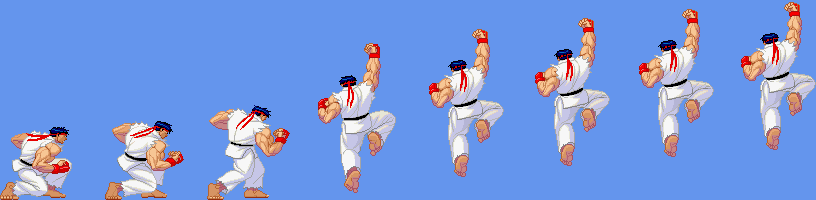
In this example, we isolate the rising part of Ryu's Shoryuken from Street Fighter Alpha 3 and turn it into a horizontal bitmap sprite strip. We slow the preview to 250 milliseconds per frame, making each step of the move easier to inspect and the needed section easier to select. The source animation has seventeen frames, but we skip frames 9 through 17 and keep the first eight poses, from the low starting stance to the airborne uppercut. (Source: Capcom.)

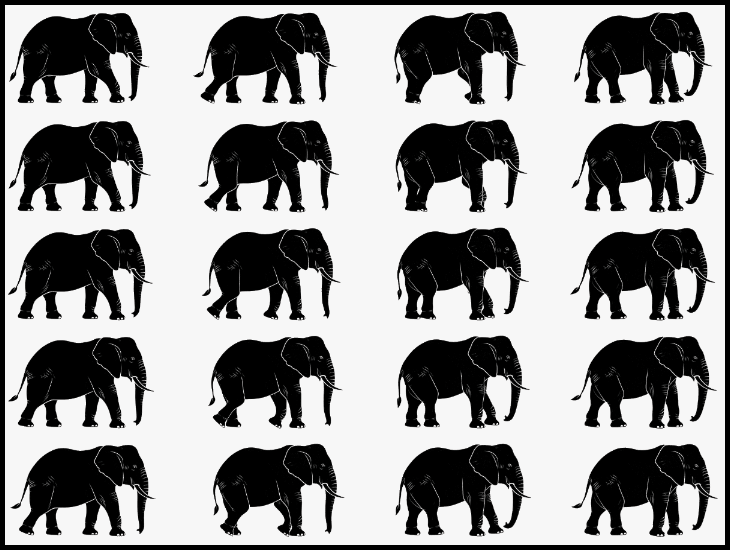
In this example, we extract all twenty frames from an elephant walking animation and arrange them as a five-row by four-column bitmap grid. We reduce every 300-by-179-pixel frame to 60% of its original size and add five pixels of padding, which creates a narrow black border around the completed BMP sprite sheet. (Source: Vecteezy.com.)
Create and edit bitmaps in your browser.
Make a bitmap smaller in size.
Convert a compressed bitmap to a raw RGB pixel bitmap.
Create a swirl of any radius in a bitmap.
Join two or more bitmaps together.
Place two or more bitmaps on top of each other.
Split a bitmap into multiple independent bitmaps.
Extract one or more selected areas from a bitmap.
Make copies of bitmaps and paste them together.
Skew a bitmap by an arbitrary angle.
Shift a bitmap to the left or right.
Convert a BMP to a Webp.
Convert a Webp to a BMP.
Convert a BMP to a PNG.
Convert a PNG to a BMP
Convert a BMP to a JPG.
Convert a JPG to a BMP.
Convert a BMP to a BPG.
Convert a BPG to a BMP.
Save GIF frames as BMP images.
Convert a bitmap to a single-frame GIF.
Create a Data URL scheme of a bitmap.
Convert a Data URL scheme back to a bitmap image.
Bit Blit two or more BMPs.
Put a new color table in a BMP.
Extract the color table of a BMP.
Extract raw RGB pixels from a BMP and print them out as text.
Create a bitmap image from raw RGB pixels.
Randomly rearrange colors in the BMP color table.
Reduce a BMP's memory footprint.
Destroy parts of a bitmap and make it glitchy.
Subscribe to our updates. We'll let you know when we release new tools and features, and when we organize online workshops.
Enter your email here
We're Browserling — a friendly and fun cross-browser testing company powered by alien technology. At Browserling, we love to make people's lives easier, so we created this collection of online bitmap tools. Our BMP tools have the simplest possible user interface and work directly in your browser without downloads or installations. You can use them to edit bitmap images, change BMP bit depth and colors, resize bitmaps, create transparent BMPs, work with bitmap pixels and byte arrays, and much more. Behind the scenes, our bitmap tools are powered by our web developer tools that we've created over the years. Check them out!