This is a free and fast online utility that inverts colors in BMP (bitmap) images. You can use the configuration options below to apply the inversion to the entire bitmap or only to a rectangular or oval area. Extra options allow you to invert colors outside the selected area and precisely control the selection's position and size. Created by graphics designers from team Browserling.
This is a free and fast online utility that inverts colors in BMP (bitmap) images. You can use the configuration options below to apply the inversion to the entire bitmap or only to a rectangular or oval area. Extra options allow you to invert colors outside the selected area and precisely control the selection's position and size. Created by graphics designers from team Browserling.
This free online browser-based program creates a color negative from a BMP (bitmap) image. For each processed pixel, it subtracts the red, green, and blue channel values from 255. As a result, black becomes white, white becomes black, red becomes cyan, green becomes magenta, and blue becomes yellow. Applying the same inversion a second time restores the bitmap's original colors. By default, the effect covers the entire BMP. You can also choose a rectangular or oval selection and drag, resize, or reposition it directly in the input preview. For exact placement, enter the horizontal and vertical starting points together with the width and height. Turn on the outside-selection mode when the chosen subject should keep its natural colors while the pixels around it become negative. This is useful for reproducing film-negative aesthetics, checking complementary colors, revealing light-on-dark details, or isolating a subject with contrasting colors. The finished image remains in BMP format and can be downloaded as a separate bitmap. Bmp-abulous!
This free online browser-based program creates a color negative from a BMP (bitmap) image. For each processed pixel, it subtracts the red, green, and blue channel values from 255. As a result, black becomes white, white becomes black, red becomes cyan, green becomes magenta, and blue becomes yellow. Applying the same inversion a second time restores the bitmap's original colors. By default, the effect covers the entire BMP. You can also choose a rectangular or oval selection and drag, resize, or reposition it directly in the input preview. For exact placement, enter the horizontal and vertical starting points together with the width and height. Turn on the outside-selection mode when the chosen subject should keep its natural colors while the pixels around it become negative. This is useful for reproducing film-negative aesthetics, checking complementary colors, revealing light-on-dark details, or isolating a subject with contrasting colors. The finished image remains in BMP format and can be downloaded as a separate bitmap. Bmp-abulous!
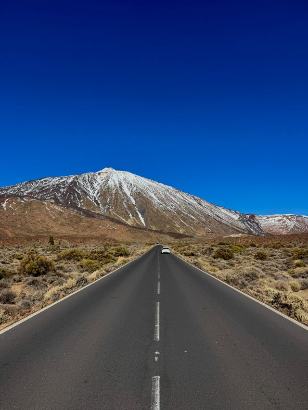
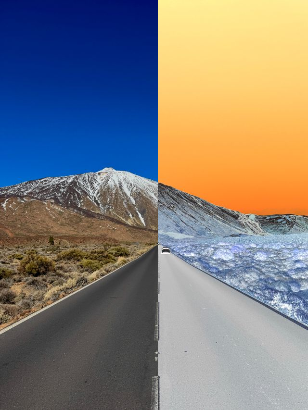
In this example, we invert the right half of a BMP landscape while keeping the left half in its original colors. We place a 149-by-410-pixel rectangular area at position 159, 0, splitting the scene along the center of the road. On the unchanged side, the sky stays deep blue, the mountain remains brown, and the asphalt stays dark. On the inverted side, the sky becomes a warm yellow-orange gradient, the mountain and roadside turn icy blue, and the road changes to light gray, creating a clear positive-versus-negative comparison. (Source: Pexels.)
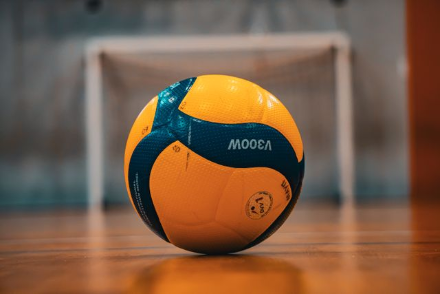
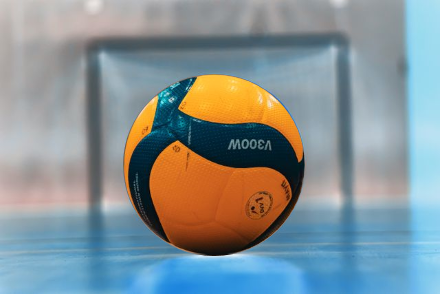
In this example, we change the inversion area from a rectangle to a circle and fit the 184×184 px selection around the shape of the volleyball. We then activate outside-area inversion, which preserves the ball's original orange and dark blue colors while reversing every color in the gym around it. (Source: Pexels.)
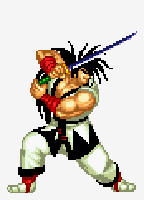
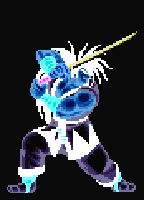
In this example, we invert every pixel in a bitmap sprite of Haohmaru, the central character of the Samurai Shodown series. We leave all area fields empty, so the effect automatically covers the complete BMP. The white background turns black, dark outlines become bright, and warm character colors shift to cooler cyan, blue, and violet tones. This full-sprite negative effect can be useful for creating an alternate powered-up character state in a retro game. (Source: SNK.)
Create and edit bitmaps in your browser.
Make a bitmap smaller in size.
Convert a compressed bitmap to a raw RGB pixel bitmap.
Create a swirl of any radius in a bitmap.
Join two or more bitmaps together.
Place two or more bitmaps on top of each other.
Split a bitmap into multiple independent bitmaps.
Extract one or more selected areas from a bitmap.
Make copies of bitmaps and paste them together.
Skew a bitmap by an arbitrary angle.
Shift a bitmap to the left or right.
Convert a BMP to a Webp.
Convert a Webp to a BMP.
Convert a BMP to a PNG.
Convert a PNG to a BMP
Convert a BMP to a JPG.
Convert a JPG to a BMP.
Convert a BMP to a BPG.
Convert a BPG to a BMP.
Save GIF frames as BMP images.
Convert a bitmap to a single-frame GIF.
Create a Data URL scheme of a bitmap.
Convert a Data URL scheme back to a bitmap image.
Bit Blit two or more BMPs.
Put a new color table in a BMP.
Extract the color table of a BMP.
Extract raw RGB pixels from a BMP and print them out as text.
Create a bitmap image from raw RGB pixels.
Randomly rearrange colors in the BMP color table.
Reduce a BMP's memory footprint.
Destroy parts of a bitmap and make it glitchy.
Subscribe to our updates. We'll let you know when we release new tools and features, and when we organize online workshops.
Enter your email here
We're Browserling — a friendly and fun cross-browser testing company powered by alien technology. At Browserling, we love to make people's lives easier, so we created this collection of online bitmap tools. Our BMP tools have the simplest possible user interface and work directly in your browser without downloads or installations. You can use them to edit bitmap images, change BMP bit depth and colors, resize bitmaps, create transparent BMPs, work with bitmap pixels and byte arrays, and much more. Behind the scenes, our bitmap tools are powered by our web developer tools that we've created over the years. Check them out!