This is a free and fast online utility that converts bitmap pixels from BGR channel order to RGB channel order. You can use the configuration options below to specify how the source bitmap's red, green, and blue components should be read. Extra options allow you to choose the channel sequence used in the converted bitmap, including RGB, RBG, GRB, GBR, BRG, and BGR. Created by graphics designers from team Browserling.
This is a free and fast online utility that converts bitmap pixels from BGR channel order to RGB channel order. You can use the configuration options below to specify how the source bitmap's red, green, and blue components should be read. Extra options allow you to choose the channel sequence used in the converted bitmap, including RGB, RBG, GRB, GBR, BRG, and BGR. Created by graphics designers from team Browserling.

This free online browser-based program converts BGR-formatted bitmap pixels into the RGB layout. BGR and RGB contain the same three color components, but they place the red and blue values in opposite positions. If the channel order is interpreted incorrectly, red areas may appear blue, blue areas may appear red, and the bitmap's colors may look unnatural. In standard uncompressed 24-bit BMP files, the three color bytes of each pixel are typically stored in blue, green, and red order. When this BGR data is read by software that expects RGB order, the bitmap may open normally but display the wrong colors. This tool rearranges the components of every pixel into the expected order while preserving the original width, height, and pixel arrangement. Grayscale pixels remain unchanged because their red, green, and blue values are equal. The default conversion reads the source channels as BGR and writes them as RGB, but you can select any input and output sequence, including RGB, RBG, GRB, GBR, BRG, and BGR. Bmp-abulous!
This free online browser-based program converts BGR-formatted bitmap pixels into the RGB layout. BGR and RGB contain the same three color components, but they place the red and blue values in opposite positions. If the channel order is interpreted incorrectly, red areas may appear blue, blue areas may appear red, and the bitmap's colors may look unnatural. In standard uncompressed 24-bit BMP files, the three color bytes of each pixel are typically stored in blue, green, and red order. When this BGR data is read by software that expects RGB order, the bitmap may open normally but display the wrong colors. This tool rearranges the components of every pixel into the expected order while preserving the original width, height, and pixel arrangement. Grayscale pixels remain unchanged because their red, green, and blue values are equal. The default conversion reads the source channels as BGR and writes them as RGB, but you can select any input and output sequence, including RGB, RBG, GRB, GBR, BRG, and BGR. Bmp-abulous!
In this example, we load a BGR-ordered bitmap sprite of Princess Zelda from The Legend of Zelda. The cyan hair and violet dress show what can happen when pixel bytes arranged as blue, green, and red are presented directly to RGB-oriented software without the usual channel decoding. We read the source pixels as BGR and convert them to RGB, restoring the intended hair, dress, and skin colors. (Source: Nintendo.)


In this example, we convert a dog photo from BGR channel order to RGB. The black-and-white dog looks almost unchanged because grayscale pixels have equal or nearly equal red, green, and blue values. The grass also changes only slightly because green remains the middle component in both BGR and RGB. The leash makes the channel swap easy to see because it appears blue in BGR order and returns to bright red in RGB order. (Source: Pexels.)


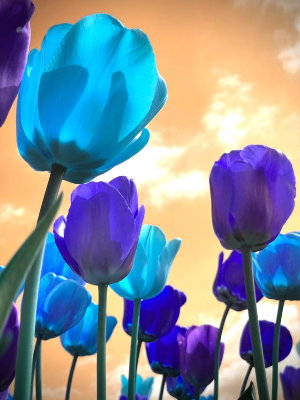
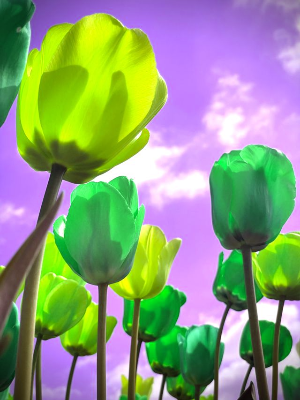
In this example, we apply a less common BGR-to-GRB channel conversion to a BMP photo of colorful tulips. The converter reads each source triplet as blue, green, and red, then writes the same components in green, red, and blue order. This cyclic shift changes the cyan and blue petals to vivid lime and green and turns the warm orange sky violet. (Source: Pexels.)
Create and edit bitmaps in your browser.
Make a bitmap smaller in size.
Convert a compressed bitmap to a raw RGB pixel bitmap.
Create a swirl of any radius in a bitmap.
Join two or more bitmaps together.
Place two or more bitmaps on top of each other.
Split a bitmap into multiple independent bitmaps.
Extract one or more selected areas from a bitmap.
Make copies of bitmaps and paste them together.
Skew a bitmap by an arbitrary angle.
Shift a bitmap to the left or right.
Convert a BMP to a Webp.
Convert a Webp to a BMP.
Convert a BMP to a PNG.
Convert a PNG to a BMP
Convert a BMP to a JPG.
Convert a JPG to a BMP.
Convert a BMP to a BPG.
Convert a BPG to a BMP.
Save GIF frames as BMP images.
Convert a bitmap to a single-frame GIF.
Create a Data URL scheme of a bitmap.
Convert a Data URL scheme back to a bitmap image.
Bit Blit two or more BMPs.
Put a new color table in a BMP.
Extract the color table of a BMP.
Extract raw RGB pixels from a BMP and print them out as text.
Create a bitmap image from raw RGB pixels.
Randomly rearrange colors in the BMP color table.
Reduce a BMP's memory footprint.
Destroy parts of a bitmap and make it glitchy.
Subscribe to our updates. We'll let you know when we release new tools and features, and when we organize online workshops.
Enter your email here
We're Browserling — a friendly and fun cross-browser testing company powered by alien technology. At Browserling, we love to make people's lives easier, so we created this collection of online bitmap tools. Our BMP tools have the simplest possible user interface and work directly in your browser without downloads or installations. You can use them to edit bitmap images, change BMP bit depth and colors, resize bitmaps, create transparent BMPs, work with bitmap pixels and byte arrays, and much more. Behind the scenes, our bitmap tools are powered by our web developer tools that we've created over the years. Check them out!