This is a free and fast online utility that creates random BMP files from colorful pixels. You can use the configuration options (below) to set the output size, pixel size, and color palette. Extra options allow you to pick random pixel colors from the entire color spectrum and vary the tones of the given colors. Created by graphics designers from team Browserling.
This is a free and fast online utility that creates random BMP files from colorful pixels. You can use the configuration options (below) to set the output size, pixel size, and color palette. Extra options allow you to pick random pixel colors from the entire color spectrum and vary the tones of the given colors. Created by graphics designers from team Browserling.
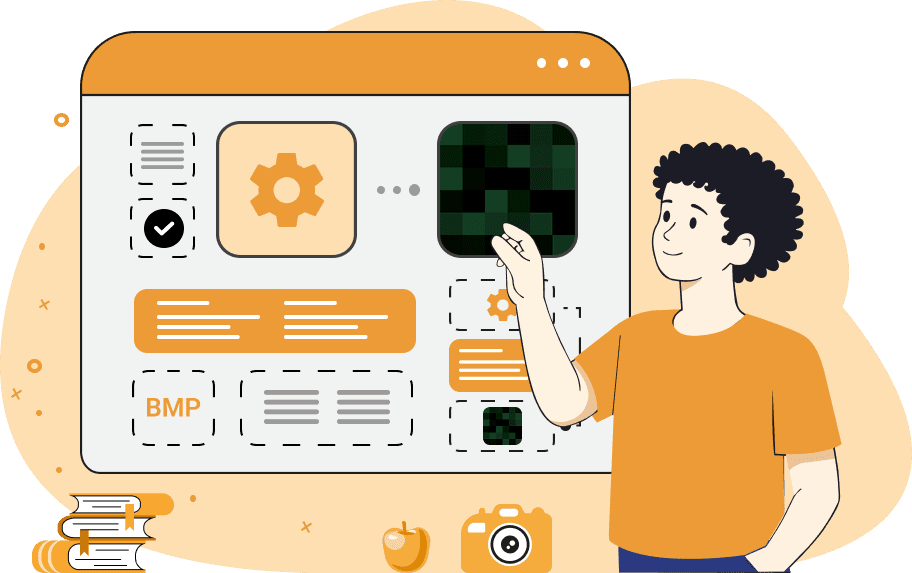
This free online browser-based program draws random BMP (bitmap file format) pictures. The size of the picture (its width and height in pixels) can be specified in the options. You can also specify the size of individual pixels. For example, if the canvas has a dimension of 500×200 pixels and the pixel size is 50, then the rendered bitmap will be 10 full pixels wide and 4 full pixels high, and there will be 40 pixels in total. When drawing each pixel, the program randomly selects one of the colors from the color collection field (in the options) and paints a pixel with it. Here, colors can be specified using a name, a hex color, or an RGB code. If you don't know the name or code of the color you need, you can use the color palette helper option to find it. Click the color picker icon and choose a color in the palette. Next to the palette, you'll get its hex code, which you can copy and paste into the color collection list. Also, if you want the colors to slightly change their tonality, you can use the "Use Tonal Colors" option, in which you can specify a threshold value from 0 to 1. Number 0 means light shades of the given color, and number 1 means the most saturated shades. Bmp-abulous!
This free online browser-based program draws random BMP (bitmap file format) pictures. The size of the picture (its width and height in pixels) can be specified in the options. You can also specify the size of individual pixels. For example, if the canvas has a dimension of 500×200 pixels and the pixel size is 50, then the rendered bitmap will be 10 full pixels wide and 4 full pixels high, and there will be 40 pixels in total. When drawing each pixel, the program randomly selects one of the colors from the color collection field (in the options) and paints a pixel with it. Here, colors can be specified using a name, a hex color, or an RGB code. If you don't know the name or code of the color you need, you can use the color palette helper option to find it. Click the color picker icon and choose a color in the palette. Next to the palette, you'll get its hex code, which you can copy and paste into the color collection list. Also, if you want the colors to slightly change their tonality, you can use the "Use Tonal Colors" option, in which you can specify a threshold value from 0 to 1. Number 0 means light shades of the given color, and number 1 means the most saturated shades. Bmp-abulous!
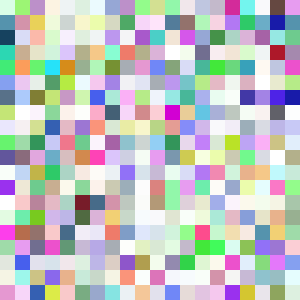
In this example, we create a BMP picture from 400 randomly colored pixels. Its total size is 300 by 300 pixels, and it contains 20 color rectangles horizontally and 20 color rectangles vertically, with each rectangle being 15 pixels in size. We left the color collection list empty, thereby allowing the tool to choose random colors on its own.
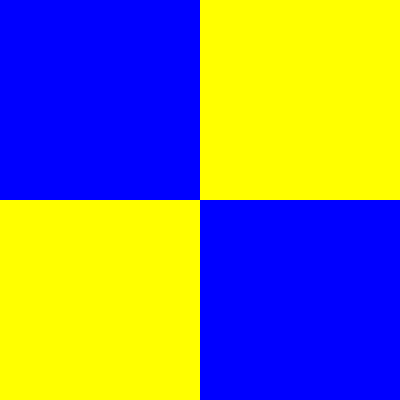
This example draws a 400×400 bitmap image from just four pixels. Each pixel has dimensions of one-quarter of the bitmap's dimensions. We enter the two allowed colors in a vertical list using their names "yellow" and "blue". Each time you click on the example, the program re-runs the randomness algorithm, so you get different colored squares in the output.
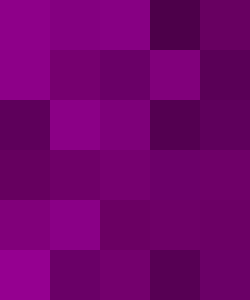
In this example, we list only one color that the program will work with. This color is listed using its hex code #980093, which was obtained from the color picker palette. We also activate the "Use Tonal Colors" option and set the fuzziness threshold to 0.5, which randomly changes the saturation of each purple pixel. The resulting bitmap has a rectangular shape of size 250 by 300 and contains 30 different purple tints, tones, and shades.
You can pass options to this tool using their codes as query arguments and it will automatically compute output. To get the code of an option, just hover over its icon. Here's how to type it in your browser's address bar. Click to try!
Create and edit bitmaps in your browser.
Make a bitmap smaller in size.
Convert a compressed bitmap to a raw RGB pixel bitmap.
Create a swirl of any radius in a bitmap.
Join two or more bitmaps together.
Place two or more bitmaps on top of each other.
Split a bitmap into multiple independent bitmaps.
Extract one or more selected areas from a bitmap.
Make copies of bitmaps and paste them together.
Skew a bitmap by an arbitrary angle.
Shift a bitmap to the left or right.
Convert a BMP to a Webp.
Convert a Webp to a BMP.
Convert a BMP to a PNG.
Convert a PNG to a BMP
Convert a BMP to a JPG.
Convert a JPG to a BMP.
Convert a BMP to a BPG.
Convert a BPG to a BMP.
Save GIF frames as BMP images.
Convert a bitmap to a single-frame GIF.
Create a Data URL scheme of a bitmap.
Convert a Data URL scheme back to a bitmap image.
Bit Blit two or more BMPs.
Put a new color table in a BMP.
Extract the color table of a BMP.
Extract raw RGB pixels from a BMP and print them out as text.
Create a bitmap image from raw RGB pixels.
Randomly rearrange colors in the BMP color table.
Reduce a BMP's memory footprint.
Destroy parts of a bitmap and make it glitchy.
Subscribe to our updates. We'll let you know when we release new tools and features, and when we organize online workshops.
Enter your email here
We're Browserling — a friendly and fun cross-browser testing company powered by alien technology. At Browserling, we love to make people's lives easier, so we created this collection of online bitmap tools. Our BMP tools have the simplest possible user interface and work directly in your browser without downloads or installations. You can use them to edit bitmap images, change BMP bit depth and colors, resize bitmaps, create transparent BMPs, work with bitmap pixels and byte arrays, and much more. Behind the scenes, our bitmap tools are powered by our web developer tools that we've created over the years. Check them out!