This is a free and fast online utility that crops BMP (bitmap) images. You can use the configuration options (below) to set the starting point and exact dimensions of the crop, or adjust the selection directly in the preview. Extra options allow you to choose a rectangular or round crop, fill the corners around a circle or oval with any color, and send the result back for another cropping pass. Created by graphics designers from team Browserling.
This is a free and fast online utility that crops BMP (bitmap) images. You can use the configuration options (below) to set the starting point and exact dimensions of the crop, or adjust the selection directly in the preview. Extra options allow you to choose a rectangular or round crop, fill the corners around a circle or oval with any color, and send the result back for another cropping pass. Created by graphics designers from team Browserling.

This free online browser-based program crops BMP images by keeping a selected area and removing everything around it. You can move and resize the crop region directly in the input preview. The pixels inside the region become the new BMP, while the content outside it is discarded. For an exact crop, you can enter its position and dimensions in the options. You can create a new rectangular or square BMP, or switch to round mode to produce a circular or oval crop. A round crop leaves four corner areas outside its curved boundary. You can fill these corners with any color by entering a color name, hex code, or RGB value, or by selecting a color from the palette. If a large image is easier to trim in several steps, enable another crop and use the "Crop bitmap again" button to place the current result back in the input editor. Bmp-abulous!
This free online browser-based program crops BMP images by keeping a selected area and removing everything around it. You can move and resize the crop region directly in the input preview. The pixels inside the region become the new BMP, while the content outside it is discarded. For an exact crop, you can enter its position and dimensions in the options. You can create a new rectangular or square BMP, or switch to round mode to produce a circular or oval crop. A round crop leaves four corner areas outside its curved boundary. You can fill these corners with any color by entering a color name, hex code, or RGB value, or by selecting a color from the palette. If a large image is easier to trim in several steps, enable another crop and use the "Crop bitmap again" button to place the current result back in the input editor. Bmp-abulous!
In this example, we load a BMP with three pastel donut-shaped popsicles and crop out the one in the middle. We place a 145-by-220-pixel rectangular crop at the horizontal position 74 and the vertical position 140. The new BMP contains only the middle donut, while the other two are removed. (Source: Pexels.)


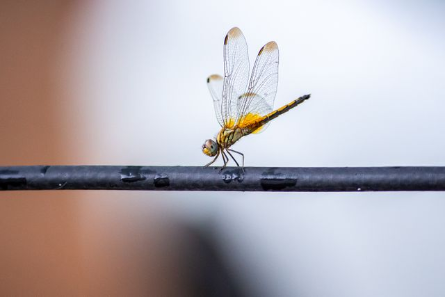
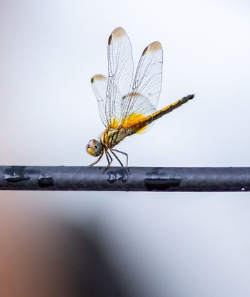
In this example, we turn a horizontal dragonfly BMP photo into a vertical one by cropping its sides. We start the crop 116 pixels from the left and set its width to 250 pixels. The top position and height are left empty, so the crop begins at the top and automatically extends to the bottom edge of the bitmap. (Source: Pexels.)
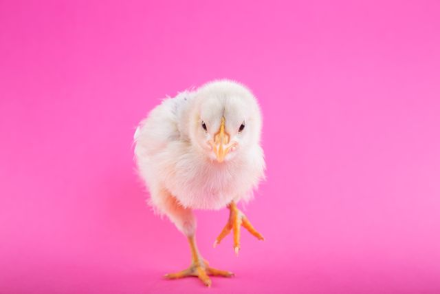
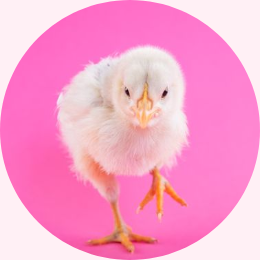
In this example, we create a round avatar from a BMP photo of a yellow chick. We position a 260×260 px crop over the chick and select the circular crop mode. Because the width and height are equal, the output shape is a perfect circle rather than an oval. Finally, we fill the four corner areas outside the circle with a soft lavender-blush color. (Source: Pexels.)
Create and edit bitmaps in your browser.
Make a bitmap smaller in size.
Convert a compressed bitmap to a raw RGB pixel bitmap.
Create a swirl of any radius in a bitmap.
Join two or more bitmaps together.
Place two or more bitmaps on top of each other.
Split a bitmap into multiple independent bitmaps.
Extract one or more selected areas from a bitmap.
Make copies of bitmaps and paste them together.
Skew a bitmap by an arbitrary angle.
Shift a bitmap to the left or right.
Convert a BMP to a Webp.
Convert a Webp to a BMP.
Convert a BMP to a PNG.
Convert a PNG to a BMP
Convert a BMP to a JPG.
Convert a JPG to a BMP.
Convert a BMP to a BPG.
Convert a BPG to a BMP.
Save GIF frames as BMP images.
Convert a bitmap to a single-frame GIF.
Create a Data URL scheme of a bitmap.
Convert a Data URL scheme back to a bitmap image.
Bit Blit two or more BMPs.
Put a new color table in a BMP.
Extract the color table of a BMP.
Extract raw RGB pixels from a BMP and print them out as text.
Create a bitmap image from raw RGB pixels.
Randomly rearrange colors in the BMP color table.
Reduce a BMP's memory footprint.
Destroy parts of a bitmap and make it glitchy.
Subscribe to our updates. We'll let you know when we release new tools and features, and when we organize online workshops.
Enter your email here
We're Browserling — a friendly and fun cross-browser testing company powered by alien technology. At Browserling, we love to make people's lives easier, so we created this collection of online bitmap tools. Our BMP tools have the simplest possible user interface and work directly in your browser without downloads or installations. You can use them to edit bitmap images, change BMP bit depth and colors, resize bitmaps, create transparent BMPs, work with bitmap pixels and byte arrays, and much more. Behind the scenes, our bitmap tools are powered by our web developer tools that we've created over the years. Check them out!