This is a free and fast online utility that converts an opaque bitmap to a transparent bitmap. You can use the configuration options (below) to specify which color will be made transparent (using a color picker, a color name, or a hex color code). Extra options allow you to widen the color pickup range, clear only border-reachable BMP regions, soften the cutout edge, and inspect a black-and-white match map before saving. Created by graphics designers from team Browserling.
This is a free and fast online utility that converts an opaque bitmap to a transparent bitmap. You can use the configuration options (below) to specify which color will be made transparent (using a color picker, a color name, or a hex color code). Extra options allow you to widen the color pickup range, clear only border-reachable BMP regions, soften the cutout edge, and inspect a black-and-white match map before saving. Created by graphics designers from team Browserling.
This free online browser-based program creates transparent areas in a bitmap image (an image with a .bmp extension). In the options, you can specify the color you want to replace with transparency, and you'll instantly see the preview of the BMP with transparent pixels in the regions that match this color. The transparent color can be entered using its name (for example "yellow" or "pink"), a hexadecimal code (for example, "#ffe100" or "#0b03ff"), an RGB code (for example, "RGB(230, 126, 34)" or "RGB(142, 68, 173)"), or selected in the color palette that can be accessed by clicking on it next to the transparency color option. If you need to match similar shades of the given color, use the fuzzy color match option. In this option, you can enter the similarity coefficient, expressed as a percentage. The higher the fuzzy percentage, the more similar color shades will become transparent. For example, with the yellow color and the fuzzy percentage set to 0%, only the yellow color will become transparent, but with the fuzzy value of 30%, besides yellow, colors like corn, lime, amber, citrine, and cream will all become transparent. When the color you want to remove also appears inside the subject, you can limit the cleanup to matching pixels that are connected to the bitmap border, leaving the same-colored interior details untouched. If the cutout looks rough or leaves a faint fringe, the border pixels around the transparent area can be softened by a chosen number of nearby pixels. The most common use cases of this tool are removing the background of bitmap sprites and creating digital signatures and stamps. For more accurate results, you can enable the preview mode. In this mode, the transparent and non-transparent colors will be shown in black and white. Bmp-abulous!
This free online browser-based program creates transparent areas in a bitmap image (an image with a .bmp extension). In the options, you can specify the color you want to replace with transparency, and you'll instantly see the preview of the BMP with transparent pixels in the regions that match this color. The transparent color can be entered using its name (for example "yellow" or "pink"), a hexadecimal code (for example, "#ffe100" or "#0b03ff"), an RGB code (for example, "RGB(230, 126, 34)" or "RGB(142, 68, 173)"), or selected in the color palette that can be accessed by clicking on it next to the transparency color option. If you need to match similar shades of the given color, use the fuzzy color match option. In this option, you can enter the similarity coefficient, expressed as a percentage. The higher the fuzzy percentage, the more similar color shades will become transparent. For example, with the yellow color and the fuzzy percentage set to 0%, only the yellow color will become transparent, but with the fuzzy value of 30%, besides yellow, colors like corn, lime, amber, citrine, and cream will all become transparent. When the color you want to remove also appears inside the subject, you can limit the cleanup to matching pixels that are connected to the bitmap border, leaving the same-colored interior details untouched. If the cutout looks rough or leaves a faint fringe, the border pixels around the transparent area can be softened by a chosen number of nearby pixels. The most common use cases of this tool are removing the background of bitmap sprites and creating digital signatures and stamps. For more accurate results, you can enable the preview mode. In this mode, the transparent and non-transparent colors will be shown in black and white. Bmp-abulous!
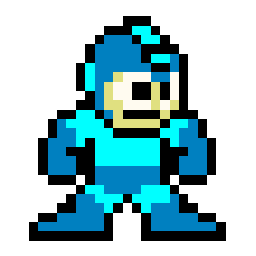
In this example, we load an 8-bit bitmap that contains a Mega Man sprite and strip its reddish background color. To do it, we enter the hex color "#E02040" in the transparent color field. As this is the only solid color we need to delete, we leave the fuzzy matching value at 0%.

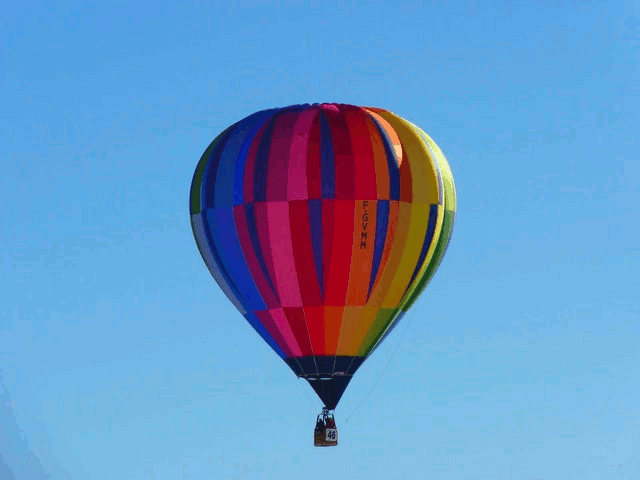
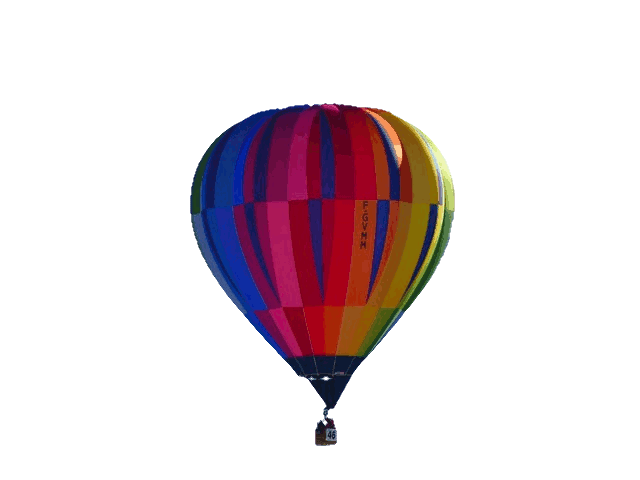
In this example, we remove the background from a BMP image of a hot air balloon. We target the bluish color of the sky and select the visually closest color with the color picker. The picker automatically enters the selected color in the color-to-match field (in RGB format). Since the color of the sky changes from light blue to blue, we increase the fuzziness threshold to 16% to match all these color tones in the background gradient. We also soften the cutout edge with a 2-pixel edge size. (Source: Pexels.)
In this example, we demonstrate how to create a digital signature from a BMP image. To do it, you'll need to sign a blank sheet of paper, take a quick photo, and upload the image to the input field of this tool. To demonstrate it in action, we use Walt Disney's signature. We type "white" in the transparent color option and set the fuzzy match to 20%. These values make sure that the white background of the signature gets removed along with the gray islands of shadows. We also soften the edge with a 1-pixel edge size, leaving only the black outline of the ink, which can be inserted in electronic documents to sign them.


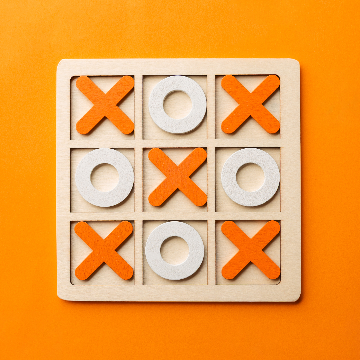
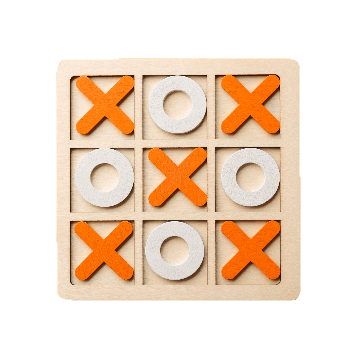
In this example, we make the wooden table transparent in a BMP photo of a tic-tac-toe board game. The wooden X pieces have almost the same orange color as the table surface, so regular color removal would also erase parts of the game. To avoid that, we enable the option that clears only matching border-connected areas. With 36% color matching, the surrounding table becomes transparent, while the tic-tac-toe pieces stay visible. (Source: Vecteezy.com.)
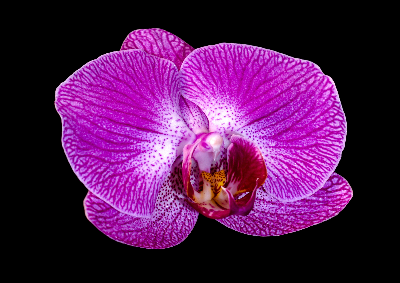
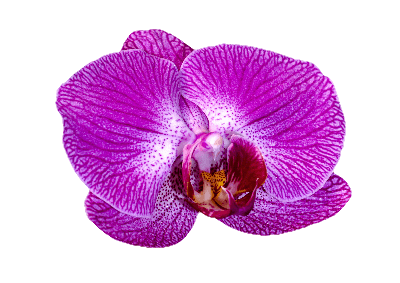
In this example, we remove a dark, uniform background from a BMP photo of a purple orchid. The flower also has small black speckles around its center, so removing every black pixel would damage the natural pattern of the orchid. We enable the border-area option, which clears only the black pixels connected to the outside of the image. We also use a 2-pixel edge size to soften the cutout, making the orchid easier to place on another background. (Source: Vecteezy.com.)
Create and edit bitmaps in your browser.
Make a bitmap smaller in size.
Convert a compressed bitmap to a raw RGB pixel bitmap.
Create a swirl of any radius in a bitmap.
Join two or more bitmaps together.
Place two or more bitmaps on top of each other.
Split a bitmap into multiple independent bitmaps.
Extract one or more selected areas from a bitmap.
Make copies of bitmaps and paste them together.
Skew a bitmap by an arbitrary angle.
Shift a bitmap to the left or right.
Convert a BMP to a Webp.
Convert a Webp to a BMP.
Convert a BMP to a PNG.
Convert a PNG to a BMP
Convert a BMP to a JPG.
Convert a JPG to a BMP.
Convert a BMP to a BPG.
Convert a BPG to a BMP.
Save GIF frames as BMP images.
Convert a bitmap to a single-frame GIF.
Create a Data URL scheme of a bitmap.
Convert a Data URL scheme back to a bitmap image.
Bit Blit two or more BMPs.
Put a new color table in a BMP.
Extract the color table of a BMP.
Extract raw RGB pixels from a BMP and print them out as text.
Create a bitmap image from raw RGB pixels.
Randomly rearrange colors in the BMP color table.
Reduce a BMP's memory footprint.
Destroy parts of a bitmap and make it glitchy.
Subscribe to our updates. We'll let you know when we release new tools and features, and when we organize online workshops.
Enter your email here
We're Browserling — a friendly and fun cross-browser testing company powered by alien technology. At Browserling, we love to make people's lives easier, so we created this collection of online bitmap tools. Our BMP tools have the simplest possible user interface and work directly in your browser without downloads or installations. You can use them to edit bitmap images, change BMP bit depth and colors, resize bitmaps, create transparent BMPs, work with bitmap pixels and byte arrays, and much more. Behind the scenes, our bitmap tools are powered by our web developer tools that we've created over the years. Check them out!