Quickly create a vCard QR code for sharing contact details. Enter the person's name, company, phone numbers, email, website, and address in the tool below, and customize the QR pattern, colors, corner shapes, size, padding, and damage resistance. When the contact card is ready, download the QR code as a PNG for business cards, conference badges, or email signatures. Fast, free, and easy to use. Created with love by team Browserling.
Quickly create a vCard QR code for sharing contact details. Enter the person's name, company, phone numbers, email, website, and address in the tool below, and customize the QR pattern, colors, corner shapes, size, padding, and damage resistance. When the contact card is ready, download the QR code as a PNG for business cards, conference badges, or email signatures. Fast, free, and easy to use. Created with love by team Browserling.

This online vCard QR code generator creates digital contact cards that people can scan with a smartphone and save to their contacts. A single scan can provide names, phone numbers, and other details without having to enter each field manually. It's useful for exchanging personal or business contacts at meetings, conferences, and networking events. To create a vCard QR code, enter the person's first and last names. You can also add a company, job position, mobile and work phone numbers, email address, and website. If needed, include a full postal address with the street, city, state or region, postal code, and country. The tool combines these details into a vCard record that compatible smartphones can recognize and offer to save as a contact. For styling, pick the shape of the QR elements and customize the corner frames and centers. You can also customize the corner colors and choose a single color or a two-color gradient for the main QR pattern. The QR code can also display a person icon in its center to complement the vCard details. By default, this icon uses the same coloring as the main QR pattern, but you can enable the checkbox and choose a separate solid color for it. The background, image size, and padding are also adjustable. Choose a damage-resistance level to improve scanning if a small area becomes worn or covered. Check the contact details with a test scan, then save the PNG for business cards, conference badges, portfolios, or email signatures. QR-tastic!
This online vCard QR code generator creates digital contact cards that people can scan with a smartphone and save to their contacts. A single scan can provide names, phone numbers, and other details without having to enter each field manually. It's useful for exchanging personal or business contacts at meetings, conferences, and networking events. To create a vCard QR code, enter the person's first and last names. You can also add a company, job position, mobile and work phone numbers, email address, and website. If needed, include a full postal address with the street, city, state or region, postal code, and country. The tool combines these details into a vCard record that compatible smartphones can recognize and offer to save as a contact. For styling, pick the shape of the QR elements and customize the corner frames and centers. You can also customize the corner colors and choose a single color or a two-color gradient for the main QR pattern. The QR code can also display a person icon in its center to complement the vCard details. By default, this icon uses the same coloring as the main QR pattern, but you can enable the checkbox and choose a separate solid color for it. The background, image size, and padding are also adjustable. Choose a damage-resistance level to improve scanning if a small area becomes worn or covered. Check the contact details with a test scan, then save the PNG for business cards, conference badges, portfolios, or email signatures. QR-tastic!
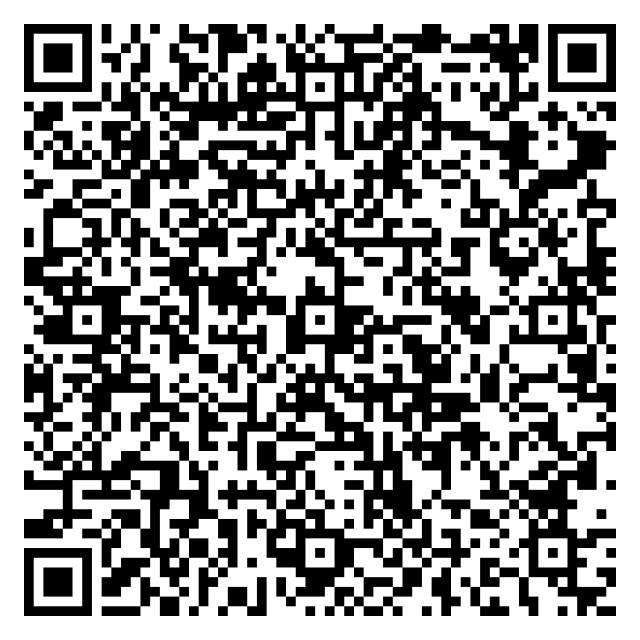
In this example, we create a personal vCard for illustrator Elara Vossendell. The contact card includes her mobile number, email address, and portfolio website, without unnecessary business details. We use a classic black-and-white QR pattern with square corners that fits naturally on a personal card or printed artwork.
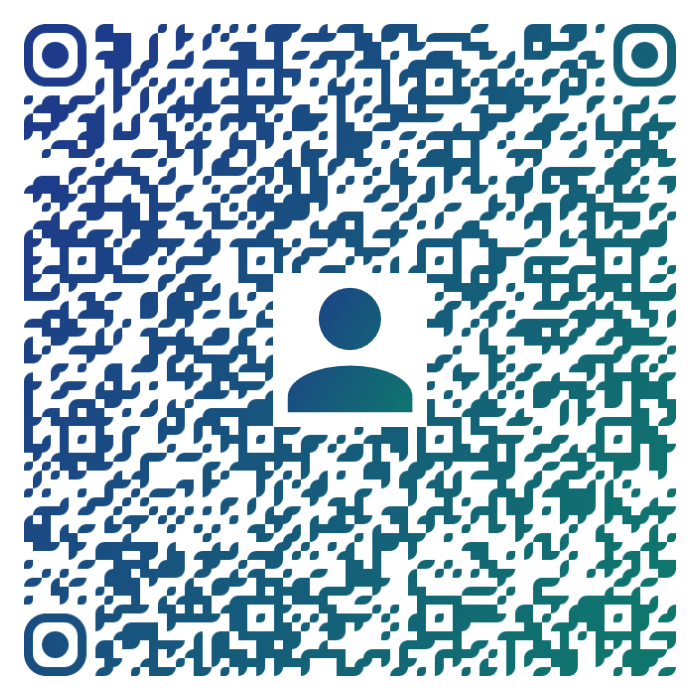
This example creates a complete business contact for Milo Quenwick, a senior architect at Quenwick & Vale Architects. Along with his professional details, we include two phone numbers and the studio's full postal address. We also place a person icon in the center to represent the contact details stored in the vCard. We use a navy-to-teal gradient and a classy rounded pattern to give the QR code a polished appearance for business stationery and client meetings.
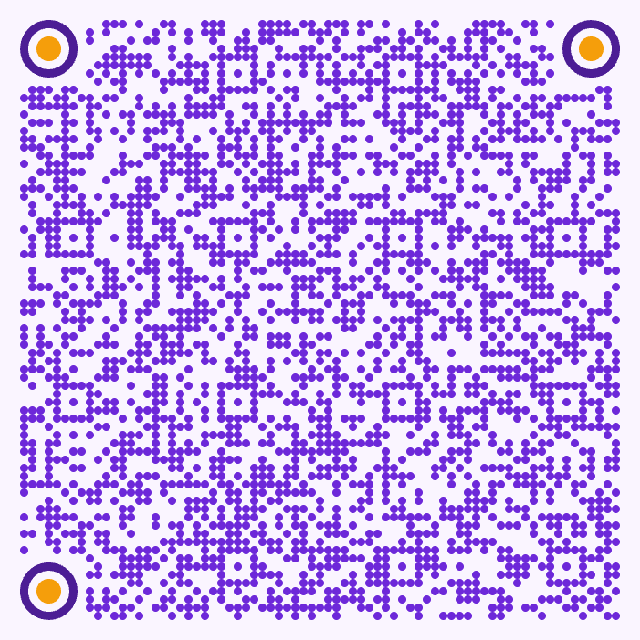
In this example, we prepare a vCard for Nessa Calderune, a robotics researcher speaking at a technology conference. It contains her laboratory information, work phone, email, and website, keeping personal contact details private. We use purple dots, dark circular corner frames, and bright orange centers to make the QR code stand out on conference badges and speaker profiles.
Read a QR code from an image and extract its contents.
Change the colors, size, and appearance of a QR code.
Place a custom logo or image in the center of a QR code.
Turn a QR code into a scalable SVG image.
Turn a QR code into a downloadable PNG file.
Create a QR code that links directly to a PDF document.
Create a QR code that lets customers leave a Google review.
Create a QR code that opens a restaurant's digital menu.
Create a QR code that opens a WhatsApp chat with a phone number.
Create a QR code that links directly to an Instagram profile.
Create a QR code that opens a YouTube video or channel.
Create a QR code that links to a Facebook page or profile.
Create a QR code that opens a TikTok profile or video.
Create a QR code that links to a LinkedIn profile or company page.
Create a QR code that opens a location in Google Maps.
Create a QR code containing event details, dates, and locations.
Create a QR code that opens a payment link or checkout page.
Create a QR code that links to an app in the App Store or Google Play.
Create a QR code that opens a Spotify song, album, or playlist.
Add a custom text label below a QR code, such as "Scan Me".
Surround a QR code with a customizable decorative frame.
Generate multiple QR codes at once from a list of text or URLs.
Arrange multiple QR codes on a printable sheet.
Test whether a QR code can be scanned and decoded correctly.
Subscribe to our updates. We'll let you know when we release new tools and features, and when we organize online workshops.
Enter your email here
We're Browserling – a friendly and fun cross-browser testing company powered by alien technology. At Browserling, our mission is to make people's lives easier, so we created this collection of QR code tools. Our tools have the simplest user interface that doesn't require advanced computer skills and they are used by millions of people every month. Behind the scenes, all QR tools are actually powered by our web developer tools that we created over the last couple of years. Check them out!