Quickly crop an image around a QR code. Upload the image in the tool below, then drag the crop frame or enter its left position, top position, width, and height, and choose a rectangular or circular shape. When the cropped QR image is ready, download it as a PNG. Fast, free, and easy to use. Created with love by team Browserling.
Quickly crop an image around a QR code. Upload the image in the tool below, then drag the crop frame or enter its left position, top position, width, and height, and choose a rectangular or circular shape. When the cropped QR image is ready, download it as a PNG. Fast, free, and easy to use. Created with love by team Browserling.

This online tool crops a QR code from a larger image. It is useful when the code sits off-center, its quiet zone is much wider than needed, a screenshot includes labels or controls, or fragments of other QR codes appear near the edges. Move and resize the crop box directly in the input preview to mark the region you want to keep. For pixel-level placement, enter the left and top starting positions along with the crop width and height. The crop box can extend beyond the source image, and any canvas space created past its edges is filled with the chosen color. Rectangular mode creates a square or rectangular image and is usually the best choice for keeping the entire QR code scannable. Circular mode makes the area outside the circle or oval transparent, so make sure the full QR pattern and enough quiet space remain inside the crop. If the source QR code needs several adjustments, enable another crop and click the "Crop QR Code Again" button to move the current result back to the input. Make sure you leave enough clear space around every side of the pattern and confirm that the downloaded PNG still scans correctly. QR-tastic!
This online tool crops a QR code from a larger image. It is useful when the code sits off-center, its quiet zone is much wider than needed, a screenshot includes labels or controls, or fragments of other QR codes appear near the edges. Move and resize the crop box directly in the input preview to mark the region you want to keep. For pixel-level placement, enter the left and top starting positions along with the crop width and height. The crop box can extend beyond the source image, and any canvas space created past its edges is filled with the chosen color. Rectangular mode creates a square or rectangular image and is usually the best choice for keeping the entire QR code scannable. Circular mode makes the area outside the circle or oval transparent, so make sure the full QR pattern and enough quiet space remain inside the crop. If the source QR code needs several adjustments, enable another crop and click the "Crop QR Code Again" button to move the current result back to the input. Make sure you leave enough clear space around every side of the pattern and confirm that the downloaded PNG still scans correctly. QR-tastic!
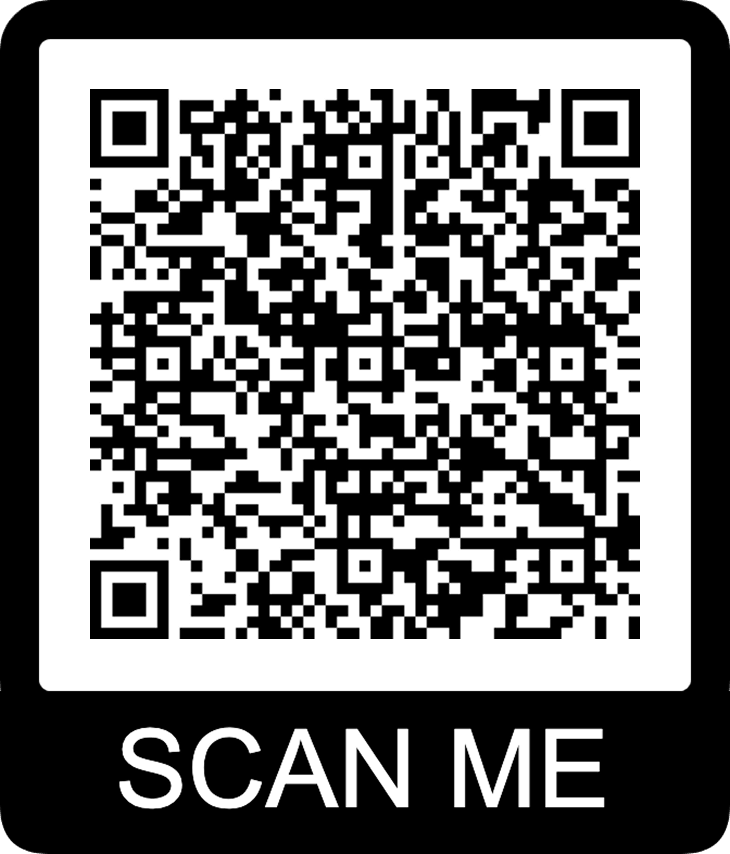
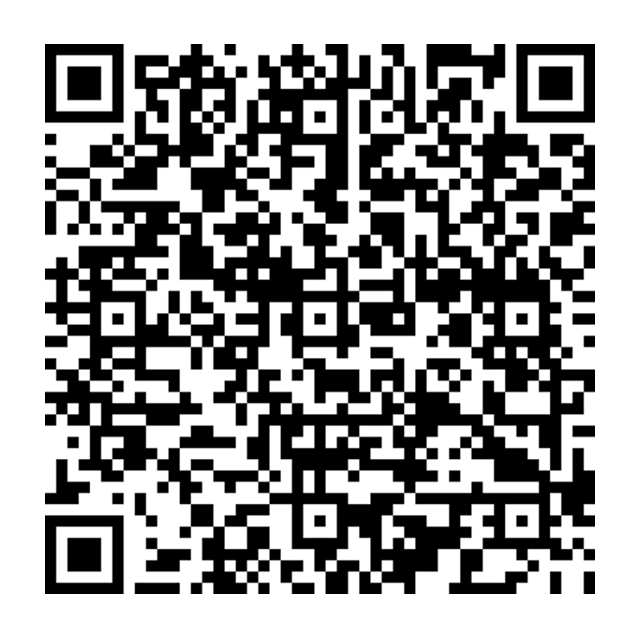
In this example, we crop a botanical garden QR code that visitors can scan to read a plant description. The source image places the code inside a thick black frame and adds large "SCAN ME" text below it. We set a 640-by-640 rectangular crop around the code, removing the frame and caption so the output contains only the QR code.
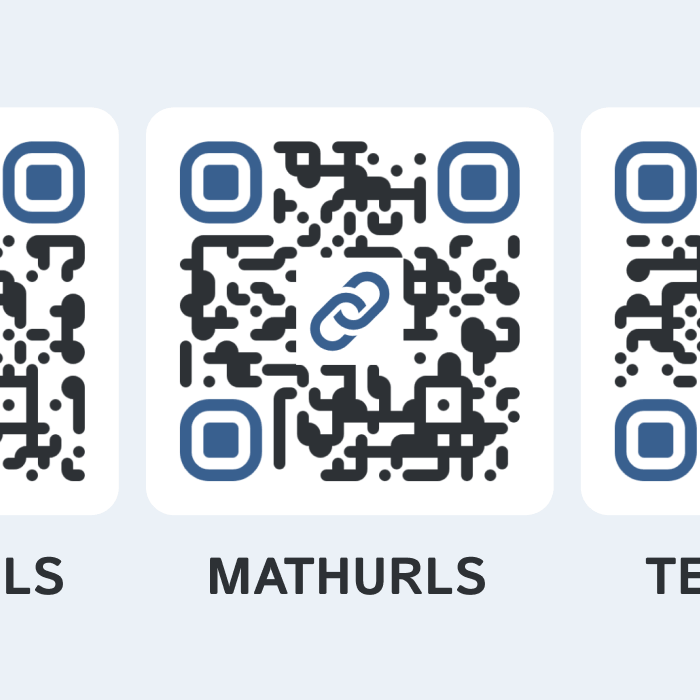
In this example, we upload a hurried screenshot of a website footer containing QR codes for several of our projects. The image includes clipped parts of neighboring QR codes on both sides of the central MathURLs code. We crop the center card to remove these fragments. The result is one clear QR code that is easier to scan.
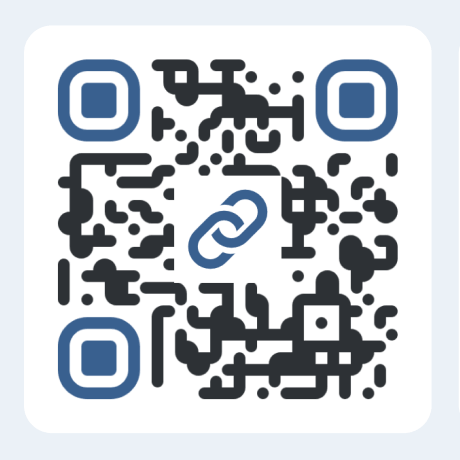
In this example, we apply a circular crop to a QR code containing a party decorator's phone number. We extend the 720×720 crop 40 pixels beyond every side of the source code so the full pattern and all three corner markers fit inside the circle. The extra canvas space is filled with white, while the outer corners remain transparent.
Read a QR code from an image and extract its contents.
Change the colors, size, and appearance of a QR code.
Place a custom logo or image in the center of a QR code.
Turn a QR code into a scalable SVG image.
Turn a QR code into a downloadable PNG file.
Create a QR code that links directly to a PDF document.
Create a QR code that lets customers leave a Google review.
Create a QR code that opens a restaurant's digital menu.
Create a QR code that opens a WhatsApp chat with a phone number.
Create a QR code that links directly to an Instagram profile.
Create a QR code that opens a YouTube video or channel.
Create a QR code that links to a Facebook page or profile.
Create a QR code that opens a TikTok profile or video.
Create a QR code that links to a LinkedIn profile or company page.
Create a QR code that opens a location in Google Maps.
Create a QR code containing event details, dates, and locations.
Create a QR code that opens a payment link or checkout page.
Create a QR code that links to an app in the App Store or Google Play.
Create a QR code that opens a Spotify song, album, or playlist.
Add a custom text label below a QR code, such as "Scan Me".
Surround a QR code with a customizable decorative frame.
Generate multiple QR codes at once from a list of text or URLs.
Arrange multiple QR codes on a printable sheet.
Test whether a QR code can be scanned and decoded correctly.
Subscribe to our updates. We'll let you know when we release new tools and features, and when we organize online workshops.
Enter your email here
We're Browserling – a friendly and fun cross-browser testing company powered by alien technology. At Browserling, our mission is to make people's lives easier, so we created this collection of QR code tools. Our tools have the simplest user interface that doesn't require advanced computer skills and they are used by millions of people every month. Behind the scenes, all QR tools are actually powered by our web developer tools that we created over the last couple of years. Check them out!