Quickly change the colors of an existing QR code. Upload a QR image in the tool below, then choose new pattern and background colors, and adjust the corner and logo colors as needed. The pattern can use a solid fill or a gradient. When the recolored version is ready, download the QR code as a PNG. Fast, free, and easy to use. Created with love by team Browserling.
Quickly change the colors of an existing QR code. Upload a QR image in the tool below, then choose new pattern and background colors, and adjust the corner and logo colors as needed. The pattern can use a solid fill or a gradient. When the recolored version is ready, download the QR code as a PNG. Fast, free, and easy to use. Created with love by team Browserling.

This online tool lets you change a QR code's colors. Replace a plain black-and-white design with a two-color gradient, highlight the corner markers and center logo with separate shades, or match the code to your company's brand colors. The tool leaves the encoded content intact, so scanning the result returns exactly the same data as scanning the original. Begin with the background and main pattern. Choose white or another background color, or make the background transparent. Apply one shade to the pattern, or select two colors for a gradient and adjust its direction with an angle in degrees. You can also change the shapes that form the pattern, choosing classic squares, rounded elements, circular dots, or classy styles. The corner settings let you choose the outer frame and inner center shapes independently. Enable custom corner colors to give these two parts different shades. You can also place a logo in the middle to indicate what the QR code contains. This can be a Wi-Fi symbol, a link, text, a contact, an email, an SMS, or a phone call. A separate checkbox allows you to color this symbol independently. Use the output size setting to set both width and height, add padding to keep the pattern away from the image edges, and select a recovery level to include extra error-correction data. This can help the code remain scannable if part of its pattern becomes scuffed or stained. QR-tastic!
This online tool lets you change a QR code's colors. Replace a plain black-and-white design with a two-color gradient, highlight the corner markers and center logo with separate shades, or match the code to your company's brand colors. The tool leaves the encoded content intact, so scanning the result returns exactly the same data as scanning the original. Begin with the background and main pattern. Choose white or another background color, or make the background transparent. Apply one shade to the pattern, or select two colors for a gradient and adjust its direction with an angle in degrees. You can also change the shapes that form the pattern, choosing classic squares, rounded elements, circular dots, or classy styles. The corner settings let you choose the outer frame and inner center shapes independently. Enable custom corner colors to give these two parts different shades. You can also place a logo in the middle to indicate what the QR code contains. This can be a Wi-Fi symbol, a link, text, a contact, an email, an SMS, or a phone call. A separate checkbox allows you to color this symbol independently. Use the output size setting to set both width and height, add padding to keep the pattern away from the image edges, and select a recovery level to include extra error-correction data. This can help the code remain scannable if part of its pattern becomes scuffed or stained. QR-tastic!
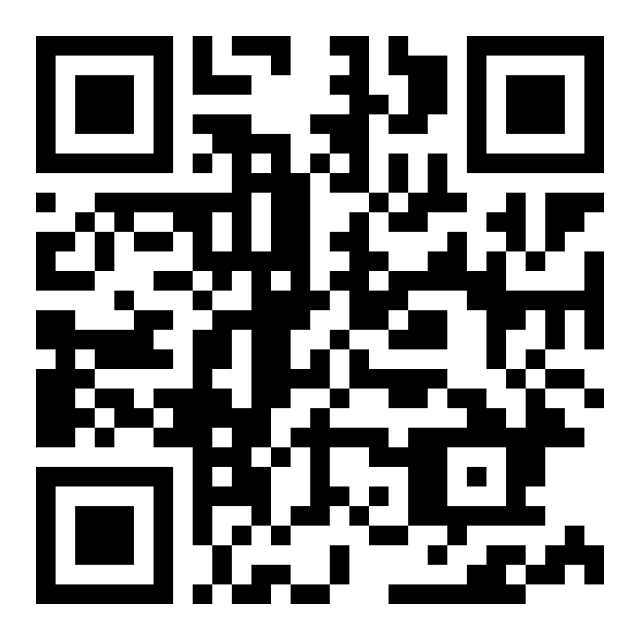
In this example, we change the black pattern in a QR code linking to Browserling's comic to a shade of blue. The square modules, corner shapes, white background, and image dimensions stay the same, so the color is the only visible change.

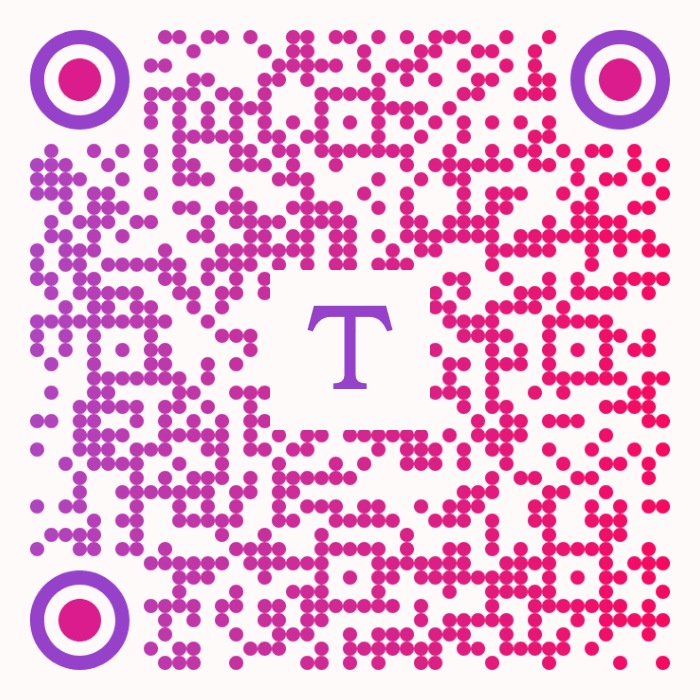
In this example, we turn a QR code with black squares on white into a bright, colorful image. A purple-to-pink gradient fills the circular modules, while purple corner rings surround pink centers. We give the background a subtle pink tint and add a purple T logo to show that the code contains a short text note with order pickup details.
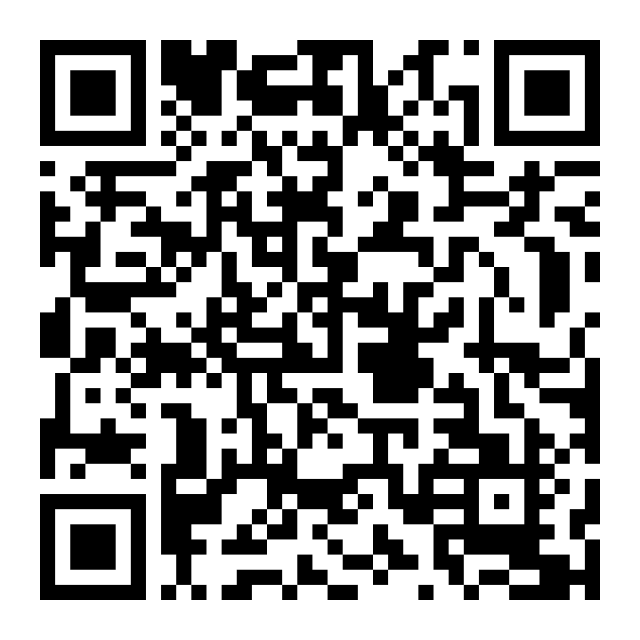
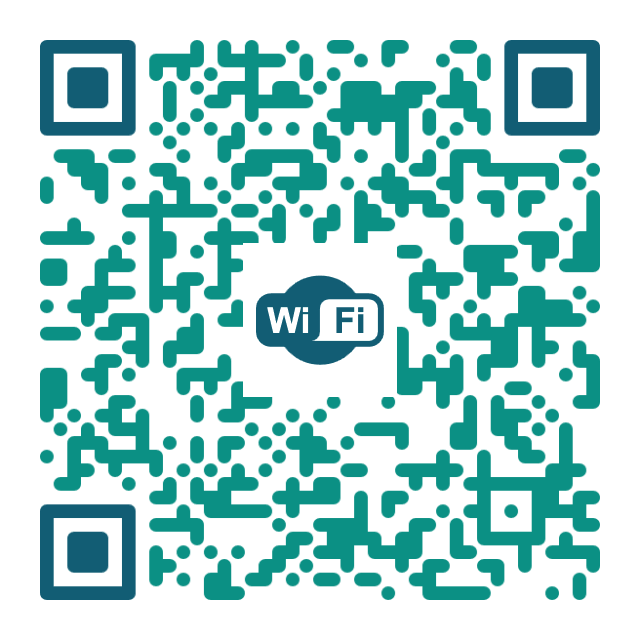
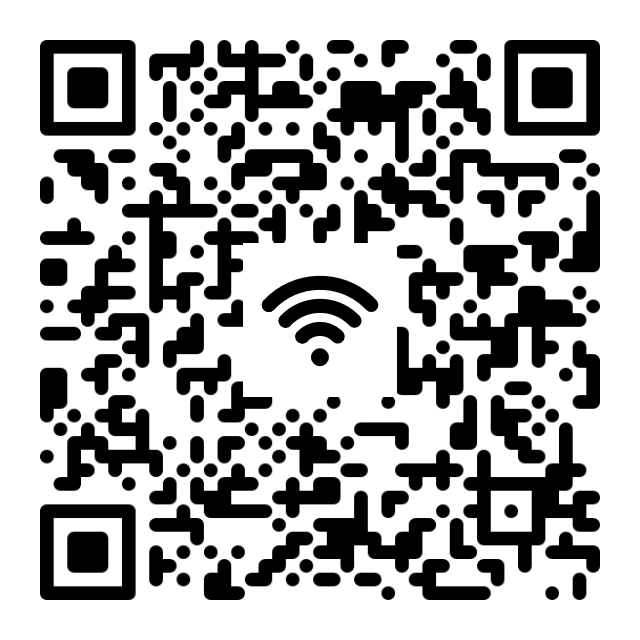
In this example, we change a colorful, transparent QR code for the Linden Nest Guest Wi-Fi network into a familiar black-on-white version. The white background makes the pattern easier to distinguish when the code is used as a sticker on a dark or patterned surface. We preserve the rounded modules and corner shapes, but replace the Wi-Fi badge with a recognizable signal icon.
Read a QR code from an image and extract its contents.
Change the colors, size, and appearance of a QR code.
Place a custom logo or image in the center of a QR code.
Turn a QR code into a scalable SVG image.
Turn a QR code into a downloadable PNG file.
Create a QR code that links directly to a PDF document.
Create a QR code that lets customers leave a Google review.
Create a QR code that opens a restaurant's digital menu.
Create a QR code that opens a WhatsApp chat with a phone number.
Create a QR code that links directly to an Instagram profile.
Create a QR code that opens a YouTube video or channel.
Create a QR code that links to a Facebook page or profile.
Create a QR code that opens a TikTok profile or video.
Create a QR code that links to a LinkedIn profile or company page.
Create a QR code that opens a location in Google Maps.
Create a QR code containing event details, dates, and locations.
Create a QR code that opens a payment link or checkout page.
Create a QR code that links to an app in the App Store or Google Play.
Create a QR code that opens a Spotify song, album, or playlist.
Add a custom text label below a QR code, such as "Scan Me".
Surround a QR code with a customizable decorative frame.
Generate multiple QR codes at once from a list of text or URLs.
Arrange multiple QR codes on a printable sheet.
Test whether a QR code can be scanned and decoded correctly.
Subscribe to our updates. We'll let you know when we release new tools and features, and when we organize online workshops.
Enter your email here
We're Browserling – a friendly and fun cross-browser testing company powered by alien technology. At Browserling, our mission is to make people's lives easier, so we created this collection of QR code tools. Our tools have the simplest user interface that doesn't require advanced computer skills and they are used by millions of people every month. Behind the scenes, all QR tools are actually powered by our web developer tools that we created over the last couple of years. Check them out!