Quickly create a Wi-Fi QR code for easy connection to a wireless network. Enter the network name, choose the security type, and specify the password and whether the network is hidden. Customize the pattern, colors, corners, size, padding, and damage resistance, then download the Wi-Fi QR code for homes, offices, hotels, cafes, or guest rooms. Fast, free, and easy to use. Created with love by team Browserling.
Quickly create a Wi-Fi QR code for easy connection to a wireless network. Enter the network name, choose the security type, and specify the password and whether the network is hidden. Customize the pattern, colors, corners, size, padding, and damage resistance, then download the Wi-Fi QR code for homes, offices, hotels, cafes, or guest rooms. Fast, free, and easy to use. Created with love by team Browserling.
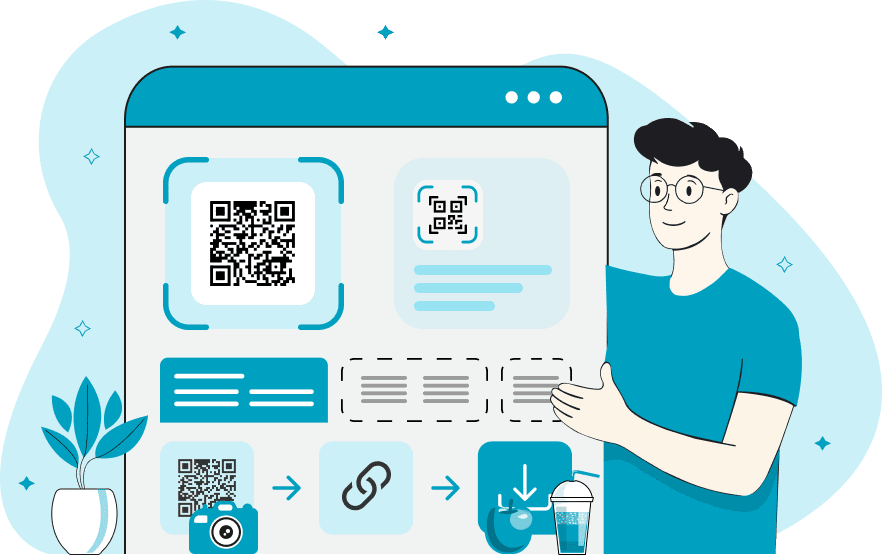
This online Wi-Fi QR code generator lets you create QR codes to share Wi-Fi network details. Instead of manually entering a network name and password, people can simply scan the code with a compatible smartphone and connect to the Wi-Fi network. This is especially useful for guest Wi-Fi in homes, hotels, cafes, restaurants, and offices, where visitors need quick, convenient internet access. To create a Wi-Fi QR code, enter the network name (SSID) and choose its security type. The tool supports WPA/WPA2, WPA3, older WEP security, and open networks that don't require a password. Next, enter the network password if one is required. If the Wi-Fi network is hidden from regular network lists, enable the Hidden Network option. The generator places these connection details inside the QR code, allowing supported devices to read them and offer to join the network. You can also customize the code's appearance to suit different purposes. Choose from several styles for the small QR dots and the three large corner markers. Set a background color and use either a single color or a two-color gradient for the QR pattern. The corner markers can also have their own colors. To make the code clearly identifiable as a Wi-Fi QR code, add a Wi-Fi logo in the center. The icon can follow the QR pattern colors or use its own color. You can also adjust the PNG image size and add space around the code. For better reliability, choose a damage-resistance level that helps the QR code remain readable even if part of it gets scratched or covered. Once the design is ready, download the QR code as a PNG image and use it on printed signs, stickers, table cards, or digital materials. For example, hotels can place Wi-Fi stickers in guest rooms, and cafes can display QR codes on tables so visitors can connect without asking for a password. QR-tastic!
This online Wi-Fi QR code generator lets you create QR codes to share Wi-Fi network details. Instead of manually entering a network name and password, people can simply scan the code with a compatible smartphone and connect to the Wi-Fi network. This is especially useful for guest Wi-Fi in homes, hotels, cafes, restaurants, and offices, where visitors need quick, convenient internet access. To create a Wi-Fi QR code, enter the network name (SSID) and choose its security type. The tool supports WPA/WPA2, WPA3, older WEP security, and open networks that don't require a password. Next, enter the network password if one is required. If the Wi-Fi network is hidden from regular network lists, enable the Hidden Network option. The generator places these connection details inside the QR code, allowing supported devices to read them and offer to join the network. You can also customize the code's appearance to suit different purposes. Choose from several styles for the small QR dots and the three large corner markers. Set a background color and use either a single color or a two-color gradient for the QR pattern. The corner markers can also have their own colors. To make the code clearly identifiable as a Wi-Fi QR code, add a Wi-Fi logo in the center. The icon can follow the QR pattern colors or use its own color. You can also adjust the PNG image size and add space around the code. For better reliability, choose a damage-resistance level that helps the QR code remain readable even if part of it gets scratched or covered. Once the design is ready, download the QR code as a PNG image and use it on printed signs, stickers, table cards, or digital materials. For example, hotels can place Wi-Fi stickers in guest rooms, and cafes can display QR codes on tables so visitors can connect without asking for a password. QR-tastic!
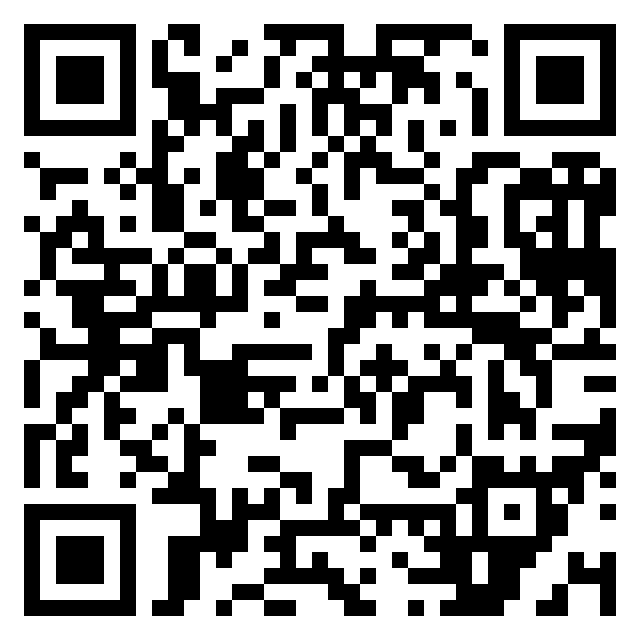
In this example, we generate a Wi-Fi QR code for Birch & Bramble Guesthouse using WPA/WPA2 security and a guest access password. We keep the design simple, with classic black squares, square-corner markers, and a white background. The resulting QR code can be printed on welcome cards and placed in guest rooms, allowing visitors to join the wireless network with a quick scan.
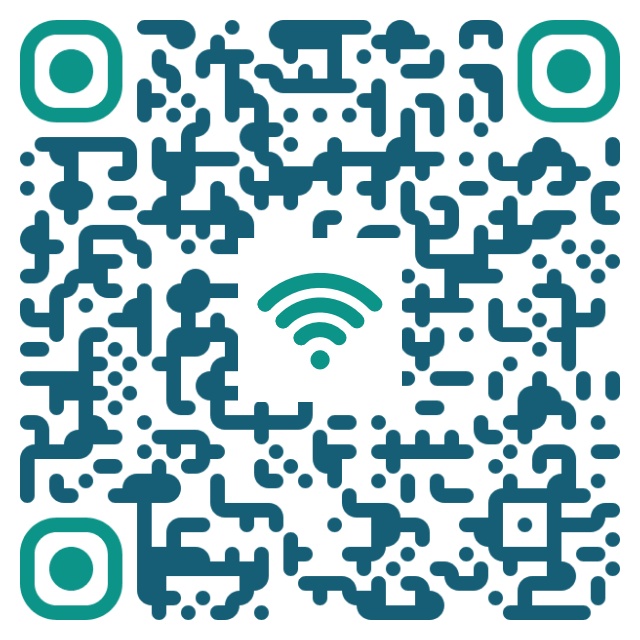
In this example, we create a QR code for the hidden Atlas Design Studio Wi-Fi network, protected by WPA3 security. We use extra-rounded modules in deep teal, with a lighter teal color for the corner markers and a Wi-Fi signal icon in the center. The code also uses enhanced damage resistance to help maintain readability if part of the pattern becomes damaged. The finished QR code can be displayed in the studio to simplify network access.
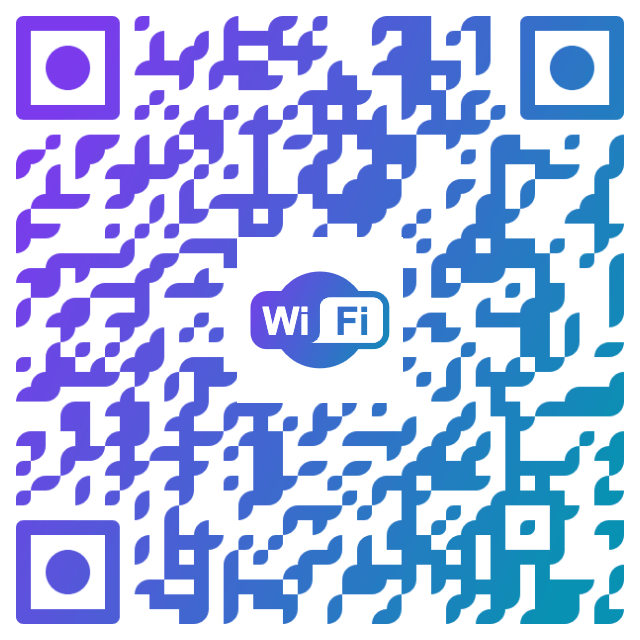
In this example, we generate a QR code for Canopy Market Free WiFi, an open network that requires no password. To give the code a colorful appearance, we choose a violet-to-cyan gradient, classy rounded modules, and rounded corner markers with circular centers. We also place a Wi-Fi badge in the middle and choose maximum damage resistance so the QR code stays scannable on stickers in public places, even after wear and tear.
Read a QR code from an image and extract its contents.
Change the colors, size, and appearance of a QR code.
Place a custom logo or image in the center of a QR code.
Turn a QR code into a scalable SVG image.
Turn a QR code into a downloadable PNG file.
Create a QR code that links directly to a PDF document.
Create a QR code that lets customers leave a Google review.
Create a QR code that opens a restaurant's digital menu.
Create a QR code that opens a WhatsApp chat with a phone number.
Create a QR code that links directly to an Instagram profile.
Create a QR code that opens a YouTube video or channel.
Create a QR code that links to a Facebook page or profile.
Create a QR code that opens a TikTok profile or video.
Create a QR code that links to a LinkedIn profile or company page.
Create a QR code that opens a location in Google Maps.
Create a QR code containing event details, dates, and locations.
Create a QR code that opens a payment link or checkout page.
Create a QR code that links to an app in the App Store or Google Play.
Create a QR code that opens a Spotify song, album, or playlist.
Add a custom text label below a QR code, such as "Scan Me".
Surround a QR code with a customizable decorative frame.
Generate multiple QR codes at once from a list of text or URLs.
Arrange multiple QR codes on a printable sheet.
Test whether a QR code can be scanned and decoded correctly.
Subscribe to our updates. We'll let you know when we release new tools and features, and when we organize online workshops.
Enter your email here
We're Browserling – a friendly and fun cross-browser testing company powered by alien technology. At Browserling, our mission is to make people's lives easier, so we created this collection of QR code tools. Our tools have the simplest user interface that doesn't require advanced computer skills and they are used by millions of people every month. Behind the scenes, all QR tools are actually powered by our web developer tools that we created over the last couple of years. Check them out!